HDRP Basics

Hi
I Want to share the basics of the HDRP settings tutorials and tips here
The main purpose is the workflow to comes from Built-in pipeline to the HDRP

I will update the topic

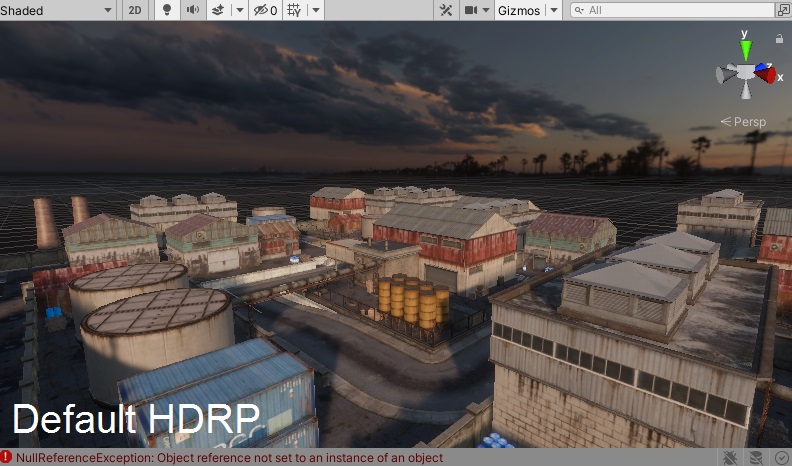
Built-In <=> HDRP

HDRP Default Profile

Here you can find the default HDRP volume profile that applied to your all scenes:
Menu : Edit->Project Settings ->Default HDRP Settings


Note: My good looking default profile has been attached to this post

HDRP Complete Profile Guide

In this video you will learn how to set up most HDRP volume profile effects :

https://www.youtube.com/watch?v=3Qrfop6Bjik

HDRP quick start scene light setup:

Unity 2021.2 HDRP Realtime GI

HDRP Lighting Box LIt

7104130–846985–HDRP_Default_Profile.unitypackage (3.36 KB)

5 Likes

Great info, and thank you for sharing with the community. I have one suggestion. One important thing to explain to someone that is not familiar with the HDRP is the way the settings are saved in various project assets. Because they may use the same settings assets in multiple scenes, then apply changes in one scene and then mess up all the other scenes.

Those save options that are located in the volume profile can be shared across multiple scenes witch may or may not be what one wants.

Also there are other settings that globally control the project, you need to show where those are.

1 Like

I will update the topic … over the time

Here you can find the default HDRP volume profile that applied to your all scenes:
Menu : Edit->Project ->Settings Default HDRP Settings

Note: My good looking default profile has been attached to this post


7104130–846985–HDRP_Default_Profile.unitypackage (3.36 KB)

Doesn’t look good to me.

2 Likes

2 videos about HDRP Realtime GI on unity 2021.2:
Free assets used : Asset 1 - Asset 2

How to use Enlighten Realtime GI in the HDRP:

  1. You must use latest unity version (i have used 2021.2b2)

  2. Your objects must be static (as baked mode)

  3. Your light sources must be in Realtime mode
    7272562--878362--rgi1.jpg

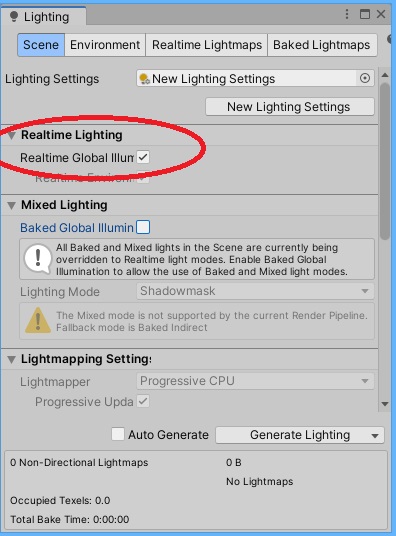
  4. Now go to Window->Rendering->Lighting from top menu and enable Realtime GI

5.In the lightmap settings section you can choose lightmap parameters quality preset. Always use very-low preset for large scenes to bake in the fastest possible time. Use other settings for small scenes…

Realtime GI notes:

  1. You can move direct lights sources(point ,spot ,directional ) after baking the realtime GI…
  2. You can not move static models: with emissive materials. But you can switch on/off the materials into the realtime GI mode in emissive settings without build the lighting again
    7272562--878374--rgi5.jpg
  3. You can add any new direct light sources into your scene without build lighting again. The first build lighting is woks on any new direct light sources added. As i said above, you can also move them

UnityLighting, how long does it take for you to bake?

Few seconds using Ryzen 5 3600xt with very low preset
1 minute and 30 seconds using High preset
7273552--878536--Webp.net-gifmaker (1).gif

2 Likes

Gif Comparison between Enlighten realtime GI quality settings:
7282684--880315--Webp.net-gifmaker (3).gif
7282684--880312--Webp.net-gifmaker (2).gif

1 Like

New SRP lens flare tutorials will be available tomorrow:


Download flare images