[Released] Auto-ASMDEF (Single-Click, project wide assembly definition creator)

Asset Store
Short manual explaining what, how and why

Auto-ASMDEF will set up assembly definition files for your entire project(or selected folders) in a fast, and extremely convenient way.
Assembly definitions work really well as long as you don’t have to include 3rd party assets that don’t utilize them. Setting up one asset isn’t so bad(unless it has a weird folder structure, usually with multiple Editor folders scattered around), but when you have like 30 - it can be a day’s worth of work,
and you spend most of that time waiting for Unity to recompile, it’s an absolute nightmare - so I came up with a solution for this specific problem.

We don’t care about which assembly they end up in, we don’t need nor want to know what’s going on in the background, we just don’t want to recompile stuff we don’t have to and maybe we want to get access to that code - but that’s it. Auto-ASMDEF does exactly that. After essentially a click of a button you end up with an ASMDEF setup that resembles Unity’s special folders structure, like so
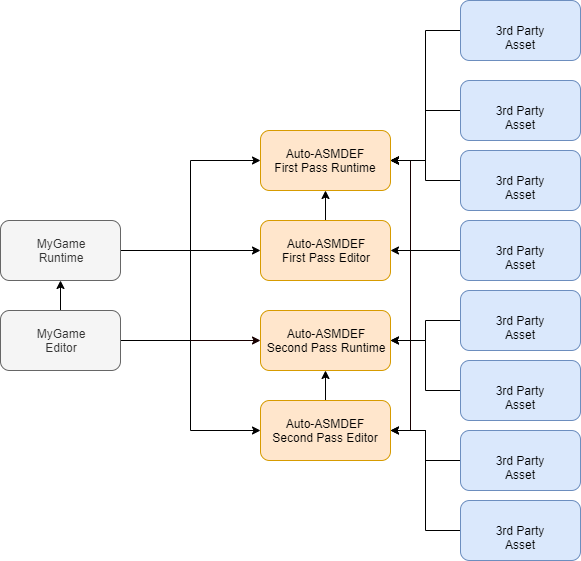
What was in Unity’s FirstPassRuntime assembly will end up in Auto-ASMDEF-FirstPassRuntime assembly, what was in FirstPassEditor will end up in Auto-ASMDEF-FirstPassEditor, and so on - meaning this is completely backward-compatible, you don’t have to set up your project in a special way, put your assets in special folders or anything like that. If it worked before Auto-ASMDEF then it’ll work after that as well - except it will compile faster.
This also means referencing those assemblies is simple and straightforward(since it won’t clutter your project with ASMDEF files, there is only 4 at most(depending on your project, if you only have scripts in the FirstPass then it’ll only create one)). In fact you don’t even have to reference them manually, if everything is in a custom assembly except your own code then your code will be compiled after those by default - but it’s a good practice to do so.

And of course if anything goes wrong(like you forgot to reference an assembly you want to access from code, or maybe just imported another asset) you can also revert the changes with a click of a button.

I know a lot of people like to follow videos instead so I made one, going into detail about what ASMDEF files are to begin with, following with a step by step guide about how to use Auto-ASMDEF - I’m not used to talking in videos and it shows, if you prefer text over voice let me know and I’ll make another one

Updated(1.2) setup guide
Original setup guide(I’ll leave this here as I went into detail about what asmdef files are, why you should use them and what not)

Requires 2019.2(as it relies on assembly reference files)

2 Likes

Hello,

Purchased today - this seems like a pretty useful asset as my project is quite big now. Generally is working, however a couple of things causing an issue for me:

  • It doesn’t seem to search / look deeper than the root folder depth? I have nested folders that also have assets / scripts inside… it misses all of those i.e. (/Assets/DownloadedAssets/FolderName/Etc.)
  • For some folders that have other sub-folders it’s unable to search and hook them up too. Like an editor folder that has sub-folders… as some assets do (strangely).

Be great if you can investigate and push a fix for the above, if you see that too.

// WildStyle

It’s also skipping other folders in the root that have scripts, and not creating definition files for them. So at the minute this asset seems to have some bug / issue, unless I’m doing something wrong…

// WildStyle

This sounds really strange, it doesn’t care about path names, it checks the assembly the file currently is in(so Assets\sub0\Editor\sub1\sub2\someEditorScript.cs should be seen as an editor script).
I just replied to your email, I’m not sure what could be the issue yet but we’ll sort it out.

1 Like

Hi, thanks for this asset.

I’m facing an issue where I’m looking to revert created asmdef files. However, I’m doing this after deleting a folder that was in the project. Now, it’s trying to search for the asmref files in the deleted folder and throwing errors.

As a result, its stuck here not allowing me to regenerate the asmdef files.

5961512--639170--upload_2020-6-10_13-7-37.png

Also, can you add an option to rescan the folders? Everytime I need to close and reopen the tab for it to repopulate the FolderHierarchy area. And would it be possible to add the Select/Deselect All option to “Always Referenced Assemblies”.

Also, what’s the correct workflow when adding new folders/asset store packages after you’ve run the tool once? There seems to be no way to update the asmdefs, just Revert.

@mutp Sure, manual refresh makes sense, thanks for bringing that up!
I’ll look into the deleted files issue today, files should be safe to delete(as it checks whether they exist or not when it tries to revert), but if you manually remove the amsdef files the asmref files will still be there pointing to nothing basically, I’m not sure how Unity handles this - but I’ll look into it and get back to you. For the time being you can manually remove the created database and the created asmref files (you can search for *.asmref in the project, and the database is in a Resources folder next to the editor script(sorry, I’m not in front of my main rig right now but it’s called “something database” I believe - it’s just a scriptable object so you can verify if you found the right one or not, it contains session data, and references to the created files. If you remove the database asset it’ll be created again and you can restart the process. Or you can just remove the entire folder and reimport the asset.

Also, what’s the correct workflow when adding new folders/asset store packages after you’ve run the tool once? There seems to be no way to update the asmdefs, just Revert.

Yes, after folder structure change you should hit revert and then let it set it up again - creating new files in directories with asmref files already in is perfectly good though, assets rarely change their structure at all, it shouldn’t be an issue.

The way use it in my project is basically like this

  • I have a folder named _game, with both runtime and editor scripts, in the folder hierarchy window I exclude it from the selection
  • I have random 3rd party stuff everywhere else, everything is included in the folder hierarchy window, I don’t change the always included assemblies at all, or anything else at all

This works for me really well, because I don’t have to worry about manually referencing anything, my _game folder will always be compiled after the created assemblies and their structure works because the asset sets up the connection properly with the default settings(this wasn’t the case at release, when I made the video, then setting up references had to be done manually - that’s still an option, but really isn’t necessary at all). Absolute worst-case scenario if I either add a new asset or an update changes the folder structure, then I hit revert, wait for it to recompile, then hit start process again and it’s done.

1 Like

Thanks for responding so quickly.

Yup, that’s exactly how I’m using it as well. I just ran into the issue where I deleted a 3rd party folder from my project and then tried to Revert. It kept throwing an error that it can’t find the deleted folders asmref.

Eventually I was able to figure out the ScriptableObject’s location, and delete that 3rd party folder path from the list. Then, Revert and regenerate the asmdefs/asmrefs.

@mutp I just uploaded the new version, I fixed the errors when files are missing(apparently I had a mental breakdown at the time, I did check if the file exists, however I proceeded to delete it outside of the if body, completely disregarding the result lol).
Also there is a new Rescan button in the Debug settings tab(I decided to put it in a submenu as it runs through the entire project looking for scripts, pressing it accidentally would be annoying - but you can keep the tab open in case you need to rescan multiple times).

And here it is in all its glory - if you don’t want to wait until it gets approved by Unity let me know and I’ll send you the update directly.
k8izek

1 Like

Sure, let me send you an email and you can send it to me there.

When I revert the asmdef process, it doesn’t clear the references built up in the TSD.AsmdefManagement.AsmdefManagerDatabase scriptable object.

Yes, it will overwrite the data when it creates new asmdef\asmref files. The only reason I keep track of the created files is to easily remove them later, clearing the database would free up like a few kb of disk space and that’s it.

1 Like

Be very careful that you pay attention when you initially set up where the asmdef files “root/home” is and do not move it. Always, always make a backup before attempting any sort of major change!

I goofed up and didn’t set the folder to a subdirectory within Assets, I had set the Assets folder itself as the root. Then, not really realizing what that I did that, I noticed the new files in the Assets root, so I moved them into an “AutoASMDEF” folder. Then I figured it is probably best to simply start over and make sure I was doing it correctly, so I hit the revert button. ! Big Mistake !

I didn’t realize or think of the fact that those files were not in their original locations. (I had not used this asset since I bought it last year and thought I remembered the proper step, so it’s mostly my own fault)

Not but a few seconds after hitting revert, I was looking at Rider and my open files started closing left and right, my whole project tree started depopulating… my entire assets folder (95% of what was in there) was suddenly wiped out. All that was left was the folder structure and some random files/metas that were not included in any ASMDEF’s, I believe. But even more strange is it also wiped out my working directory which I know for sure was not included in the initial asmdef definition.

It was a direct deletion, too. Nothing in the recycling bin. Frantically trying to hit Ctrl + z in Windows explorer, etc. Luckily I am religious about backups, otherwise, that would have been it.

I guess I must not properly understand how AutoASMDEF works under the hood or asmdef in general. I was under the impression that the asmdef essentially wraps the files within the specific folder, but the original files were still kept intact?

It took the majority of the day, but I was able to get things restored, fix a bunch of broken references and serialization, etc, but everything is back to as it was prior now, and I made 3 new separate backups and put them in different locations, just in case…

That said, I would like to very highly request that some additional safety checks be put in place. Perhaps, save in a config file outside of the Assets folder, the current hierarchy/location of the initial asmdef files upon creating them and then if things are not in the same place as they were when it was first set up/created, don’t allow the revert! I definitely do not want anyone else to have to deal with the sinking feel that takes over your whole body as your files disappear because you mistakenly, and out of pure habit, move a few files into a folder

@MostHated Moving the files wasn’t the problem, it checks if the file exists and doesn’t delete randomly anything.
You set the base folder to the Application.datapath(~Assets/), and then when you hit revert it deleted the contents of the base folder, which in this case was set to the Assets folder. This folder should only ever contain the automatically created asmdef files, because when you hit revert everything in the folder will be deleted.
I’m not sure if you didn’t get my email(I wrote about an hour before your post, if that’s the case let me know, I can send the update right away).

Moving forward the base folder selection is going to be automatically done in the background to avoid situations like this, and also the files will be referenced by GUID, not just by absolute path(so moving them around is not going to be a problem). But again, moving files around wasn’t the problem, if a file isn’t found in the stored path then it’s going to skip it.

1 Like

I just replied to the email. That’s my bad. I see the time showing 2 hours ago, but I didn’t receive the notification that I had a new email until about 10-15 minutes ago. Today has just not been my day, it seems, lol.

I would definitely appreciate if you could send me over the updated file. I very much would like to use this, but I was too worried to try it again just yet. :stuck_out_tongue:

@MostHated - Ahh I see. I just sent an email with the update, let me know how it went!

So I just submitted 1.2, with some major improvements in the background and also simplified the workflow.

  • Everything is GUID based now, meaning you can move, remove, rename files\paths without losing track of them.
  • The creation of asmdef file holder folder is done automatically in the background(it creates a folder named AutoASMDEF in the Assets folder, if one exists(and it’s empty) it’s going to use that one, if one exists but isn’t empty it’s going to create a new one with a number suffix)
  • Hitting revert won’t result in manually created file removal, it’ll remove the created asmref and asmdef files, and will only remove the created folders if they are empty(so if you put anything in the same directory the directory will be skipped completely), this should prevent any accidental file removal due to user error
  • The new data currently coexists with the old, meaning you can safely update the asset without hitting revert before. This results in a bigger database file for now, in a couple of months I’ll remove the old data completely but for compatibility reasons I decided to leave it here(and it’s like <10MB in a real project anyway).
2 Likes

For anyone else reading this… buy this asset.

Seriously, it’s great.

Should be on front page of Unity Asset Store and cost way more in my opinion. It has saved me literally 1000+ hours of work across projects.

1 Like

Just a quick note, whenever I revert the asmdef, the app window always ends up thinking it’s still there and shows the button to revert, even if the autocreated autoasmdef folder doesn’t exist anymore.

One other thing that might be a nice additional feature is some performance metric tracking. I came across this just a few minutes ago and thought that it seemed like it might be nice to have some similar features added to the asset to try and maybe compare before and after applying the ASMDEF, or to help in deciding which ones to add and which not to.

@MostHated It’s not looking for the created files but a database file that keeps track of session data and what not - so if you manually delete the created .asmdef files it won’t change the state(and the .asmref files are most likely still there, and removing these by hand would be by far the most time consuming). Or did you experience this after hitting revert?

A timer is a nice idea, but I would advise to always reference everything. You only have to compile these once, setting up the references by hand is rarely worth the effort. The youtube guide is serviceable but outdated, in short

  • in the folder hierarch you should deselect the folder you with your scripts(the ones you are actively working on, this is usually completely separated from 3rd party code)
  • select every other folder
  • leave the referenced assemblies at default(~everything should be selected)

By using it this way your references will work 100%, and you only have to wait for longer compilation once, for the very first time. I’m going to make a new tutorial but really it’s that simple now, just remove the checkbox from the folder with your scripts and hit start process. This way that folder will be compiled after the assemblies, so when you change anything in your folder it won’t recompile the assemblies.

PS I’m sorry for the late reply, I’m usually fast to respond but a lot of personal stuff came up as of late and usually by the end of the day I barely had the mental capacity to breathe lol.