The Great Grass Dilemma

Hi all, apologies for the long post but I want to get this discussion as complete as possible for the sake of being productive. For the past several days I’ve spent like 90% of my waking hours trying to nail down a solid approach to this issue but everything I try just seems to come with it’s own set of problems and it’s hard to see a clean way to accomplish what I want here. The problem is with grass.

The Goal

I’ve been working on this exterior environment for a fantasy/sci fi game that I’m building and I’m aiming for a somewhat realistic artstyle. My main point of reference was screenshots from Final Fantasy 15, specifically this image:

So I started looking into grass. Quickly I realized that there were limitations within Unity’s Terrain system which could hinder the look I wanted to get.

Base Terrain

After I prototyped the layout of my level, I added a terrain and started sculpting. The first results were horrendous because I only used a circle brush and made really smooth, ugly hills to act as mountains. But that’s on me. I did more research and got the new 2018 Terrain tool extension thing from Unity which has hotkeys for brushes and mountain shapes, as well as erosion tools which really helped me get that mountainous feel. As of today, I’m working with a base terrain that looks like this:

And here’s the area I’ll be showing later on that I’m trying to work on:

I’m happy with the tools I have for sculpting, but I’m a little worried about the ground textures and mountain ranges not looking how I want them to. I have a feeling the texture really impacts how the ground looks with grass, but I’ve tried dozens of different textures from Textures.com and some of them just really don’t look great when they’re tiled on this scale–unfortunately they’re not very high res so I can’t scale them up much further, but regardless that’s a somewhat different problem entirely. Just thought I’d mention it in case anyone thinks this is what I should focus on. In the meantime, I went to work on grass.

Unity Terrain Grass

My first approach was to use Unity’s Terrain “Grass Texture” tool, which just asks for a texture and lets you paint on planes. So I made my own grass texture and placed it in. But then a problem appeared:
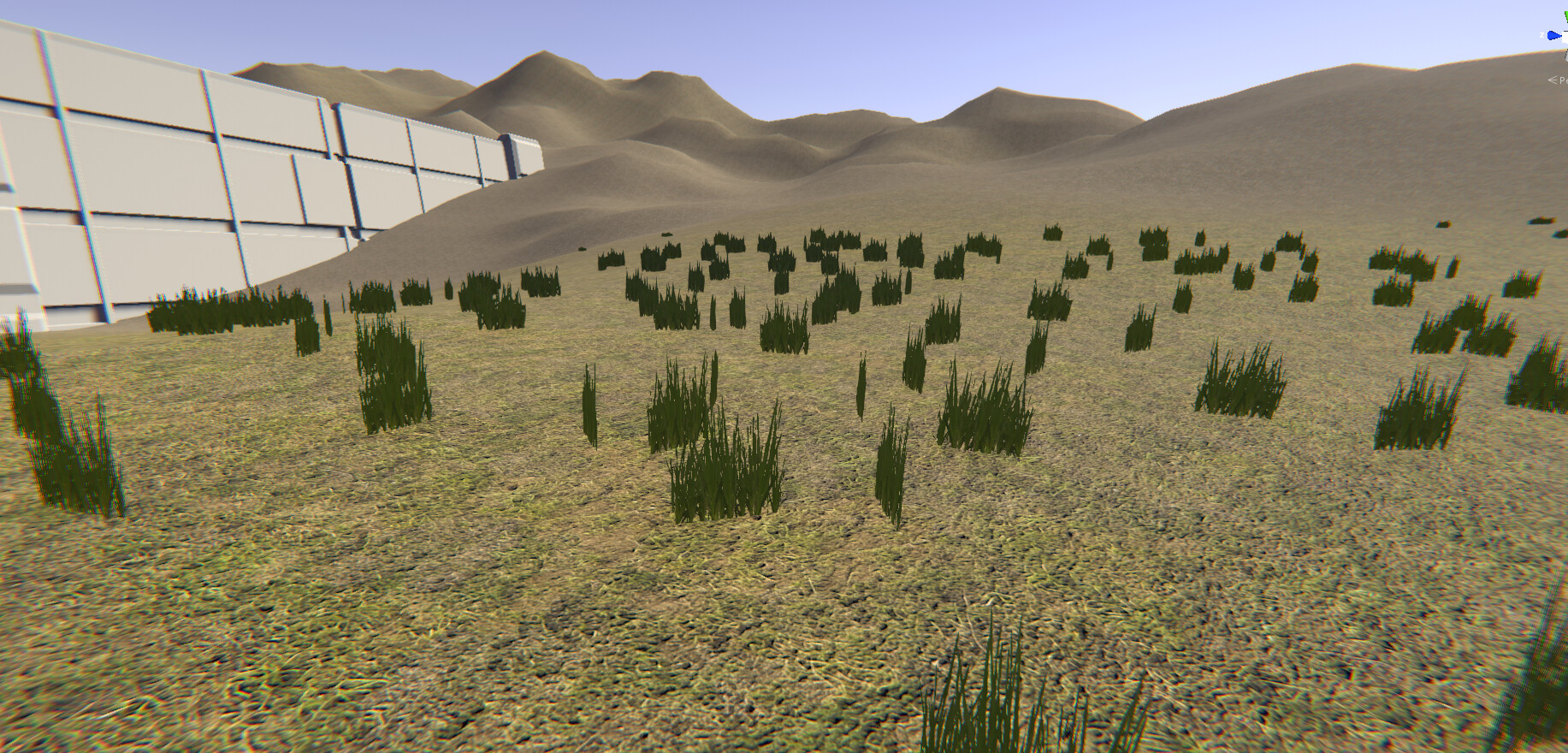
The grass amount was coming in very sparse like this. There’s no way I could match the coverage of something like FFXV if this was the shortest distance grass can come in. So I tried to trick it: I added another grass object which was actually the same texture, so that I could add more of it in the same area. And I got this:

Clearly this wasn’t going to cut it either. No pun intended.

After adding a third grass texture I actually reached the limit of density for that area. So was that it? Did I just have to stick with individual obvious grass planes and hope that it’ll work out when I flesh out the asset library? No - I had to increase the density. I looked into it and found the detail mesh options in the terrain settings. I turned “Detail Resolution” up to max and got something like this (just an approximation because it’s hard to get my old settings back):
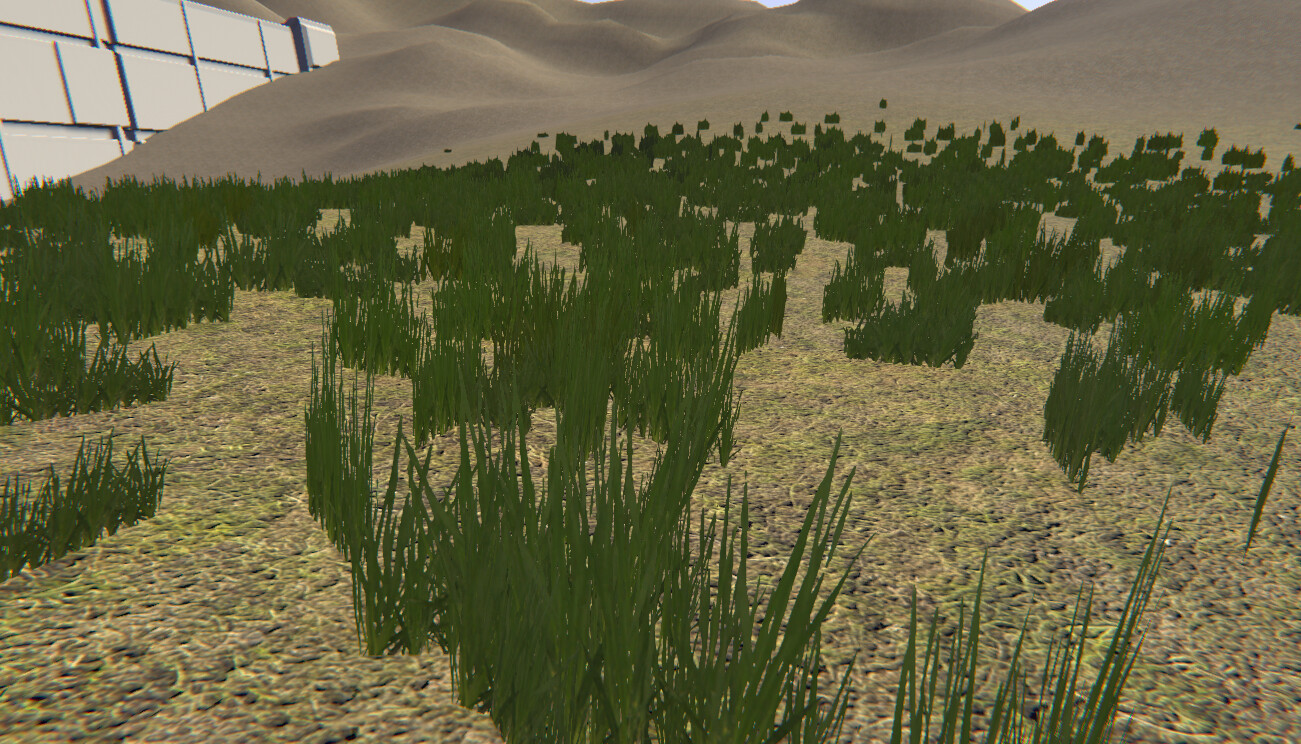
Not enough for me. And considering that’s still only grass, it would be impossible to add other small details like flowers or plants using this system. So I had to try another method.

Everything is a Tree

I came across this post which suggested a new method for painting grass on terrains–one that “looks better”. I tried it out. The idea is to make a grass prefab patch and then use the tree editor to place it in. Surprisingly, it worked pretty well. I made a grass patch in Blender that looked like this:

Then I added my own custom shader which gave it wind (trees don’t use wind on the default shaders unless their vertex colors are set properly). I also added a ton of features during this process to improve the color of the grass, such as desaturation, overbright to make it lighter/ignore shadows, set the render order to avoid nasty AO artifacts, etc. I ended up with it looking like this, using that same texture from before:
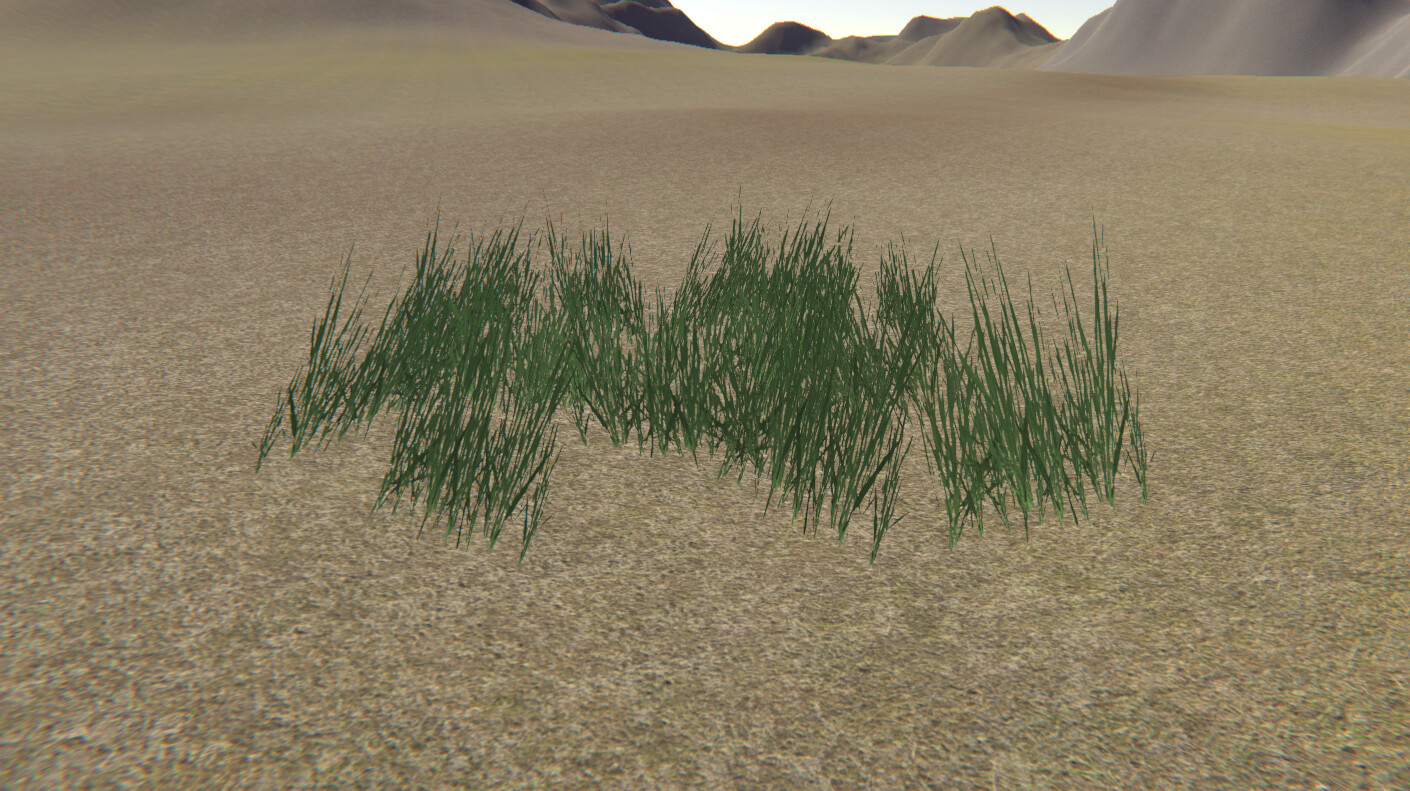
I added an LOD group (trees only get billboarded if they are made with tree creator, this is the SpeedTree approach which just uses Unity’s LOD group to cull at a distance). Then I started painting, getting results like this:

The difference was night and day–trees could be painted at much higher density, and adding more variations of grass actually allowed trees to be completely overlapped, with a custom density for each group that you paint in. So if you keep adding new tree duplicates you can have potentially infinite density of any combination of meshes you want. So great, problem solved, right?

My performance has more than halfed, and that’s just while standing still. With this method I lose about 30FPS for an area of this density, and that’s only with grass, not even counting other vegetation types such as flowers or actual trees. Reducing the LOD distance helped a little but obviously I can’t be reducing it too much or else it becomes an obvious fade. This is even after I disabled shadows and motion vectors for the prefab.

And it makes sense why this would happen–each patch I made is being rendered individually with it’s own LOD group. Unlike the Terrain grass, it’s not combing patches into larger meshes that are easier to render, it’s drawing each individual one and also doing LOD distance calculations for each patch, which must be hard on the processor. So with this method I can get the density and color customization that I want, but I’m losing performance because of that. I don’t want to be limited by grass before I even add the rest of assets or have a solid grasp on enemy count per area etc. So this wasn’t going to fly either.

Back to Terrain Grass

In order to get more grass density, I had to think about how the patches would behave. If my terrain were smaller then I might have more points of grass per patch, but I wasn’t about to just throw away my terrain to rebuild it in chunks. Unity’s neighbour tool is nice, but it only lets you add new terrains, not split an existing one into neighbours. So I looked up an Editor script online and ran it, splitting my terrain into 4 chunks of size 2000x2500 each. I set the grass resolution to max on all of them and I was actually able to increase density further. Now I was getting results like this:

Okay, that’s a lot more grass than before. But I had to make sacrifices: this is already 3 layers of the same type of grass, since an individual one still wasn’t enough. If I go all out and push layers to the max I get this:

I suppose that’s a reasonable coverage but now I have to paint over 5+ times to achieve this. Also, there are problems with the way the grass is placed and rendered that bug me. All of the grass is sticking up the same way and is placed somewhat evenly apart, at least evenly enough that I can see the individual grass places. The color is also an issue, I don’t have all the neat tricks my shader could provide so I get these green blobs, even tweaking the color to try and compensate it still just seems way too saturated and there’s no way to adjust it. I also don’t like how it looks at a distance, it should be a cutout texture yet the grass places look really square and blocky in the distance, as though the aliasing or something is just not making them less visible. Finally, the coverage is somewhat reasonable but for art’s sake I’d at least like the option to add more density in certain areas if needbe–say for flowers or plants or something.

So in the end, I’m back to where I started with no clue how to proceed with grass. Both methods have issues, and I can’t see any good way to get the look I want.

Thoughts

This is more of a technical question, but ultimately the method I go with should be driven by how it looks in the end assuming it performs well. I’m well aware that other aspects of the ground such as rocks, trees, logs, etc will improve the look. I’m also aware that variations of grass height and other flowers will help as well, for instance I’ve tried adding variations with Unity’s default terrain grass here:
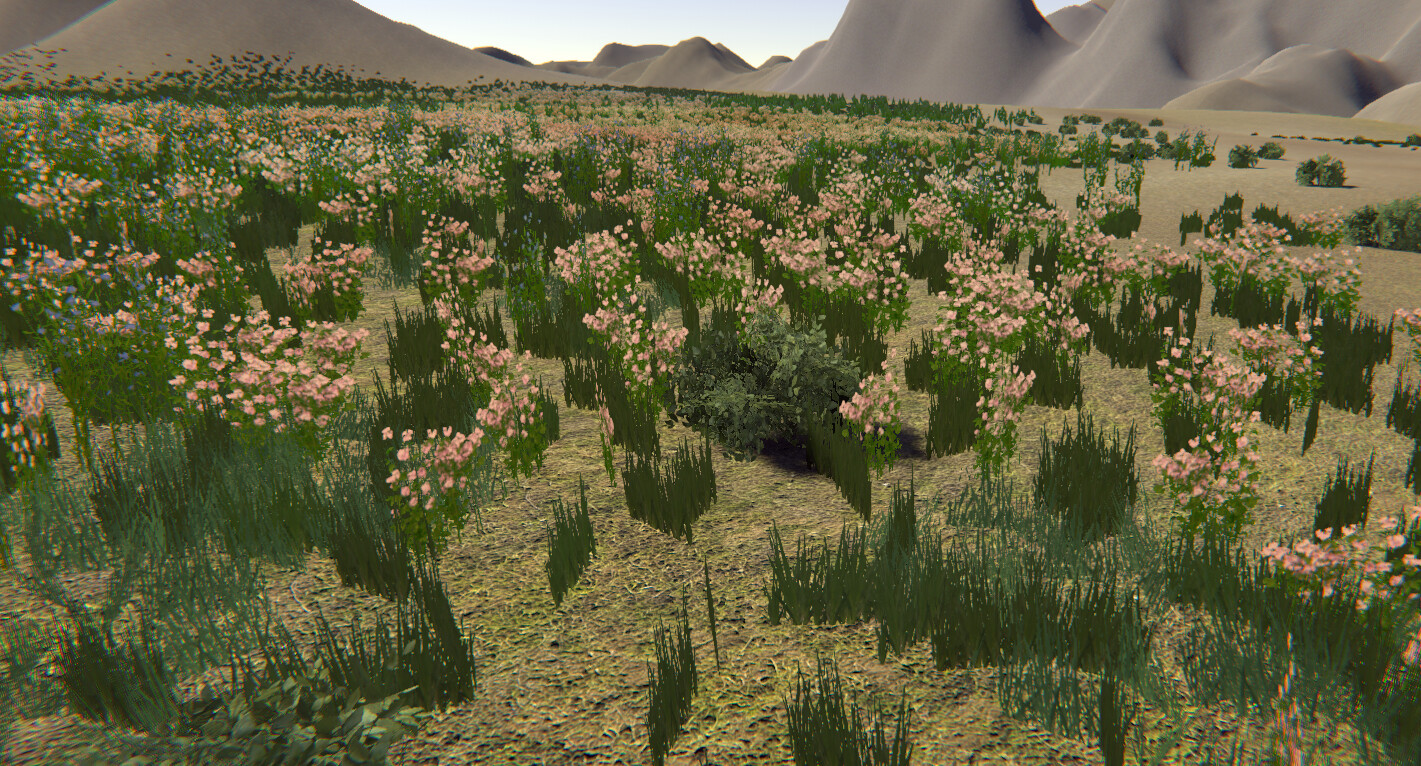
Certainly looks a lot better than that one grass texture, yet the same issues apply to each plane. If you look closely enough it still doesn’t hold up for what I want - mostly because I can still see individual grass planes sticking out. Also, I can’t rely on variations for the entirety of my terrain grass, in my view it really should hold up in an empty field with similar grass types and I’m not happy having to rely on this to hide the grass. It also suffers from lack of normal maps/desaturation etc.

I’m also well aware that the quality of the grass texture itself can have an impact on how it looks in the terrain regardless of the method. And that’s something I have to work on as well. But still, I expected to be happier with the results at this stage and I don’t want to jump in and starting painting grass if the final result will have the same issues.

So I’m really just hoping to find a workflow or better approach to all of this. Hopefully some ideas can get thrown around in this discussion and I’ll continue to research a better way to do this. I’m just hesitant to spend more time on it and I’m considering just not having grass at all if I’m not going to be happy with any of these approaches. I should also clarify that I’m NOT saying Unity grass looks “bad” by any means, that will all be down to opinion and art style depending on the game, I’m sure the tool is great for many purposes. But as a matter of my own satisfaction and artistic intent, I’d like to do better.

Summary of Issues

  • Density - how much grass I can put in one area

  • Performance - ideally I’d want it to run as fast as Unity’s Terrain grass

  • Graphical features - normal mapping, wind settings, desaturation, overbright are all nice to have, but I can live without some of them if it means getting performant, dense patches

  • Aliasing/cutout method - The edges of how the grass is rendered and whether or not it appears “blocky” at distance

  • Distance - Either fading out, just disappearing, or shrinking in size, I’d like the LOD distance to be long enough to not be noticeable, ideally adjustable in realtime so I can add a graphics option for it

  • General look - I realize this is more artistic, but the color and placement of the grass in general for all of these methods just doesn’t make me too happy. Again, I know that variations, better textures, etc. help, but it’s hard to say what needs work and how I can actually go about making those textures. I’ve done plenty of art before, I know that looking at reference is key, but I just can’t put my finger on what makes up the reference I have (like the FFXV image), and I can’t clearly see what’s going wrong. I know that’s on me and with practice I’ll get better, but it’s worth mentioning in case someone can provide help there too.

Potential Solutions

  • Make some new performant grass method. I’ve heard about instanced grass and maybe that’s a fast way to render custom meshes with as much coverage as possible. But it would be a huge time sink to develop that system and I’d want it to be linked to terrain. I want to be able to paint the same way I do trees, and I want the result to be dynamic if I ever go back and adjust the terrain height, it shouldn’t be static. Instanced grass would need to dynamically follow the terrain and update in editor to be practical so I can view it. No clue if it’d actually slow down computers that have weak GPUs too.

  • Replace the default terrain grass shader. I tried doing this with a shader from another post but I saw no difference. Maybe I just didn’t do it right. It could help with the color but regardless it won’t help the coverage or placement, and I’d still need to have multiple layers of the same texture to get the results I want.

  • Custom LOD. I’m aware of Danny Weinbaum’s forest optimization post. His solution was to make a custom LOD group that combines meshes in an area and does LOD for the whole hex. Smart, but he’s also placing objects by hand without Unity’s terrain. Again, it’d take a long time to make a system like this and I’d also want to paint objects on terrain without hand placing.

  • Unless… I can use this custom LOD in conjunction with Unity’s trees. The data for trees must exist somewhere on the terrain, so maybe it can be accessed and used to combine meshes. I have no idea how that would work, but it’s an option. I’d really like something out of the box though, again it sounds like it’d take even longer to make that system than just hand placed custom LOD. Even if I could just group grass patch LODs I think it might help, but my guess is the combining is really what saves frames.

  • Some plug-in for terrains that adds better grass options. I don’t really want to spend money on this though, but if there’s a free script that does this it’s worth looking into.

Perhaps as a goal I should say that I want to match something like this tutorial:

That reference is probably close to what I imagine some of these areas should be. That grass is painted using that engine’s tools and I believe he mentioned something about combining it so it didn’t take a toll of the framerate. I wish something like that was possible with Unity trees for custom meshes. I’m aware part of it is the ground texture/grass texture quality, and perhaps that’s something I should look into. Still, it’s hard to really get a proper workflow/find the texture that matches what I want.

Thanks for taking the time to look through it all. Any suggestions or ideas are appreciated since I’m completely stumped.

EDIT: Unity Forums seems to have a hard time drawing one of the images, even after I replaced it with a new link. Perhaps I hit the limit. Regardless, you get the idea.

6 Likes

I should also mention I’m using the Built-in Render Pipeline with Deferred Rendering on Unity 2019.2, which means I’m not using Shader Graph. In my research I’ve found that there is a treeInstances variable in the TerrainData class, which is a list of TreeInstance. So perhaps there is some way to combine the objects in editor, but again I’d need to preserve the original data so that I can repaint if necessary. Doing some sort of bake method sounds atrocious, and might hinder the painting workflow considering performance drops while the bake isn’t active… unless I do partial baked data but that’s just sounding even more insane to develop.

There are a number of assets in the store which use techniques such as gpu instancing, unity jobs etc for rapid rendering of very dense amounts of foliage. My personal favourite is vegetation studio. I use the pro version but you might be able to get by with the regular version. Good luck!

Looks like a neat tool, but I’m not keen on spending money for this, even for the standard version. I’ve been trying to read up on TerrainData and combining trees at runtime, this forum post has some good information. Seems like the TerrainData’s TreeInstance has positions to render and an index which points back to the TreePrototype list of available trees. So I can picture an easy way to just spawn in the TreePrototype prefab at each Instance position and then combine groups of each mesh together. The problem becomes 1. I need to find the best grouping of objects to combine and 2. I need to dynamically create the LOD groups so that the groups fade out in the distance. It would be easiest to do this at runtime because then the TerrainData will be preserved when playmode stops, however it would add a huge overhead to the start of the scene (the loading time) because it’d have to combine everything at Start. Doing it in the editor would be faster for the player because the data is already baked, but problematic for me because I’d like to preserve the paint data per grass patch so that I can repaint if necessary. Either way, this still seems like a tough task that I wish could be solved through a more… built-in way. Even if I split my terrain again to get higher density there’d be an issue of the grass shader and concerns for the positions of individual grass planes.

The other thing I’ve noticed while reading up is that I think detail meshes also use the same form of patching I described used by the Grass Texture method. However I could never get it to work properly–my painted objects never showed up. So I’m not sure what’s going wrong there, I’ll have to look into it some more. Painting on meshes which have groups of grass planes would be a really clean solution to this, as I can increase density infinitely by just changing my mesh. It’ll also help the placement to be more in line with my tree grass, and it may look as good too if I’m able to keep the shader I had on the original tree grass prefab, though somehow I doubt that’ll be possible.

try terrain grass, its gonna save you time
Its not free, but also not much

1 Like

Looks great and fair priced too, but from what I can tell that’s just a replacement shader for Unity’s terrain grass. So it might improve the look of individual planes of grass for Unity’s grass texture method, but it won’t increase coverage or effect mesh placement/rotation as it is probably still limited by the terrain system’s detail patch resolution. With the current size of my terrain I’d still have to paint over several times for each grass type to even get close to the desired density using Unity’s grass texture system.

depending on you target platform you could use geometry shaders for dense grass

For example used in this shader

I think to render grass meshes directly at the kind of quantities you are looking at you will need to use gpu instancing. If you have not already then maybe worth looking at e.g:

…or the various other functions like this.

1 Like

How to use instance shader in URP/HDRP?

1 Like

Okay well apparently there is an active bug in 2019.2 which causes painted grass density to be way lower than normal. Here is a forum post explaining the issue. The issue tracker says it is fixed in 2019.3 beta. Maybe when the official release is ready in January I’ll be able to paint more grass using grass texture. Or maybe the limitation is merely that single patches don’t fill up the whole patch and as a result I can still paint fully using multiple copies of the same texture, in which case the patch will only help in making less brush strokes but not increase the final density. I’ll have to see.

Seems like a good approach considering it uses splat maps on Terrain to draw the grass. I’m not sure about requiring DX11 though, might be fine but obviously could lower compatibility for older machines. I almost want to say it looks like overkill actually, I don’t think I’m looking to draw 10s of thousands of individual grass blades and sacrificing compatibility for that may be worthless. If you look at the reference images they’re not using any special shader tricks to fill grass with millions of blades, they’re just cleverly combining meshes with decent cutout shaders to mix better with the ground. The coverage in the reference is good, but it’s not full-field level, and more focus is on placement and clustering which is handled by the tree grass method but there’s no control over it with texture grass. Thanks for the suggestion though, I’ll look into it.

I have seen use cases with that for grass, but from what I understand it only renders based on Bounds. So I’d need to write a complex solution in order to be able to paint and exclude areas from the instance zone. It also renders based on position so I’d need to incorporate the terrain heightmap data to match my terrain. Which I suppose is what some of those asset store packages do, but again I’m hoping there’s a more straightforward way with the tools I have. I realize that may be asking for a lot but I think it’s best to just see what’s possible.

I’ve done some experimenting and found that this is most definitely true. Detail meshes use the same patch system which means you don’t get infinite density of individual meshes – in fact if you paint too much in one patch it starts removing objects to save the vertex limit. However the meshes themselves can be stacked much further if they themselves contain planes for the grass texture.

The reason my detail meshes weren’t showing when I first tried was because my prefab had a root node and a child which contained the actual grass. I guess it doesn’t like that so when I made the prefab just the mesh (filter + renderer) itself, it started to actually render. My grass plane was rotated incorrectly because Blender imports switch the Z and Y directions. I had to duplicate it and rotate it in Blender which is a pain (it really should preserve the rotation of your prefab) but I finally got it working.

When I first tried it I ended up with patches like this:

So my other assumption was true–they don’t utilize whatever shader you have on them and will instead just get replaced by whatever the terrain system uses internally. My guess is the _MainTex field is used as some universal name and it just pulls whatever you have from there as input. Or maybe there’s some detail mesh shaders that let you preview how it’ll look when combined.

Anyways, this clearly wasn’t right. The problem was that I was using the “Vertex lit” type mesh, and changing it to grass got me this:

That’s a LOT of coverage, enough for what I need. And the color is customizable as well (my grass texture has a horrible green tint by default but it’s easily adjusted). It also seems like the cutout quality is much higher than the grass texture method, if you look in the distance you’ll see that I’m avoiding those big blocky chunks of grass when the mesh is smaller, it looks a lot more like a traditional cutout shader and it even receives shadows too. Performance is way better than tree grass as well:

The texture needs work, and I’m still going to have to find a lot of variations to get the look I want. But so far this is looking like exactly what I needed from Unity–a builtin grass solution that uses custom meshes for placement, can be painted directly on terrain, clusters objects together for performance, potentially infinite density barring patch vertex limitations (can be adjusted by decreasing items per patch in the terrain settings) and with an adjustable, higher quality cutout shader that helps the look of the texture.

It’s not perfect though, here are some drawbacks:

  • Changing the shader means overriding the hidden default one

  • Grass meshes will not cast shadows, even with replacement shaders(?)

  • Small pain to set up in Blender since you have to work sideways

  • Detail meshes actually override grass textures if you paint over them, and I’d assume the same goes for other detail meshes. In other words, what I’ve painted above is max density and you can’t add any other plants or grass variations to it. In practice I would lower the density and have as many different types of grass/flowers as possible, but there will be a limit at some point. There is a workaround though: If you do need the entirety of your detail patch to be grass, you can fill the rest with the tree grass method since it renders individual objects. So I can still have that density of detail mesh grass, but then substitute extra tree objects to improve the look. Performance will start to take a toll though since tree grass has it’s own issues as described in the top post.

Regardless, this is another tool in the shed, and I’m hoping it helps people looking for an alternate solution. I’ll still be looking into alternate grass solutions and I’m sure that this system is far from perfect. I might hit another limitation in the future and end up having to yet more research into this, but I’ve caught a cold and it’s the holidays now I’ll have to trust it’s good enough when I get back into it. Thanks to everyone who’s given suggestions, I’m happy to hear your thoughts on more techniques or ways to actually improve the artistic quality of grass now that I might have a solid painting method!

4 Likes

I just want to make a small follow-up on this. I’m pretty happy with the results from the detail mesh method – using a custom sideways mesh from Blender as a “detail mesh” instead of a “grass texture”, and using the “grass” shader option instead of “vertex lit”. The coverage is really good so long as I stick to 2000x2000 terrains; from now on I will create neighbors using the terrain grouping instead of having one big terrain, which is a problem in itself for matching terrain textures but I’m assuming there are LOD advantages so it’s best to stick with it for now. However, there’s one annoying problem with this detail mesh method that requires some extra work:

The default grass shader for detail meshes does not use the UV map for wind strength.

By default all of your grass mesh will actually flow evenly with the wind settings on your terrain, meaning the roots of the grass will actually sway with the top–not very realistic. It’s not noticeable at small wind settings but of course that limits the mood and ends up looking very static, so it would be nice if there was a way to add more wind without making the roots sway with the top. In fact, the “grass texture” method automatically does this by using your UV coordinates as the input for this wind strength, or more precisely, the prototype quad that is used for the grass texture has some extra info on it which defines the top as having wind bending 1 and the bottom as wind bending 0. So, what exactly is this extra info that the shader is using?

It’s really hard to find info on this for some reason, there’s literally nothing in the docs that mentions it, but it turns out the terrain grass shader uses the Mesh’s vertex colors for wind strength. Specifically, it uses the Alpha channel of the vertex color for it’s strength. So, the solution is easy, right? We’ll just paint on custom vertex colors in Blender to ground the roots.

Well that’s a problem. There’s no Alpha channel available in Blender’s Vertex Paint mode. Turns out, this is weird missing feature in most versions of Blender, only 1 version (2.79c) actually has it to some degree(?). And it’s hard to find info about it, yet again. So we’re kind of screwed unless we get that specific version and paint the alpha channel on. If only there was some way to convert one of our color channels into the alpha per vertex… Oh, there is.

This forum post has a great discussion on this topic, one of the only ones I could actually find.

Some code was posted there which takes advantage of the OnPostprocessModel method, which can literally override your meshes with modified info. I tried it and it didn’t really work properly, so I modified it a bit to use my own string match and specifically turn one channel into alpha instead of some weird mixing of all the colors. Here’s the code:

// Author: Andreas Suter
//
// Copyright (C) 2012 by Edelweiss Interactive (http://www.edelweissinteractive.com)
//
// Permission is hereby granted, free of charge, to any person obtaining a copy
// of this software and associated documentation files (the "Software"), to deal
// in the Software without restriction, including without limitation the rights
// to use, copy, modify, merge, publish, distribute, sublicense, and/or sell
// copies of the Software, and to permit persons to whom the Software is
// furnished to do so, subject to the following conditions:
//
// The above copyright notice and this permission notice shall be included in
// all copies or substantial portions of the Software.
//
// THE SOFTWARE IS PROVIDED "AS IS", WITHOUT WARRANTY OF ANY KIND, EXPRESS OR
// IMPLIED, INCLUDING BUT NOT LIMITED TO THE WARRANTIES OF MERCHANTABILITY,
// FITNESS FOR A PARTICULAR PURPOSE AND NONINFRINGEMENT. IN NO EVENT SHALL THE
// AUTHORS OR COPYRIGHT HOLDERS BE LIABLE FOR ANY CLAIM, DAMAGES OR OTHER
// LIABILITY, WHETHER IN AN ACTION OF CONTRACT, TORT OR OTHERWISE, ARISING FROM,
// OUT OF OR IN CONNECTION WITH THE SOFTWARE OR THE USE OR OTHER DEALINGS IN
// THE SOFTWARE.

using UnityEngine;
using UnityEditor;
using System.Collections.Generic;

public class VertexColorToAlpha : AssetPostprocessor {

    private string myStartName = "TerrainGrassMeshes";

    private void OnPostprocessModel (GameObject a_GameObject) {

        if (a_GameObject.name.StartsWith(myStartName)) {
            Debug.Log("Vertex Colors Modified on: " + a_GameObject.name);

            foreach (MeshRenderer l_MeshRenderer in a_GameObject.GetComponentsInChildren <MeshRenderer> ()) {
                MeshFilter l_MeshFilter = l_MeshRenderer.GetComponent <MeshFilter> ();
                if (l_MeshFilter != null && l_MeshFilter.sharedMesh != null) {
                    Mesh l_Mesh = l_MeshFilter.sharedMesh;
                    if (l_Mesh.colors != null) {
                        Color[] l_Colors = l_Mesh.colors;
                        for (int i = 0; i < l_Colors.Length; i = i + 1) {
                            Color l_Color = l_Colors [i];
                            l_Color.a = l_Color.r;
                            l_Color.r = 1.0f;
                            l_Color.g = 1.0f;
                            l_Color.b = 1.0f;
                            l_Colors [i] = l_Color;
                        }
                        l_Mesh.colors = l_Colors;
                    }
                }
            }
        }
    }
}

EDIT: You need to stick this CS code into an Editor folder in your assets library. And of course, the name of the CS file probably has to match the class called VertexColorToAlpha.

It’s a little messy, but it works for me. I had to include the license because it said to but it’s certainly free to use. All it does it take a peek into the meshes if the .blend file has myStartName at the beginning of it. In this case I went with “TerrainGrassMeshes” since my blend file is called “TerrainGrassMeshesSimple.blend”. Then it just transforms the Color red channel into alpha and sets it back into the vertex colors. Really it should just copy the red channel and leave everything else but it’s just a quick hack. You can modify it to work better or more cleanly.

So painting in Blender means you just set everything you want to move with the wind to Red value 1, and everything rooted to Red value 0. That means the bottom will be blue:

When you save the .blend in your Assets folder the code will run and you will get the debug statement. That means all the meshes in your .blend file have had their colors modified.

Now we get properly rooted grass with any wind strength on the custom mesh :slight_smile:

I hope this helps people in the future. For all of the support that Unity offers online and in the docs, there are still so many topics that are confusing or not explained clearly, this vertex color thing being one of them. Here’s hoping that everyone can document their experiments like this so that it causes less headache for others down the line. This grass method is looking to be the easiest to work with so far, barring the import override stuff, but it also gives pretty good results now. All that’s left is to actually use it with proper textures and full levels for my game. Thanks to everyone that helped out!

4 Likes

Great stuff! Fyi blender 2.8 supports alpha channel in vertex colours a lot better than 2.7, although the ui is tricky to use for painting.

1 Like

That’s good to hear. Sadly I’m already pretty set with my workflow for asset creation and don’t want to introduce potential new problems with an upgrade, I already learned my lesson the hard way with cloth being broken for the past few months now. Slightly off topic but I’m also somewhat “oldschool” when it comes to 3D modeling, I originally learned the 2.5x layout and concepts, so I find Blender’s default shortcuts and UI ideas easier to grasp. 2.8 seems to have made some things more streamlined with other 3D modeling apps, but in doing so I think it unnecessarily complicates some aspects–layers being gone is an odd choice and it’s harder to easily view multiple LODs of the same model for my workflow. The whole right-click select thing is gone, and I’m sure there’s probably a way to change it but I don’t like messing with the defaults too much in case I have to use someone else’s install of a particular version. Internal Renderer being gone is also a little annoying since it was really easy to put together a scene with AO and no fancy lighting.

Overall it’s tough because I like some of the new features in 2.8 but I hate that versions of these programs can differ so much and the lack of compatibility between them can be troublesome. It’ll never be an issue for my games if I only use 2.79 internally, but it becomes harder to collab with others if they are now used to 2.8. Again that’s off topic but maybe worth mentioning for people interested in upgrading.

I wanna follow up on this too. I did some experimentation and found that the vertex colors actually affect the diffuse color of the default grass shader for terrains. So if you paint your vertex colors on your grass to red it will actually tint the texture to be red when the grass is rendered. For some reason it only takes affect when you restart Unity. So really my code above is what it should be–after you sample the red channel just set everything back to 1.0 so the final color is white. Alpha does not affect this tint value which is probably why they used it to control the wind strength. This is the only way to maintain the color of your texture otherwise your grass roots will be tinted blue!

It looks like I’m hitting another roadblock here and starting to get really frustrated with this whole process. Maybe it’s just the fact that I’m having to spend so much time on it due to not having a team but it also seems like the entire solution for Unity vegetation/terrains is somewhat flimsy and locked down without being able to customize much. I’ll try to document the problems I’m having and maybe some discussions about it can get some ideas going that I can pursue for a solution.

The first problem is that I wasn’t sure if the quality of my grass texture was good enough to get the look I wanted. I went into Blender and actually baked out custom grass blades in order to provide more gaps between edges, and was pretty happy with the bake. Yet when I plugged it into Unity (after a few saturation adjustments) I get this:

Which is again pretty identical to the results I was getting before, at least at distance. Up close is a different story but since my game involves airborne movement I’d say it’s pretty critical to get the look I want at this sort of altitude. My main problem with this look is that the grass is overall very blocky and patchy, and is very noticeably dark towards the fade out zone. It would be much better if it could actually blend into the ground a bit more, and perhaps hide the fade back into the flat terrain.

My initial attempts at making the texture ended up horrifically dark at distance to my confusion. However, I found that the parts of the texture which were transparent were actually providing color for distant patches, probably because of repeated alpha cutouts and sampling. So I brightened up the “background” in Photoshop, but that ended up making the entire grass glow, even up close. I darkened it a bit to compensate, and this is where it’s at now. However, it’s not just the brightness I have an issue with, it’s the saturation.

I wanted to edit the grass shader so that I could add some custom features to it, perhaps a desaturation filter and an overbright option, which would help both these issues. But looking into it, it appears Unity 2019.2 does not allow you to override hidden shaders anymore. By override, I mean the trick mentioned in this question.

Someone in this thread provided an editor script which is supposed to modify the Terrain asset JSON properties to allow for a custom shader. But unfortunately I couldn’t get it to work. I wrote my error down on that thread in case someone can figure out what’s wrong. Aside from that solution which seems pretty hacky/unstable (replacing your entire terrain data with a duplicate!) I can’t think of how else to adjust the grass shader. No matter how much I adjust the color or the texture, nothing seems to match my ground. It’s as though the cutout portion will always be obvious and is just colored/lit completely differently than the terrain.

My second problem is best shown here:

I’m already hitting the patch limit! Again! All I did was increase the density by a little bit, and I added some small rocks/grass details to the mix. Yet I’m getting holes in places which should be filled. In fact, they are filled if you get close enough, but at range Unity decides to drop them in favor of rendering closer blades. So even though I’m not even quite at full coverage here, I’m already hitting the max patch limit. That’s going to make it tough to actually add more plant variations or ground details. Perhaps if I could lower the density I would have more room to add other details, but I don’t see how it’ll be possible without the patches looking spotted and inconsistent. It already doesn’t look like a field of grass but more like a flat piece of land with grass painted on. I really could use a way to add more objects in these patches, even at max it’s tough to see how I can fill it the way I want.

I’m, again, well aware that with better art assets and more variety I could get closer to the look I want. However I’m still unsure about my terrain design and if this is really the best approach to use on my level. I could really use some help from an environment artist because it really feels like I’m stumbling around in the dark here. I know how to make art assets, but I’m not confident that any of them will actually pull these scene together until my grass is more consistent with the underlying terrain. Again, I will link to this tutorial. I’m not sure what kind of magic is going on to make those assets match so well with the terrain, but I’m really at a loss as to why I can’t replicate it, even after following the steps as best possible within Unity. I imagine it has to do with the shader quality and shadows, but as just mentioned that’s not possible with the grass detail method. I could switch to tree grass, but of course that would lead to horrible performance due to tree objects not combining.

Overall I’m just feeling completely stuck. I need direction on the workflow here. Even after looking at references all day and trying to match my assets accordingly I can’t get the look I want. Maybe I’m just not a good enough artist to accomplish it, but everything looks fine to me until I bring it into Unity’s terrain. There must be something I’m missing here. I’ve been watching level design timelapses and all of them seem to handle grass/nature much better than this, I don’t know what the difference is. Perhaps it’s just the engine entirely at this point. Or perhaps their assets are just better because they already have a library of them. I just don’t know. I’m going to do a deep dive into Final Fantasy yet again to study their grass methods. It just feels like a tremendous waste of time at this point and I’m at the end of my ropes here. I apologize for the rant, but I can’t imagine this project continuing unless I can figure something out.

1 Like

Getting grass to look good is more of an artistic challenge than a technical one. You have to make sure your grass texture is an extension of your ground texture. They have compliment each other. If you just want full, dense coverage, try a shader. I made this shader a while back to get the look I wanted. You can probably modify it to achieve the look you’re after. Grass is not easy.

https://discussions.unity.com/t/701277

Thanks for your reply. I’ve seen your asset before but didn’t try it until now. First time I ran it I tried to do it on my terrain with a splatmap that came packaged with the terrain data. But the program halted and after about 10 minutes I figured it was broken so I stopped it. Perhaps my terrain was too big and also that I didn’t realize your density map is actually inverted with black meaning draw and white meaning cull. So I tested it on a smaller and scale and got it to work:

Seems like images are loading very slowly on the forums so me so if you can’t see it embedded just right click and open it with a new tab.

So I was able to get the results you promised in your post and with a customizable material and shader it seems like it would be much easier to blend into the ground and give higher quality results when it comes to shading and specularity (none such options exist on detail grass). However, I see several problems trying to use this for my kind of project:

  • How would I paint the splatmap on a terrain using Unity’s tools and export that to a file which can be read by your script? I could maybe make a dummy grass and delete it after painting but even so I’m not sure where that data is stored–splatmaps on terrains seem to be arbitrary and I’d have to do editing to invert and extract the colors I want. Not ideal if I want to constantly edit grass placement.

  • It seems like it takes a while to bake on big terrains. Obviously with a proper splatmap I could restrict grass and that may help it run faster… but if it has to read the texture data anyways I’m not sure much better it’ll be.

  • Results are permanent–making changes means I need to re-run the program, which means I have to sit for potentially a long time just waiting for the generation. Terrain grass however is free to move as I update the terrain’s height.

  • Draw distance… Obviously for a terrain as big as mine I can’t render all grass all the time. You mentioned that occlusion culling is supported but there doesn’t seem to be an easy way to handle grass disappearing at distance. I’m able to add a LOD component but it has be done individually for each cell since it doesn’t support multi-object editing. I could write a script to auto assign some values, but even then, cells disappear entirely–there is no fading and it’s obvious when entire boxes just go missing. I’m also unsure about LOD performance considering the potential number of cells but I imagine it’s at least better than each grass getting it’s own component.

I appreciate you sharing your work, and it does seem like a great tool simpler projects or just entire plain fields. But I’m not sure if I’ll be able to utilize it properly for my game–considering the scale and guesswork involved with splatmap, and the sheer time it takes to bake/test/bake again could be a time sink. I realize there’s not much more to be done from a script like yours, and maybe that’s a just a limitation of Unity or a demonstration of how complicated this stuff can get which may take a much longer time to build. Building my own system is not going to be any better than this unless it’s built specifically to cater to terrains and track every grass mesh which can move with the heightmap… which I don’t think I can do. I suppose don’t know exactly what I want but I also don’t think I need this extreme of a method for what I’m trying to solve right now.

You’re right that grass is more of an artistic problem than a technical one, I guess I just don’t know where else to ask about this since I’m having a hard time with it. I’ve redone my grass texture many times now yet none of it appears to help the blocky look which appears at distance. As mentioned I probably need to consult an artist on this, I was just hoping my tools in Unity’s workflow would allow for more artistic decisions to be made. But without shader editing on detail grass it seems like a no-go. There are other issues though and I take full responsibility for not being good enough at terrain design. It’s just hard to find any sort of resources online which talk about this stuff.

I went back into the game which inspired me in order to study how grass is done. I tried to pay attention to the ground and every individual mesh which was used to build the nature scenes. Here’s a screen from Final Fantasy 15:

If you really break down what’s happening it seems like the ground texture is pulling most of the work here. Grass density is actually very sparse, and each grass object is huge. They don’t use the classic “grass patch” either. They use this weird spikey thing with color variations and lots of variety with other bushes and rocks too. But really in this screenshot there are only 2 or 3 grass types at most.

I will attempt this approach by revamping my ground textures and rebuilding grass yet again, but this time changing the final mesh used for painting as well as the texture. In the meantime, I would appreciate any artists who can give insight on this. It seems difficult to find tutorials online which talk about nature design–only timelapses which seem to just pull from pre-built assets and use existing scene references.

Look at old game, or to be precise news game on old machine, since it’s weaker, it’s easier to see the drastic solution they had to made.

My personal pick is the wii game xenoblade (though I have to check the 3ds version too, which is even weaker)
Grass still look pretty dense here

They use big tuff, have a progressive fading out, have 2 grass relatively close visually but still break the pattern (flower and plain grass, flower fading in much more closely) a contrasting one (the heavy green bush) that is sparser but fade much later, etc …

Results are permanent–making changes means I need to re-run the program, which means I have to sit for potentially a long time just waiting for the generation
There’s a lot of this in game design.

Draw distance…
My shader is open source. You can pull down the code and edit it. Also, the technique I used was just-so-happened to be the technique used in Call of Duty on the battle royale Blackout map (I released my shader before that game came out :-P). So it’s definitely doable on big maps. Go play Blackout and look at it’s grass. You can also do multiple passes with separate grass textures if you want. Then you can also add normal billboard terrain grass to thicken areas or places patches of a particular grass. My shader is just a base full-coverge grass that performs very well. Tip: to get your grass to look natural, make sure the root of the grass is the same color as the texture it lies on. Or at least very close.

I don’t know how big your terrain is, but remember, it takes a long time to work through these kinds of things. Designing a terrain is very involved. Some assets (like Gaia) allow you to do it faster but they’re all limited in some way. To get detailed terrain painting, it’s better to use splatmaps with many colors that are high resolution so you can have crisp transitions. From these splatmaps, you would create your mask for my shader.

Yes, I suppose so. But aside from lightmapping I can’t quite think of anything in my workflow which would have to take longer than 10 minutes. Then again, I’m not a AAA studio by any means so I wouldn’t have a lot of tools like that anyways.

Yeah, it’s just that I haven’t worked a whole lot with shaders and have only managed to add color features such as desat/overbright. Making a progressive fade across a single object that’s performant sounds like a somewhat larger task, though you’re right that’s not impossible. I wasn’t trying to say your tool wouldn’t work here but in order to get it working properly within my workflow it would require a lot of time which I just don’t have at this point. I was hoping to modify Unity detail grass instead of having to work directly with objects and build in features that already exist for terrains.

Yes, well, that’s sort of the problem. No matter how many colors I tried it seemed impossible to match the texture to the ground using Unity’s detail grass. Seems like the underlying problem is in the textures as there’s only so much tinting can do there.

How would I make those splatmaps? Guess and check by painting in Photoshop? As I mentioned earlier it seems difficult to extract data consistently from Unity’s terrain maps, I would need some external tool to paint data directly like that. The reason I need it is so that my paths can be devoid of grass while the fields have it filled. Matching it to the terrain texture is why I opted with Unity detail grass.

That’s a great reference, thank you!

Yes, it appears you’re right. I’ve been studying Final Fantasy grass all day and I’ve noticed a trend here with this sort of tradeoff method. So these kinds of games appear to have much larger details (as opposed to actual full fields of tiny grass) with various items to break up the patterns. That second part is something I already figured, but my problem was with how the grass looked by default. Since they use bigger details which are more sparse, they seem to rely more heavily on the underlying ground texture to do the work in terms of color. That means the vegetation seems to be more soft and light, as well as thin to allow you to see through it. As for multiple fade levels (bush and then grass and then flowers) that’s not possible within the detail system. But it is possible to add bushes as trees with their own LOD components which fade at different times. So that’ll be a good thing to keep in mind when I add more objects.

Both of you are right about how important it is to match the color to the ground. In my work today I’ve actually redone the ground texture (higher resolution to reduce tiling) and recolored my grass. Using a PSD meant I had to actually color in the background with a fake layer at low opacity so that the remove matte option would pick up on the green tint instead of leaving it grey. I also brightened up all the textures and added more saturation to the post processing (a cheap trick, I know, but it’s the best I can do for now). I switched the color of the grass to white as well, and really tweaked the PSD until it was bright enough to match the ground.

Then I went in and added some of the spikey puffs seen in FFXV to break up the pattern. The end result was me spending another entire day (7+ hours) doing grass, but here’s my results so far:

Matches a lot better to the ground, and I’m much happier with this. It’s not perfect, I’ve still got some more tweaks to go. But it’s finally getting better and I feel like I have a more solid direction here. I’m planning on adding more plants to provide variation and I’ll update here as I go to make sure I have a clear vision. Obviously there’s a lot to be done in terms of other assets like rocks/cliffs/branches/tree types. But I’m on the right track. I’m still looking for any and all artistic tips when it comes to grass creation, I wonder if it really is just adding more variations at this point or if there’s still further things I can do to improve the grass look. At this point without being able to edit the shader it seems hard, but I was able to get this far using my existing workflow so that should count for something.

2 Likes