Hi
In this thread I am going to share with you the results of testing and reviewing the performance of Unity mobile games in 2025
My target is the low-end Samsung A14 mobile with Mali-G52 MC2 gpu at a price of $100 manufactured in 2023
My goal is a standard game using post-processing effects and realtime lighting (you can bake your game too)
Post Processing Performance:
Bloom ON vs OFF: 25 fps → 22 fps
Bloom fast mode On vs OFF : 19 fps → 14 fps
Bloom HDR ON vs OFF: 25 fps**->25fps
Anti-aliasing SMAA ON vs OFF : 14 fps->11 fps
Anti-aliasing FXAA fast mode ON vs OFF : 14 fps->14 fps
Anti-aliasing FXAA normal mode ON vs OFF : 14 fps->11 fps
Anti-aliasing TAA ON vs OFF : 14 fps->9 fps
Terrain Diffuse shader vs Standard shader: 14 fps-> 14 fps
Forward vs Deferred shading: 25 fps->14 fps
Camera depth texture (soft particles) Off vs On: 14 fps->10 fps
Post Processing (color grading, vignette) Off vs On: 28 fps-> 22 fps
Antistrophic texture Off vs On: 15 fps->14 fps
These tests are on the A14… On the S24 there are no problems or differences between the effects on or off and the game runs at the highest settings above 120 fps
Also all effects are supported : deferred shading, TAA, volumetric light, ray traced SSR, Realtime shadows, sun shaft… without performance problem. You just need to set render scale to the 0.7 or 0.8
I will update this topic over time…
2 Likes
Where can we find this settings?
On such devices you are usually limited by pixel-fill rate which can seem rather abstract at first. The main way to improve performance is by:
- reducing per-pixel shader complexity (i.e. less work per pixel or less pixels processed)
– thus using mobile shaders (or writing custom shaders)
– avoiding additional render passes (such as depth pass, deferred render passes, multiple lights)
- avoid overdraw! no transparent/non-opaque surfaces, minimal use of foliage/water
- disable all ui while drawing 3d scene and vice versa (you can cut your camera drawing area if a part of your screen has ui elements) - as this causes overdraw as well. in general unity ui produces lots of overdraw (multiple pixels being rendered on top of each other)
- you can potentially also limit overdraw by performing a depth-prepass (did not test this myself)
- reduce resolution to around 50-60% of device resolution (as gpu is not meant to render full resolution in such devices)
- remove post-processing completely (again adds pixel shader complexity!) instead include post-processing directly into your shaders
I also found an interesting way to test if you are bound by pixel-fill rate - just enable any overlay ui while measuring performance (i.e .the volume overlay from android, gaming overlay and so on) - if you see dips in performance when those overlays are open, you are bound by pixel-fill rate.
You should also test a scene with only a cube vs a scene with complex vertices - as usually having more vertices will also decrease the time available for the pixel shader and see how vertices impact the resolution you can render at 30fps
1 Like
Use scripting to change it in the built-in rp
for urp from the render asset
That’s good, but these tips are for 2017 devices, not 2020 or later
But current devices(2020 or later) have no problem with most of what you said
For example:
Post processing
PBR shaders
It doesn’t matter if your phone is $100 or $1,000… what matters is that it’s manufactured in 2020 or later
Download Android Demo and try on your low-end device (render scale 0.5, bloom off, no AA, Post FX on)
The best way to optimize is to reduce the resolution
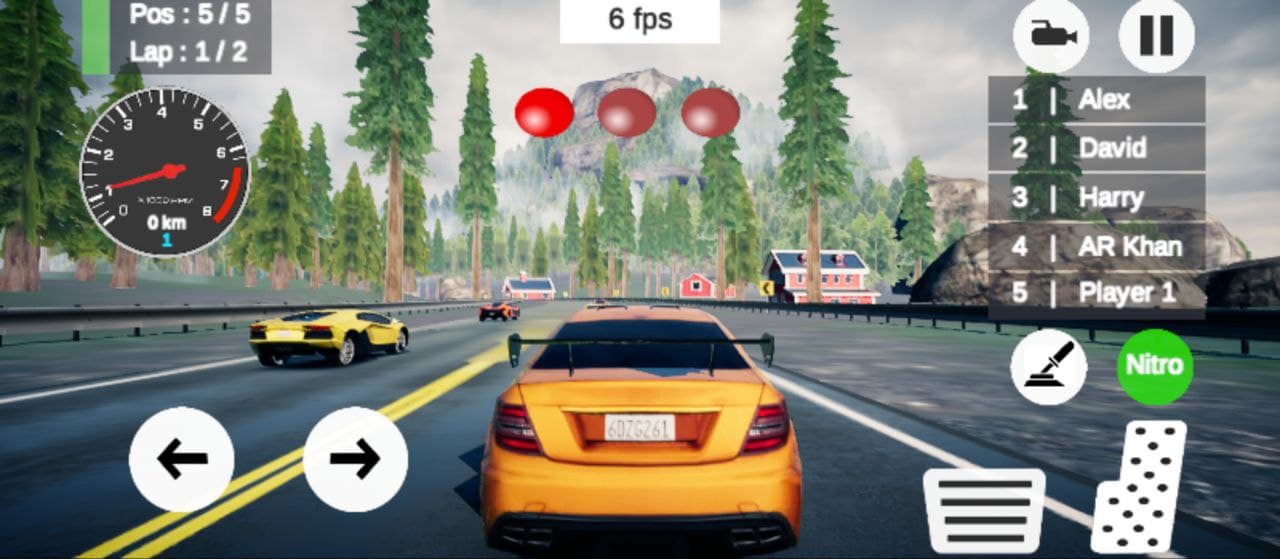
My above benchmarks are for the below scene:
Maximum preset on S24 FE => 150 fps
Deferred, TAA, Soft Particle, HDR Bloom, PBR shader (high), render scale 0.7
We still see those devices being used in large numbers, even in the US Market. Unfortunately you still need to consider devices starting with the Samsung Galaxy Tab A as your baseline nowadays
I’m talking about 2020 and up devices
However, my game can also be run on 2017 devices by disabling post-processing in the game settings menu
Then my game can have maximum graphics on s24 or above 60~120 fps with the maximum preset:

Don’t forget that you can optimize your game for older devices with a few clicks
But you can’t improve your game’s graphics with a few clicks
So first build your game on a new and powerful device and then optimize for older ones
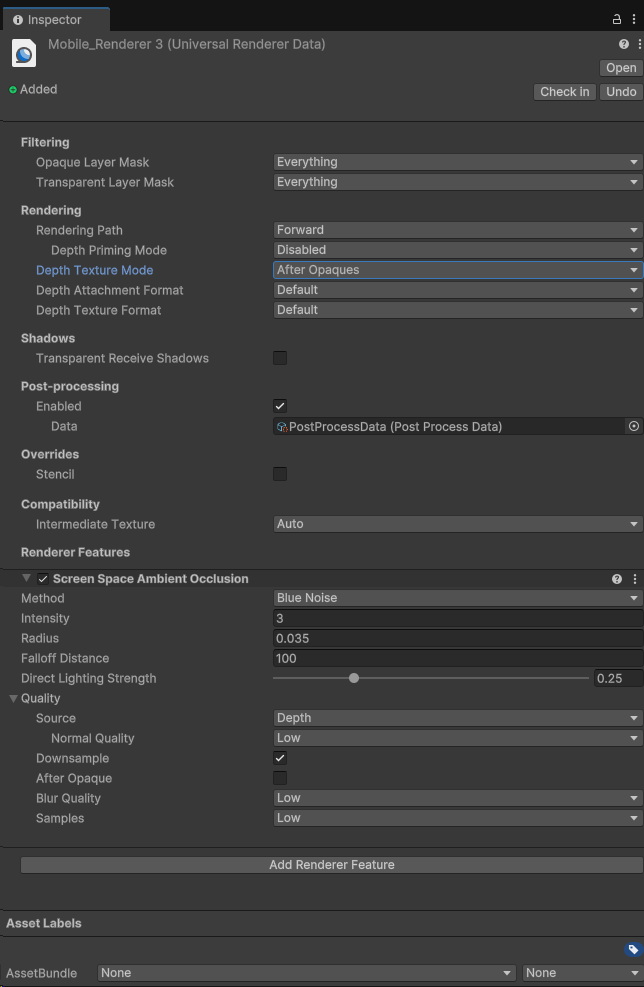
We don’t see any settings name " Camera depth texture (soft particles)" in URP Asset and UR Data inspector panels.
Which file or windows do we need to open to adjust this setting?
After that, just use URP->Particles->Unlit shader to have smooth particles:
1 Like
Thx.
Material (inspector) → Shader → URP/Particles/xxx
Xiaomi A3 Device:
TAA on vs off: 5 fps → 14 fps
Unity terrain system tree vs extracted and static tree models vs combined trees:
14 fps → 23 fps → 30 fps
Terrain tree:
Extracted static tree:
Extracted and combined tree (Easy Mesh Combine Tool):
Extracted youe tree models from terrain by using this tool:
TerrainTreeReplacer.cs (2.8 KB)
Combine you extracted models using Easy Mesh Combine Tool
The best way to optimize the game is to divide the resolution by a value below 1. This way each phone is optimized based on its own capabilities (screen resolution)
Xiaomi A3 vs Samsung S24 fe