Hi there. I was looking back at this topic about particles colliding with an animated skinned mesh and sticking particle decals to create blood splatter and thought of some alternative solutions  .
.
Instead of using decals, the idea would be to “Paint”  a texture with particles as “brush strokes”.

It offers some advantages:
- As the result is a texture, it can be directly used, modified or blended in the shaders of the Targeted Skinned Mesh.
- Contrary to attached decals, no sliding should occur.
Before we start, this will involve Custom pass, and a Render Target, so it’s a bit involved technically and isn’t cheap either. But once set up, it’s fun to play with. Now, I would not recommend using it in production without properly profiling the performances.
That being said, how do we achieve this  ? I will break down the process inside HDRP, but everything should be doable in URP with some subtleties. We need to transform the Particle Hit/Collision position into UV space. For this, we need to get the Skinned Mesh UVs information at the Collision position.
So first, as for the linked topic, we must collide with an animated Skinned Mesh, which sadly isn’t that trivial with GPU particles. Some methods have been evoked, like the demo team real-time SDF baker, but let’s collide with the Depth buffer.
Colliding with the Mesh:
In VFX Graph, this can be easily done by using the Collision Depth Buffer Block.
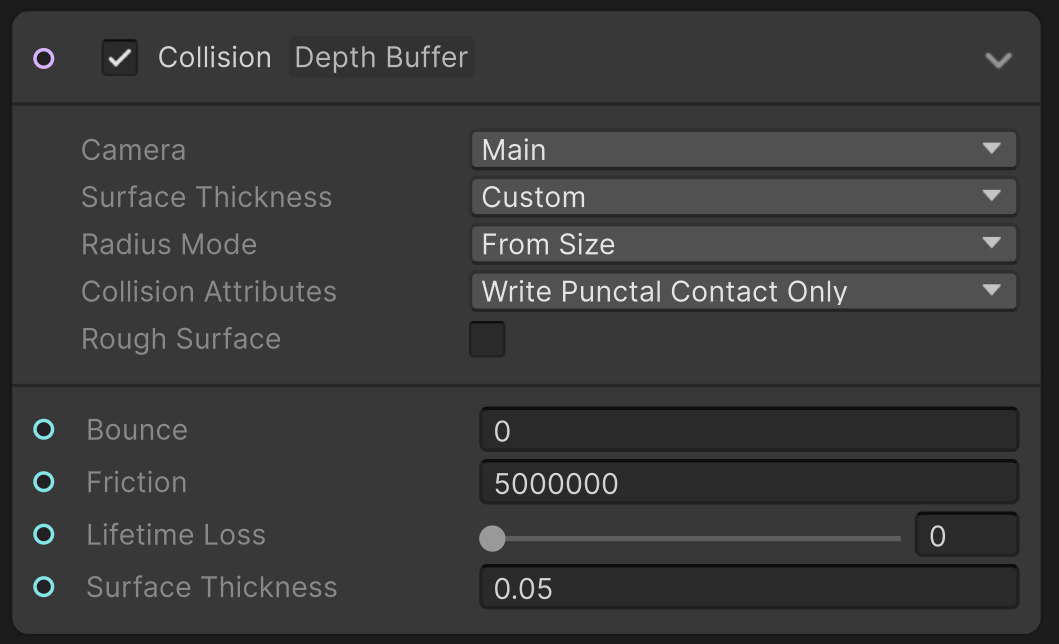

But, when activating the Depth Buffer Collision, something odd happens. As the articles are opaque, they are writing into the Depth and collide with themselves. For now, let’s just put them into Alpha Blend.
With a high friction on the collider, the particles stop perfectly on the Skinned Mesh. But, sadly, if the Skinned Mesh is animated, it’s another story. 


While the first collision is correct, the particles don’t stick to the animated skinned Mesh. We want to convert our Collision position from World Space to our Mesh UV Space. But first we need to render the skinned Mesh UV’s into a custom pass tin order to get them. We got work to do… 
Creating a Custom UV Pass:
To get the UV’s of our Skin mesh, we can create a custom pass, where we’ll be drawing our Skinned Mesh and overriding its Material so that it displays its UVs:
-
Create a new Layer and give a name (Uvs).
-
Assign this layer to your Skinned Mesh.
-
Create a Camera and give it a name.
-
Set its Target Display to “Display 2”.
-
Create an Empty Game Object.
-
Add a Custom Pass Volume component.
-
Set the Mode to Camera and Set the Target Camera to your cam.
-
Set the Injection point to After Opaque and Sky.
-
Click the “+” button and add a new “Draw renderer Custom Pass”.
-
Give the Pass a name (UVsPass).
-
Make sure to at least set the Clear Flags to “Color”.
-
In the Filters, set the Layer Mask to the previously assigned Layer (Uvs).
-
Create an Unlit ShaderGraph and set the UVs in the Base Color.
-
Assign this shader and set the Shader Pass to FowardOnly.
-
Override Depth and Write Depth to True.


Now that this is set up, we should see the Skinned Mesh in the Display 2 of the Game Tab.

Getting the UVs:
Now, upon collision, we can sample our UVs Camera and read its color buffer:
-
Create an Exposed Camera Property.
-
Bind it to your “UVs Camera” thanks to a VFX property binder or with your custom C#.
-
Drop a Sample Camera Buffer Operator and plug your Camera Property.
-
We need to transform our Collision Position to Viewport Position thanks to an operator:


With those operations, we are now getting the Color from our UVs camera that output the UVs of our Skinned Mesh. We are close 

Transforming Position to Uvs Space:
Now that we get our Skinned Mesh Uvs, we can transform our Collision Position from World Space to the Skinned Mesh UVs space.
- Create a New Output Context, a Wire to your Update Context.
- In the Output Context, Orient your Particle so that they face the Y-axis.
- Set the Alive Attribute based on the CollisionEventCount so that this output is only rendered with the first collision.
*Transform your Position to Uvs Space by setting your Position thanks to the previously set Color Attribute.
- Add an offset so that you can easily isolate it in the scene to Render It in a RenderTarget.

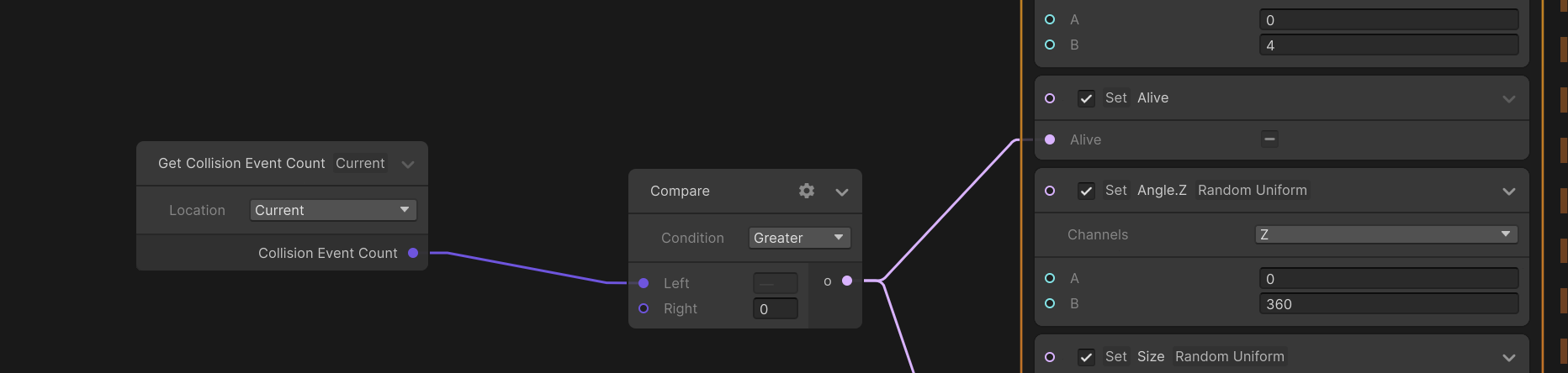

By filling the Depth Buffer with particles, we should recognize the UV layout of our skinned Mesh.
Rendering to Texture:
Now that we can see that our UVs information is correct and that we’re successfully converting the Collision Position into our Skinned Mesh Uvs space, let’s render our particles to a Render Texture.

- Create an Orthographic Camera and position and orient it above your UVs space particles.
- Create a Render Target and assign it to your camera.

You can now use this texture in the Shader of your Skinned Mesh. 

The setup was quite tedious, but now you can play with your Particle Brush in Uvs Space to paint on your render texture. You can play with the size, rotation, Blend mode, textures to create nice and dynamic texture creation. This can be useful for Blood or Paint Splat, Dynamic damage mask etc…

Depending on the information and precision needed from the texture, you can drastically reduce it’s size by choosing accordingly the Color Format.
For example, if the Color isn’t randomized per-particle but set in the shader, you can use a format with only one channel like R8_Snorm which will be way smaller:

I hope that this topic will be helpful. I will clean up my scene and share it later. Need to go to bed.
Here is a small package with a simple scene and everything properly setup. It should be working for Unity 6 and HDRP. Everything can be done in URP, but the custom pass process would be different.

VFXG_ParticlePainter.unitypackage (1.2 MB)


