Spawned Decal to Stick to a Skinned Mesh?

Super exciting stuff yall have with the VFX Graph in 6’s HDRP, but I’m not sure if I’m just a VFX noob or something else breaking here.

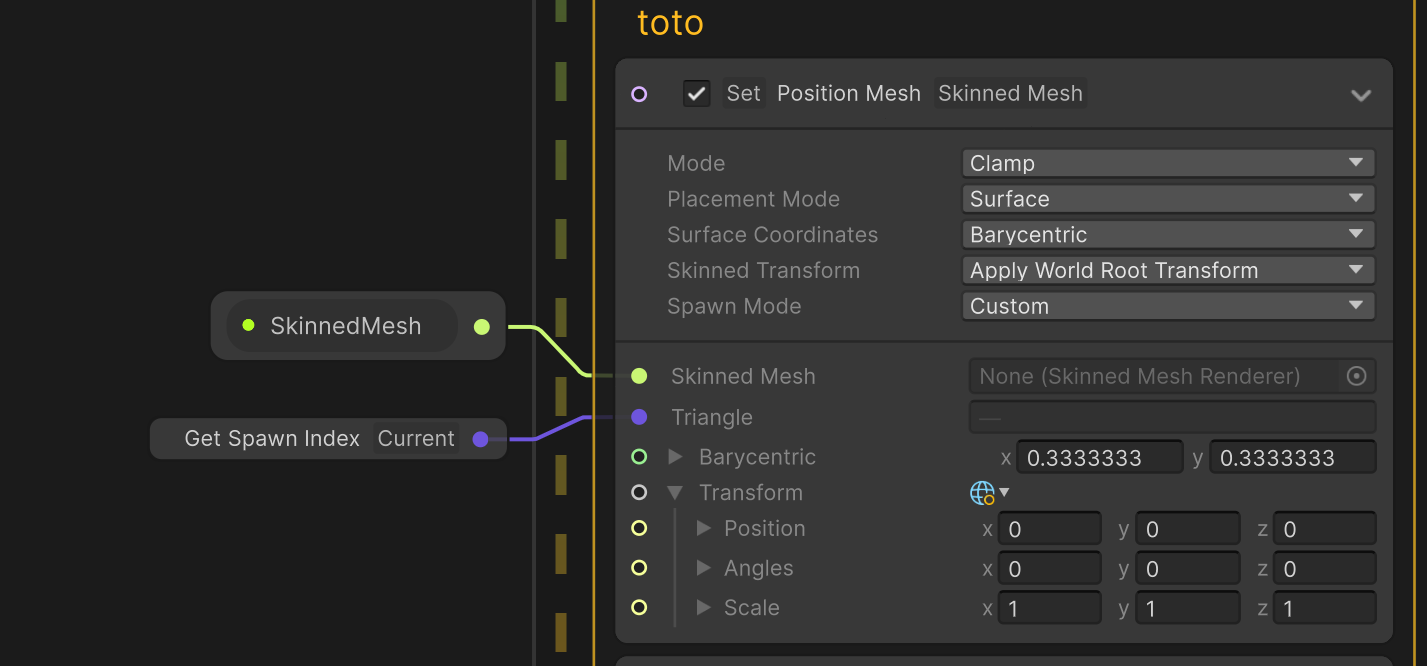
I was modifying the Goo Ball example to make a blood splatter effect. And also wanted to make it stick to skinned meshes that it hits. However when I try to tell the VFX graph to update the decal along with the skinned mesh, it seems to break most of the decal effect.
See below for how it should work (but isn’t sticking to the skinned mesh), but then when I turn on the Set Position Mesh that I added, it doesn’t work any more. Did I put in the wrong place maybe?

Also, is there is a way I can pull which skinned mesh that the effect hit? Not sure how that would work yet, so thanks for any help!

2 Likes

Morning. What you want to achieve is rather tricky.
So first, as you may know, currently VFX Graph is running exclusively on the GPU. This means that collision queries are not as trivial as with CPU. Put it simply, with VFX Graph, you need to work with an “approximation” of your collider.

You can easily collide with basic shapes (Sphere, Cone, Torus, Plane, Box, Tube).


You can combine several Collide Shape Block to interact with more complex shapes.
The Collision Advanced example in the map actually shows how cumulative collision blocks can be used together.

Now, for even more complex shapes, like the Hand shown above, you’ll need to collide either with a Signed Distance Field or with the Depth Buffer. Both of those solutions could give good approximation of complex shapes.

If you’ve read this post until here, you may now start to understand that sadly, VFX Graph doesn’t provide out of the box Skinned Mesh Collision.

That being said, you could try a custom approach to this problem. Here, how theoretical I would try to solve this problem:

  1. Collide with a Skinned Mesh Approximation.

For this, my instinct would be to use an SDF (Signed Distance Field). Now, if you’re using a Skinned Mesh, I guess it’s because the Mesh vertices are animated.

In this case, this means that you first need a dynamic SDF generation. For this, I would suggest that you take a look at this Github Repo from the Demo team. This package will allow you to generate a real-time SDF that you will be able to easily use in VFX Graph.

Setting up the SDF thanks to the package is quite trivial and well explained in the Repo Quick-start section.

  1. Hacky Friction Stick
    While the collision is working, by default it’s not sticking. A hacky way to achieve this would be to increase drastically the Friction amount.

This will work, and you can also stop the different forces that affected your particles upon the first collision. Here’s an example of gravity being disabled after the first collision thanks to the new collision attributes:

Unity_htMrUjp22X

  1. Hack, Stick to Animated SDF

Now, your Skinned Mesh is probably animated. Which means that they will first stick and just stay in the air.
Unity_qfyvi2XKIX

A hacky solution would be to try to push your particles each frame to the closest SDF position.
Now, The quality won’t be great, But it might be enough if the Skinned Mesh movement is low and that you want your decal to slide downward on your SDF Surface.

Unity_IGDshRy5Wu

As you can see, it’s kind of workings. Not great, but by tweaking things here and there this solution might be acceptable. The fact that the particles sliding will be less noticeable if the particle count is high, or if you had some downward movement like if they were sliding.

  1. Proper Custom Solution
    So to get something with better result, the idea would be to do Step 01 and from there output the collisionEventPosition position and write them in a Buffer:
    This is now possible thanks to Custom HLSL in VFX Graph.

What you would need to do is to find either the Closest Vertex, Triangles of your Skinned Mesh thanks to this World position. Finding this closest Index should be doable with custom C#.
This index value should be written again in a buffer to be accessible in VFX Graph.

This Vertex or Triangle index could be used in VFX Graph to sample the skinned Mesh and make the particles sticks to it.

I hope that this gives you some ideas on how to get what you’re looking for. I wish you a great day.

2 Likes

Hm Set Position Skinned mesh wouldn’t help here?

Set Position (Skinned Mesh) | Visual Effect Graph | 16.0.6

I’ve used this to stick particles to the mesh before (that were emitted from the mesh but still), that wouldn’t help here? :thinking:

You can use this block, of course, but you need to feed it some specific Vertex or triangle index. In this case, we want the index of the closet Vertex/triangles from our CollisionEventPosition. You can also upon collision stick to a random vertex/triangle, but I doubt that this is what you want.

In my post I’m using a sample Skinned Mesh operator as it gives more controls. When selecting the operator, you have options that allow you to output a lot of information from it:

But using the regular Set Position Skinned Mesh block is perfectly fine.

Thanks for the great reply! Amazing to see how many ways to approach this and speaks to how powerful VFX graph is and will become. Still lots to learn myself, and will take some elbow grease as well it seems, but this is a great start. I feel much less lost now.

1 Like

I’m glad that I’ve been able to help. Don’t hesitate to share your findings. If I got time, I might make some research regarding finding the Closest Vertex/triangle index thanks to a Position.

1 Like

I could see it being super useful for like bullet impacts and all kinds of things!

I plan to dig in myself too XD

This, make me curious. would it be possible to sample the PreSkinned / Bind Pose position of the skinned mesh? this is how usually it’s done in other engine to apply decal into skinned mesh?

I don’t want to nag and I am grateful that someone cared to answer this question, but I must admit that the results are far from acceptable (at least judging by the gifs). I am also looking for a solution to efficiently place decals onto skinned meshes (think blood splatters, bullet holes etc) and it would be awesome to have something built-in that would look and work decently.

For me - it is unacceptable to have the splatters not aligned perfectly all the time with the skinned mesh being moved/animated. Isn’t there any other solution?

As said in the post, the solution explained is a workaround that lacks a crucial element to work properly.
This element, is the Skinned Mesh Hit Surface or Vertex index or closest bone. Without it, it’s difficult to know on which triangle/vertex to stick to.

Now, if you C# is sending those Index, or if you set them manually in VFX Graph (random or custom) they’ll stick and behave correctly. The tricky part of this topic is not sticking decals to a Skinned Mesh, as this can be done easily as shown in the VFX learning scene.

What’s hard about this topic is the Skinned Mesh collision for GPU particles and finding the Closest Tri/vertex to stick to. As said earlier, when I have time, I will go deeper in the rabbit hole.

In the past, I usually only spawn one decal and attached it thanks to code. You can usually get plenty of information out of a TraceHit like the Collision Position, Normal, Triangle IDs ,Uvs etc. I also remembered to do some Shader Work thanks to the UV’s information.

2 Likes

Not sure, if this can be accessed directly in VFX Graph or in Unity in general. I know that I wanted to access Pre-Skin in Shader Graph, and it wasn’t exposed, but it may have changed. Now for this topic, not sure that pre-skinned would help, but I’m surely is missing something. In this Scenario of Particle that collide with the Skinned Mesh and that spawn decal particles, you’ll still need to find the Vertex/triangle to sample for Skin or Pre skin position.

I’m looking into this currently, and for me the first instinct is to get the position from colliders on the character and find a vertext from that.

Perhaps if there was a way to feed the colliders from an object to the VFX graph that might simplify the process and create a solution that’s even mobile performant.

I would say it’s relatively common to have a character composed of multiple colliders to handle interactions on a skinned mesh.

At the moment i’m not sure of the mobile performance implications of an SDF that updates as a skinned mesh is animated. But I am sure of the performance of normal colliders as I have a current system that uses that to paint decals to a render texture rather than spawn a decal projector (this system uses shuriken, it’s called “Paint in 3D”).

Okay so maybe i’m foolish, but I was thinking doing the vertex distance in C# might be slow so i tried doing it in HLSL and i’m getting confusing results.

I used this for custom HLSL

RWStructuredBuffer<float3> VertexPositionBuffer;
RWStructuredBuffer<float3> OutputCollisionBuffer;

void CalcNearestVertex(float3 inputPosition, out float3 outputPosition, out uint index)
{
    // Default output values indicating "not found"
    outputPosition = float3(0.0, 0.0, 0.0);
    index = UINT_MAX;

    // Early exit if VertexPositionBuffer is empty
    if (VertexPositionBuffer.Length == 0)
    {
        return;
    }

    // Calculating nearest vertex position
    float3 nearestPosition = float3(0.0, 0.0, 0.0);
    float minDistance = FLT_MAX;

    // Read each vertex and determine distance
    for (uint i = 0; i < VertexPositionBuffer.Length; ++i)
    {
        float3 pos = VertexPositionBuffer[i];
        float dist = distance(inputPosition, pos); // Calculate distance
        if (dist < minDistance)
        {
            minDistance = dist;
            nearestPosition = pos;
            index = i; // Store the index of nearest vertex
        }
    }

    // Set the output position to the nearest vertex position
    outputPosition = nearestPosition;
}

Then this script which seems to work.

using UnityEngine;

[ExecuteInEditMode]
public class VertexBufferManager : MonoBehaviour
{
    public SkinnedMeshRenderer skinnedMeshRenderer;
    private ComputeBuffer vertexBuffer;
    private ComputeBuffer collisionBuffer;

    void OnEnable()
    {
        try
        {
            //Debug.Log("Initializing buffers in Start method.");
            InitializeBuffers();
            //Debug.Log("Buffers initialized successfully.");
        }
        catch (System.Exception e)
        {
            Debug.LogError($"Error during buffer initialization: {e.Message}");
        }
    }

    void Update()
    {
        try
        {
            //Debug.Log("Updating vertex positions in Update method.");
            UpdateVertexPositions();
            //Debug.Log("Vertex positions updated successfully.");
        }
        catch (System.Exception e)
        {
            Debug.LogError($"Error during vertex position update: {e.Message}");
        }
    }

    private void InitializeBuffers()
    {
        // Create buffers based on the initial mesh vertex count
        Mesh bakedMesh = new Mesh();
        skinnedMeshRenderer.BakeMesh(bakedMesh);

        Vector3[] vertices = bakedMesh.vertices;
        vertexBuffer = new ComputeBuffer(vertices.Length, sizeof(float) * 3);
        //collisionBuffer = new ComputeBuffer(vertices.Length, sizeof(float) * 3);

        // Initialize buffers with the initial data
        vertexBuffer.SetData(vertices);

        // Optionally initialize collision buffer if it has specific initial values
        // This buffer size is set to be the same as vertices, adjust as necessary
        collisionBuffer.SetData(new Vector3[vertices.Length]);
    }

    private void UpdateVertexPositions()
    {
        // Bake the skinned mesh to get the updated positions
        Mesh bakedMesh = new Mesh();
        skinnedMeshRenderer.BakeMesh(bakedMesh);

        Vector3[] vertices = bakedMesh.vertices;
        vertexBuffer.SetData(vertices);

        // Ensure the compute shader/VFX graph has the updated buffer
        Shader.SetGlobalBuffer("VertexPositionBuffer", vertexBuffer);
        //Shader.SetGlobalBuffer("OutputCollisionBuffer", collisionBuffer);
    }

    void OnDestroy()
    {
        ReleaseBuffers();
    }

    private void ReleaseBuffers()
    {
        if (vertexBuffer != null)
        {
            vertexBuffer.Release();
        }
        if (collisionBuffer != null)
        {
            collisionBuffer.Release();
        }
    }
}

Then it’s hooked up like this:

Here the sphere is simply the collider, but somehow it ends up at the shoes (the red circles)…

EDIT: I think the collision information is wrong for some reason?

Just raw collision event position is way back here…

At this point i’ve done this and it might work but i’m stuck with a buffer error issue with what I use to correlate the index with the particleID.

Compute shader ([Splatter] [Decals] Initialize Particle): Property (OutputIndexBuffer) at kernel index (0) is not set

Am I doing something wrong?

The setup:

This then outputs a collision event to spawn new particles (or decals) in it’s place. This was more reliable with the positioning

But for some reason i can’t get the buffers right.

RWStructuredBuffer<float3> VertexPositionBuffer;
RWStructuredBuffer<float3> OutputCollisionBuffer;
RWStructuredBuffer<uint> OutputIndexBuffer : register(u0); // Bind this buffer to a UAV slot

// Function to calculate nearest vertex and store index in OutputIndexBuffer
void CalcNearestVertex(inout VFXAttributes attributes, uint particleId, float3 inputPosition)
{
    float3 outputPosition;
    uint index;

    // Default output values indicating "not found"
    outputPosition = float3(0.0, 0.0, 0.0);
    index = UINT_MAX; // using UINT_MAX to indicate not found

    // Early exit if VertexPositionBuffer is empty
    if (VertexPositionBuffer.Length == 0)
    {
        return;
    }

    // Calculating nearest vertex position
    float3 nearestPosition = float3(0.0, 0.0, 0.0);
    float minDistance = FLT_MAX; // Use float.MaxValue to ensure any distance will be smaller

    // Read each vertex and determine distance
    for (uint i = 0; i < VertexPositionBuffer.Length; ++i)
    {
        float3 pos = VertexPositionBuffer[i];
        float dist = distance(inputPosition, pos); // Calculate distance
        if (dist < minDistance)
        {
            minDistance = dist;
            nearestPosition = pos;
            index = i; // Store the index of nearest vertex
        }
    }

    // Set the output position to the nearest vertex position
    outputPosition = nearestPosition;

    // Store the computed nearest vertex position and index at the location dictated by particleId
    OutputCollisionBuffer[particleId] = outputPosition;
    OutputIndexBuffer[particleId] = index;
}

using UnityEngine;
using UnityEngine.VFX;

[ExecuteInEditMode]
public class VertexBufferManager : MonoBehaviour
{
    //[SerializeField] ComputeShader _compute = null;
    public SkinnedMeshRenderer skinnedMeshRenderer;
    private GraphicsBuffer vertexBuffer;
    private GraphicsBuffer outputCollisionBuffer;
    private GraphicsBuffer outputIndexBuffer;

    void OnEnable()
    {
        try
        {
            //Debug.Log("Initializing buffers in Start method.");
            InitializeBuffers();
            
            // Debugging Logs
            Debug.Log("Buffers initialized");
            Debug.Log($"Buffer VertexPositionBuffer is created: {vertexBuffer != null}");
            Debug.Log($"Buffer OutputCollisionBuffer is created: {outputCollisionBuffer != null}");
            Debug.Log($"Buffer OutputIndexBuffer is created: {outputIndexBuffer != null}");
            
            var vfx = GetComponent<VisualEffect>();
            vfx.Reinit();
            //Debug.Log("Buffers initialized successfully.");
        }
        catch (System.Exception e)
        {
            Debug.LogError($"Error during buffer initialization: {e.Message}");
        }
    }

    void Update()
    {
        try
        {
            //Debug.Log("Updating vertex positions in Update method.");
            UpdateVertexPositions();
            //Debug.Log("Vertex positions updated successfully.");
        }
        catch (System.Exception e)
        {
            Debug.LogError($"Error during vertex position update: {e.Message}");
        }
    }

    private void InitializeBuffers()
    {
        // Ensure both SkinnedMeshRenderer and VisualEffect are assigned
        if (skinnedMeshRenderer == null || !TryGetComponent<VisualEffect>(out var vfx))
        {
            Debug.LogError("SkinnedMeshRenderer or VisualEffect not assigned.");
            return;
        }

        // Create a temporary mesh to bake the skinned mesh renderer's state
        Mesh bakedMesh = new Mesh();
        skinnedMeshRenderer.BakeMesh(bakedMesh);

        // Get particle count from the VisualEffect's Emission system
        uint particleCount = vfx.GetParticleSystemInfo("Emission").capacity;

        // Retrieve vertex data from the baked mesh
        Vector3[] vertices = bakedMesh.vertices;

        // Initialize buffers with appropriate sizes
        vertexBuffer = new GraphicsBuffer(GraphicsBuffer.Target.Structured, vertices.Length, sizeof(float) * 3);
        outputCollisionBuffer = new GraphicsBuffer(GraphicsBuffer.Target.Structured, Mathf.Max(1, (int)particleCount),
            sizeof(float) * 3);
        outputIndexBuffer = new GraphicsBuffer(GraphicsBuffer.Target.Structured, Mathf.Max(1, (int)particleCount),
            sizeof(uint));

        // Initialize vertex buffer with mesh vertex data
        vertexBuffer.SetData(vertices);

        // Initialize output buffers with default values
        Vector3[] initialCollisionData = new Vector3[particleCount];
        uint[] initialIndexData = new uint[particleCount];

        // Normally if you are setting up your buffers you don't need to zero their values but just in case
        for (int i = 0; i < particleCount; i++)
        {
            initialCollisionData[i] = Vector3.zero; // Initialize collision buffer to zero
            initialIndexData[i] = uint.MaxValue; // Use max value to indicate "not found"
        }

        // Set initial data to the buffers
        outputCollisionBuffer.SetData(initialCollisionData);
        outputIndexBuffer.SetData(initialIndexData);
        

        // Clean up the baked mesh if not needed further
        //Destroy(bakedMesh);

        // Pass the buffers to the VisualEffect in the correct order
        vfx.SetGraphicsBuffer("VertexPositionBuffer", vertexBuffer);
        vfx.SetGraphicsBuffer("OutputCollisionBuffer", outputCollisionBuffer);
        vfx.SetGraphicsBuffer("OutputIndexBuffer", outputIndexBuffer);
        Debug.Log("Buffers set on VisualEffect component.");
    }


    private void UpdateVertexPositions()
    {
        Mesh bakedMesh = new Mesh();
        skinnedMeshRenderer.BakeMesh(bakedMesh);

        Vector3[] vertices = bakedMesh.vertices;

        if (vertexBuffer == null || vertexBuffer.count != vertices.Length)
        {
            if (vertexBuffer != null) vertexBuffer.Release();
            vertexBuffer = new GraphicsBuffer(GraphicsBuffer.Target.Structured,vertices.Length, sizeof(float) * 3);
        }

        // Transform vertices to world space
        for (int i = 0; i < vertices.Length; i++)
        {
            vertices[i] = skinnedMeshRenderer.transform.TransformPoint(vertices[i]);
        }

        vertexBuffer.SetData(vertices);

        //vfx.SetGraphicsBuffer("VertexPositionBuffer", vertexBuffer);
    }

    void OnDestroy()
    {
        ReleaseBuffers();
    }

    private void ReleaseBuffers()
    {
        if (vertexBuffer != null)
        {
            vertexBuffer.Release();
            vertexBuffer = null;
        }
        if (outputCollisionBuffer != null)
        {
            outputCollisionBuffer.Release();
            outputCollisionBuffer = null;
        }
        if (outputIndexBuffer != null)
        {
            outputIndexBuffer.Release();
            outputIndexBuffer = null;
        }
    }
}

I’m not sure what is wrong with your setup, but you can try to use this C# script that has been made by @Julien-A. Be noted that it’s not a formal solution but is more an example or boilerplate.
BufferBinder.cs (3.5 KB)

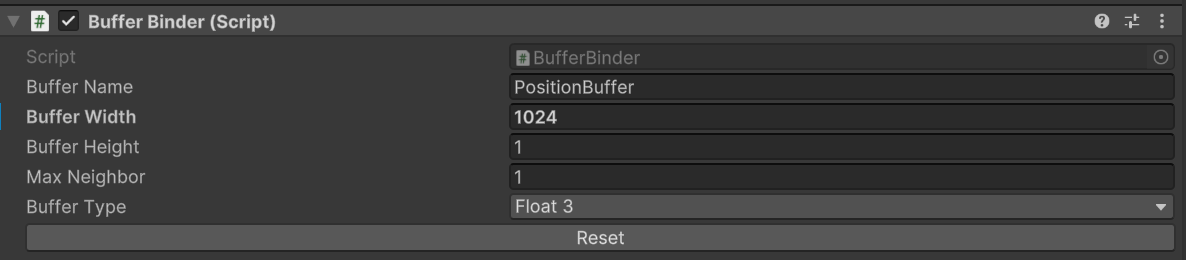
Nevertheless, I found this script pretty useful. Just drop it on a game object, set the name of your Buffer, it’s size and Type.

Alright, now let’s get back to this “Finding the closest triangle” problem :grin:.

First, we want our particle to collide with the animated skinned Mesh. This can be done thanks to a real-time SDF solution like mentioned above. Or, another solution is to use the Depth Buffer Collision. Depth buffer is easier to set up, doesn’t require custom script, and you can easily collide with several skinned Meshes. Now it has some precision drawbacks with the moving camera, and you can’t collide with what you can see like the back of the skinned Mesh (if looking at the front…).

Here I’ll stick to SDF collision, but you can take a look at colliding with the depth buffer in this post.

Thanks to the Hit Collision, let’s try to find the Closest Triangle index. For this, we’ll use custom HLSL to run over the Triangle of the collided skinned mesh to find the closest one from the hit collision.

Disclaimer: This involves for-loop iteration per particle, which isn’t recommended on the GPU.

Here is the general plan:

  • Spawn sticky particles on each triangle of our animated skinned Mesh.
  • Each frame, Store the Skinned Mesh position by updating a buffer with the current particle position.
  • Upon collision, spawn new decals particles at Impact position.
  • in the initialize context, Read the Buffer and find the Closest triangle index and store it.
  • in the update context, use this Triangle index to sample the Skinned Mesh Position and stick to it.

Finding the closest triangles will involve a for-loop over all our Mesh triangle. So first, let’s create a proxy version so that it’s a little more optimized.

Creating a proxy mesh:

Creating a proxy mesh is often useful when doing character VFX. This allows typically allows for better performances and can be used to encode some information. Here, creating a proxy mesh allows:

  • Reduce the number of triangle to iterate upon.
  • Having a nice a uniform triangle distribution, which isn’t always the case with characters.

If you want more details about uniform skinned Mesh sampling or creating a proxy mesh, you can take a look at this previous post.

For this task, I’m usually using Houdini, but I’m pretty sure that it’s doable with Blender.

First, I scatter uniformly N-number of points that will correspond to our Mesh Triangle density.
Those point inherit all information from the skinned Mesh including normal, bone Weight etc.
Then Triangles are instanced on each point. This results in a skinned triangle point cloud.

houdini_YnWryS30qp
houdini_1t2JZMVc6G

With this proxy mesh, we’ll be able to reduce our Loop number to something more reasonable, as our Mesh has around 17k triangle! For this breakdown, I’ve reduced it to 1024 triangles. :tada:

Store the Skinned Mesh Position in a Buffer

  • We first need to create and bind the buffer. For this, I’m using the script mentioned above.
    The buffer name is set to"Position Buffer" and the X size to the number of triangle of our Proxy Mesh (1024). The type is set to Vector3 as we’ll store Position

  • Create a System in VFX Graph that spawns N-number of particles depending on you Skinned Mesh triangle count.

  • In the Update Context, Set the position of your Skinned Mesh Triangle thanks to the particles SpawnIndex.

  • Write the Position to the Position Buffer thanks to Custom HLSL. The code is pretty simple, and is about declaring the buffer and setting each index with the particle position:

//declare the Buffer.
RWStructuredBuffer<float3> PositionBuffer;

//The function with the Input Index and Float3.
void updateBuffer(inout VFXAttributes attributes, uint index, float3 writteData)
{
//Writte the position in each buffer index by using particle position and their index.
    PositionBuffer[index] = writteData;
}

This system in place allows writing the skinned Mesh in the Buffer to be accessed by other systems.
Unity_hLuYcR6phX

Colliding with the Skinned Mesh:

This has been already covered in the previous post, so to summarize, a system spawns particles that collides with a Dynamic SDF representation of our Skinned Mesh (not the Proxy). Upon collision, particles are killed and spawn new Particles at Impact position.

Finding the Closest triangle Index:

It’s time to find this closest triangles :nerd_face:

  • Particles are spawns at their parent’s position.
  • in the InitContext, we’re creating a new custom HLSL operator to find the Closest triangle in our update PositionBuffer.
#ifndef CLOSETRIDEF
#define CLOSETRIDEF

// include the BufferHelper.hlsl that contains the Buffer declaration.
#include "HLSL\HLSL_BufferHelper.hlsl"


int findClosestTriangle(in float3 samplingPosition)
{
// allow to get the Size/length of our Buffer. This will represent our number of loop iteration. In our case 1024.
    uint size, stride;
    PositionBuffer.GetDimensions(size, stride);

// This variable will store the closest Triangle index. We initiate it at -1.
    int closestTri = -1;
// This variable store the Min distance found . We start with a big number.
    float minDist = 100000;

//each new spawn particles, will once at their init stage iterate over all the Buffer Indices.
    for (uint i = 0; i< size; i++ )
    {
    // Check the distance between the HitPosition and the current Position at Buffer Index
        float dist = distance(samplingPosition, PositionBuffer[i]);
    // If this distance is smaller than the previously found minDist set the closestTri index and minDist.
        if(dist < minDist)
        {
            closestTri = i;
            minDist = dist;
        }
    }
    // When the loop is over return the Closest triangle index found.
    return closestTri;
}
#endif

Almost done, let’s use this Closest triangle index :hugs:

Sticking Particles to the skinned Mesh:

  • In the update context, create a Set position Skinned Mesh.
  • Make sure to set the Placement to Surface and reference your Proxy Skinned Mesh.
  • Use your Custom Triangle Index attribute to know which Triangle to sample.
  • If you select the block, you can ask it to orient your particles to the Mesh Surface with the Apply orientation:

Having fun with the Output Particle Decal

Congrats, everything is properly set up !!! :tada: :partying_face: You can now play with your decals, and be creative with it.

Now, even if the particles decals are properly sticking, we can still see some minor stretching, but it’s not that bad. Now, as said earlier, I wouldn’t consider this as production-ready solution.

Unity_zcyXxoQHHw

It can also work with Depth Buffer collision instead of SDF. Here, I’m using the Main Camera position and vector for the initial position and velocity of the projectiles particles.
Unity_mVsyC2KCQy

Now, to make it viable, finding the “closest triangle” really requires an acceleration structures.
I hope this will still be interesting. Don’t forget to have fun.

P.S: I’m joining a small package that should contain the simple scene and the VFX properly setup for Unity 6 and HDRP. Everything is easily reproducible on URP. Although it can work only with the depth collider, the prefabs will have references to the demo team real-time SDF baker. Make sure to install it thanks this information.

VFXG_StickyDecals.unitypackage (2.6 MB)

Neat, actually this helped me figure out my issues XD

I think my setup has a lot less debug info, but it does work similarly!

Splatter

SplatterURP.unitypackage (1.7 MB)

Vertex buffer Manager:

using System;
using UnityEngine;
using UnityEngine.VFX;

[ExecuteInEditMode]
public class VertexBufferManager : MonoBehaviour
{
    public SkinnedMeshRenderer skinnedMeshRenderer;
    private GraphicsBuffer _vertexBuffer;
    private VisualEffect _visualEffect;

    private void OnValidate()
    {
        try
        {
            InitializeBuffers();
        }
        catch (System.Exception e)
        {
            Debug.LogError($"Error during buffer initialization: {e.Message}");
        }
    }

    void OnEnable()
    {
        try
        {
            InitializeBuffers();
        }
        catch (System.Exception e)
        {
            Debug.LogError($"Error during buffer initialization: {e.Message}");
        }
    }

    /// <summary>
    /// Vertex buffer is updated every frame for animations.
    /// </summary>
    void Update()
    {
        try
        {
            UpdateVertexPositions();
        }
        catch (System.Exception e)
        {
            Debug.LogError($"Error during vertex position update: {e.Message}");
        }
    }

    private void InitializeBuffers()
    {
        // Ensure both SkinnedMeshRenderer and VisualEffect are assigned
        _visualEffect = GetComponent<VisualEffect>();
        if (skinnedMeshRenderer == null || !_visualEffect)
        {
            Debug.LogError("SkinnedMeshRenderer or VisualEffect not assigned.");
            return;
        }

        if (skinnedMeshRenderer.sharedMesh.isReadable == false)
        {
            Debug.LogError("SkinnedMeshRenderer not readable, cannot initialize. Enable Read/Write in import settings");
            return;
        }

        // Create a temporary mesh to bake the skinned mesh renderer's state
        Mesh bakedMesh = new Mesh();
        skinnedMeshRenderer.BakeMesh(bakedMesh);

        // Retrieve vertex data from the baked mesh
        Vector3[] vertices = bakedMesh.vertices;

        // Initialize buffers with appropriate sizes
        _vertexBuffer = new GraphicsBuffer(GraphicsBuffer.Target.Structured, vertices.Length, sizeof(float) * 3);

        // Initialize vertex buffer with mesh vertex data
        _vertexBuffer.SetData(vertices);

        // Clean up the baked mesh if not needed further
        //Destroy(bakedMesh);

        // Pass the buffers to the VisualEffect in the correct order
        _visualEffect.SetGraphicsBuffer("VertexPositionBuffer", _vertexBuffer);
        
        Shader.SetGlobalBuffer("VertexPositionBuffer", _vertexBuffer);
    }


    private void UpdateVertexPositions()
    {
        // Do not update if particle system is not running.
        if (!_visualEffect.HasAnySystemAwake())
            return;
        
        Mesh bakedMesh = new Mesh();
        skinnedMeshRenderer.BakeMesh(bakedMesh);

        Vector3[] vertices = bakedMesh.vertices;

        if (_vertexBuffer == null || _vertexBuffer.count != vertices.Length)
        {
            if (_vertexBuffer != null) _vertexBuffer.Release();
            _vertexBuffer = new GraphicsBuffer(GraphicsBuffer.Target.Structured,vertices.Length, sizeof(float) * 3);
        }

        // Transform vertices to world space (Thanks tatoforever)
        for (int i = 0; i < vertices.Length; i++)
        {
            vertices[i] = skinnedMeshRenderer.transform.TransformPoint(vertices[i]);
        }

        _vertexBuffer.SetData(vertices);
    }

    void OnDestroy()
    {
        ReleaseBuffers();
    }

    private void ReleaseBuffers()
    {
        if (_vertexBuffer == null) return;
        _vertexBuffer.Release();
        _vertexBuffer = null;
    }
}

ProcessVertexDistance.hlsl

RWStructuredBuffer<float3> VertexPositionBuffer;
//RWStructuredBuffer<float3> OutputCollisionBuffer;

void CalcNearestVertex(float3 inputPosition, out float3 outputPosition, out uint index)
{
    // Default output values indicating "not found"
    outputPosition = float3(0.0, 0.0, 0.0);
    index = UINT_MAX;

    // Early exit if VertexPositionBuffer is empty
    if (VertexPositionBuffer.Length == 0)
    {
        return;
    }

    // Calculating nearest vertex position
    float3 nearestPosition = float3(0.0, 0.0, 0.0);
    float minDistance = FLT_MAX;

    // Read each vertex and determine distance
    for (uint i = 0; i < VertexPositionBuffer.Length; ++i)
    {
        float3 pos = VertexPositionBuffer[i];
        float dist = distance(inputPosition, pos); // Calculate distance
        if (dist < minDistance)
        {
            minDistance = dist;
            nearestPosition = pos;
            index = i; // Store the index of nearest vertex
        }
    }

    // Set the output position to the nearest vertex position
    outputPosition = nearestPosition;
}

Now learning this stuff, I’m wondering if it’s possible to have this collision data passed to individual VFX objects?

Like okay we have bullet holes working for one skinned mesh, but the emission is decoupled from the spawn in the graph.

Couldn’t the collision instead trigger an event where multiple systems can receive and spawn their own decals as needed? Especially if depth is used…

So like you have a gun firing particles and each hit triggers a VFX effect that calculates the nearest vertex on it’s own like this one does, and emits it’s own particle effect and decal

like bullet hole decal + sparks or whatever the nearest surface needs…

Would you have different systems stemming from the collision event one for skinned meshes and one for everything else thats just collision point?