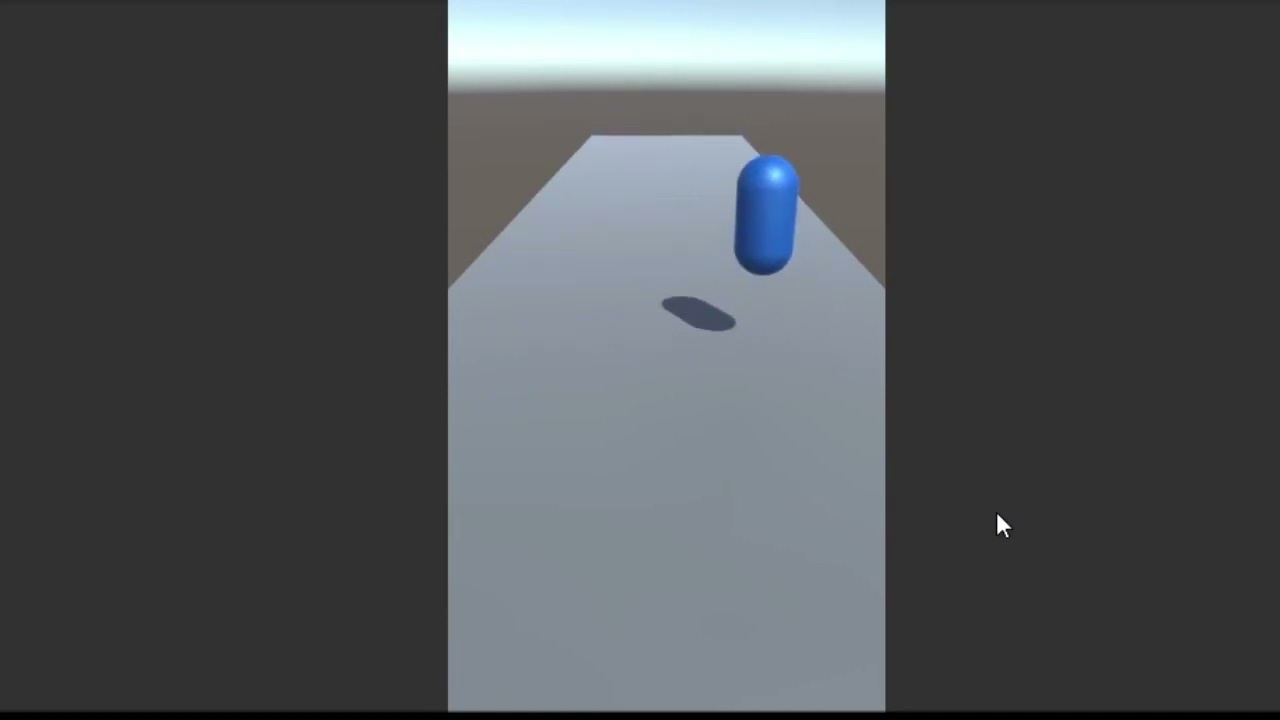
Why my character glitch when I move it to the left or right?

Well, I don’t know what happened but I was working and the character move correctly, then I closed the Unity and today I opened it and the glitch started.
I tried to remove the script and put it on again but it doesn’t work, I also tried removing the capsule (character) but it still not working.
The capsule have the capsule collider, the script an the character controller.
I’m using Unity 3D 2018.4.36f1
using System.Collections;
using System.Collections.Generic;
using UnityEngine;

public class PlayerController : MonoBehaviour
{
    private CharacterController controller;
    private Vector3 direction;
    public float forwardSpeed;

    private int desiredLane = 1; // 0: izquierda 1: medio 2: derecha
    public float laneDistance = 4; // distancia entre carriles

    public float jumpForce;
    public float Gravity = -20;
    void Start()
    {
        controller = GetComponent<CharacterController>();
    }

    // Update is called once per frame
    void Update()
    {
        direction.z = forwardSpeed;

        if (controller.isGrounded)
        {
            direction.y = -1;
            if (Input.GetKeyDown(KeyCode.UpArrow))
            {
                Jump();
            }
        }
        else
        {
            direction.y += Gravity * Time.deltaTime;
        }

        //Carril deseado
        if (Input.GetKeyDown(KeyCode.RightArrow))
        {
            desiredLane++;
            if (desiredLane == 3)
                desiredLane = 2;
        }

        if (Input.GetKeyDown(KeyCode.LeftArrow))
        {
            desiredLane--;
            if (desiredLane == -1)
                desiredLane = 0;
        }

        //Calcular donde deberíamos de terminar al movernos
        Vector3 targetPosition = transform.position.z * transform.forward + transform.position.y * transform.up;
        if (desiredLane == 0)
        {
            targetPosition += Vector3.left * laneDistance;
        }

        else if (desiredLane == 2)
        {
            targetPosition += Vector3.right * laneDistance;
        }

        transform.position = Vector3.Lerp(transform.position, targetPosition, 80 * Time.deltaTime);
    }

    private void FixedUpdate()
    {
        controller.Move(direction * Time.fixedDeltaTime);
    }

    //Jump
    private void Jump()
    {
        direction.y = jumpForce;
    }
}

I’m not sure what is going on above… the script looks like a mashup of a Rigidbody script (based on the inappropriate use of FixedUpdate(), which should ONLY be used for Rigidbody physics) and a CharacterController, as well as some weird use of Mathf.Lerp() to move… not really sure where to go with it…

Here is a super-basic starter prototype FPS based on Character Controller (BasicFPCC):

Otherwise if you want to debug the stuff above, here’s how to start:

You must find a way to get the information you need in order to reason about what the problem is.

Once you understand what the problem is, you may begin to reason about a solution to the problem.

What is often happening in these cases is one of the following:

  • the code you think is executing is not actually executing at all
  • the code is executing far EARLIER or LATER than you think
  • the code is executing far LESS OFTEN than you think
  • the code is executing far MORE OFTEN than you think
  • the code is executing on another GameObject than you think it is
  • you’re getting an error or warning and you haven’t noticed it in the console window

To help gain more insight into your problem, I recommend liberally sprinkling Debug.Log() statements through your code to display information in realtime.

Doing this should help you answer these types of questions:

  • is this code even running? which parts are running? how often does it run? what order does it run in?
  • what are the values of the variables involved? Are they initialized? Are the values reasonable?
  • are you meeting ALL the requirements to receive callbacks such as triggers / colliders (review the documentation)

Knowing this information will help you reason about the behavior you are seeing.

You can also supply a second argument to Debug.Log() and when you click the message, it will highlight the object in scene, such as Debug.Log("Problem!",this);

If your problem would benefit from in-scene or in-game visualization, Debug.DrawRay() or Debug.DrawLine() can help you visualize things like rays (used in raycasting) or distances.

You can also call Debug.Break() to pause the Editor when certain interesting pieces of code run, and then study the scene manually, looking for all the parts, where they are, what scripts are on them, etc.

You can also call GameObject.CreatePrimitive() to emplace debug-marker-ish objects in the scene at runtime.

You could also just display various important quantities in UI Text elements to watch them change as you play the game.

If you are running a mobile device you can also view the console output. Google for how on your particular mobile target, such as this answer or iOS: How To - Capturing Device Logs on iOS or this answer for Android: How To - Capturing Device Logs on Android

Another useful approach is to temporarily strip out everything besides what is necessary to prove your issue. This can simplify and isolate compounding effects of other items in your scene or prefab.

Here’s an example of putting in a laser-focused Debug.Log() and how that can save you a TON of time wallowing around speculating what might be going wrong:

When in doubt, print it out!™

Note: the print() function is an alias for Debug.Log() provided by the MonoBehaviour class.