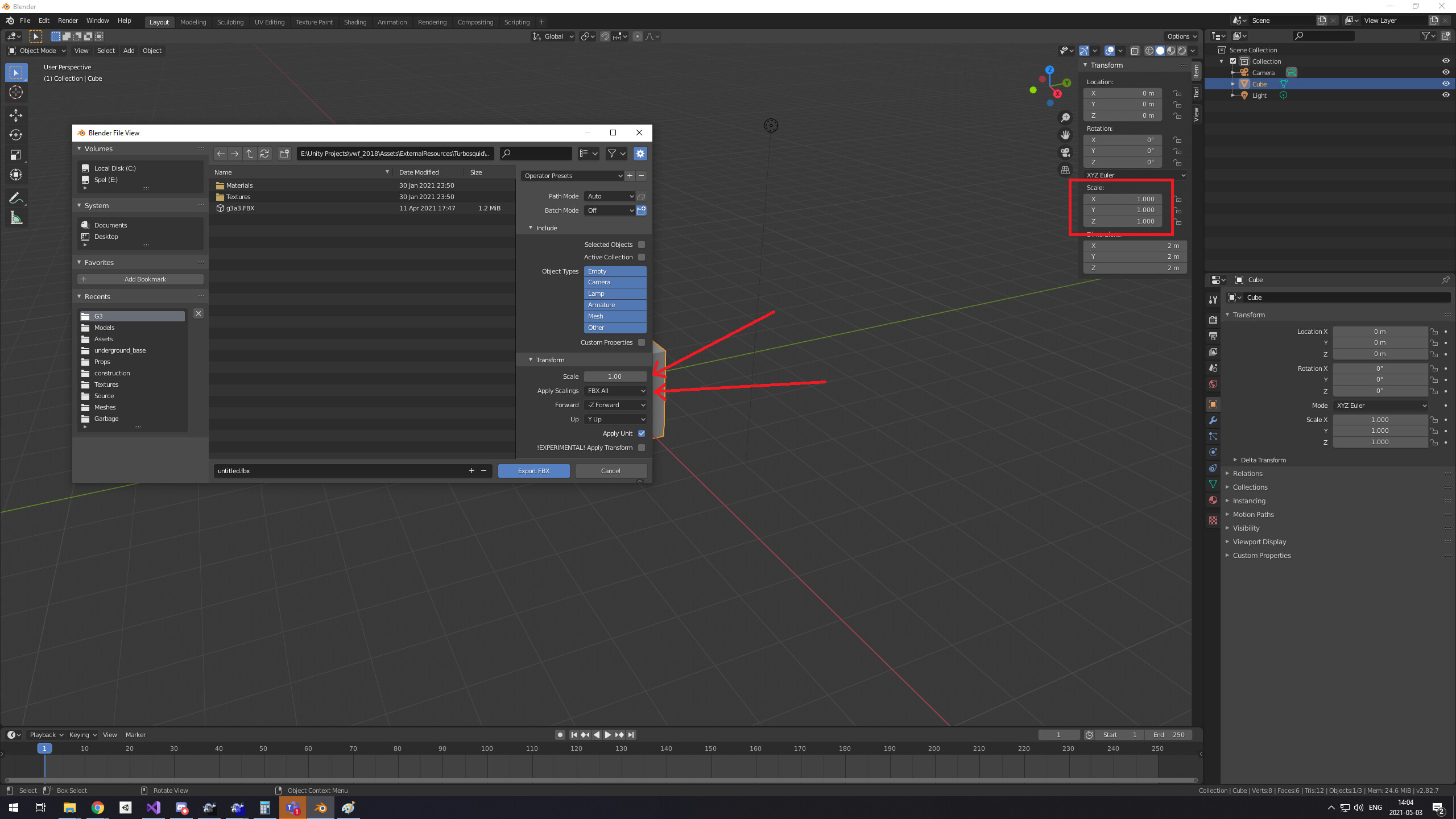
Hii i’m watching and reading a lot about Unity scale and Blender and people and Unity documentation says that a Unity cube it’s 1m so two cubes should be a person size but most of the Unity assets are 2 ou 3 times biggers than Unity default system and blender default cube is 2 meters tall and don’t exacly match with Unity default size i tried a lot of diferent settings when exporting but i can’t make it right since as usual things Unity don’t make sense.
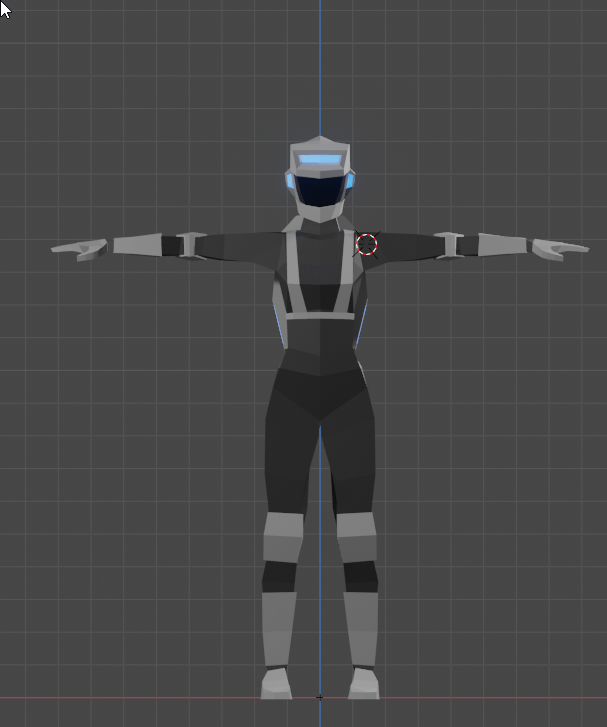
Look at this picture, character size it’s two meters and it’s caring character controller with 2meters colliders size, so he has exactly 2 meters but look at him compared to the rest of the Unity enviroment… he’s to small and i can’t make my scenario in this scale since Unity shadow it’s gonna break because the objects will become to small to be properly detected by the other hand i can’t make them bigger since it will renders giants shadows and break the whole perfomance.
I’m not having any problems making everthing run smooth and looks like real scale but bothers me since i model everything in Blender with perfect metrics to avoid getting a fork with 2 meters but even unity default primitives scale looks weird so that’s why i’m asking which is the best way to get a good and real scale in Unity? Because to be fair, most of the time i make my characters have 2.8 meters to make they look like adults because with less than that they look like c-h-i-l-d-r-e-n near in c-o-m-p-a-r-i-s-o-n with Unity blocks.
Cheers.
Edit: Why i can’t write c-h-i-l-d-r-e-n and c-o-m-p-a-r-i-s-o-n without getting censured by Unity forum? that’s weird.
You can fiddle with the import scale to get the look you prefer. The CapsuleCollider should be scaled across the radius. For a good CharacterController you should be able to dynamically resize the capsule depending on extension of the body and limbs. For example your character is running and defenestrates through a window. The character controller at walk height will not make it but if you resize it vertically or even change it’s axis it will slip through the opening.
The character size is not two meters. It’s something in ballpark of 180cm.
You’d need to check the model in a 3d editor to be sure. It is possible to scale him up/down, though, but most likely the character is not 2 meters tall.
You know that scaling in 3D spaces on electronic media is arbitrary, right?
Blender has different scaling method, so you can expect anything coming out of it will be needed to be tweaked if you want to put it in Unity.
I read your entire post, but can’t figure out why you think Unity’s scaling is not right. Especially since you can always say that the 1 unit cube is 1.3343422 meters in real life and scale everything accordingly. Because it is arbitrary. (Well, you need to adjust the physics coefficients, because they are set according to 1 unit = 1 meter)
i never understand these post where people are having trouble with scale. It is all automated. Every program I’ve used - and that’s just about all the major current ones - all automate the process. I don’t think I’ve ever had an issue with things being inconsistently scaled between programs.
Just look at the export settings and make sure the scale settings are set to automatic. They work. You don’t got to do math or nothing. Worst case it will just be a power of ten.
If you are making models from scratch use the default content in your 3d app to bring in a size reference. Every 3d program has one - usually a human model and it will be ~6 feet high. You just base everything off of that and export with automatic scale settings and you shouldn’t ever have an issue.
I don’t know about the latest Blender versions, but up until last year there was quite of a bit of problem with certain bone-scales when you export skeleton. The ordinary 3D object export is quite usable with that ‘export unity’ settings or what is the name of it. (Obviously I’m not a 3D artist as you can tell )
Blender during export usually inserted a “helper transform” next to root bone which would turn the whole model by 90 degrees around x axis and would scale it by a factor of 0.001. It was extremely annoying.
Thanks for all the replies sorry for taking to long to answer back but yes i did that since a lot of things in Unity manual say something and when you go to forums or tutorials they explain a lot of things which are wrong on the manual i’m my self already reported one unity documentation error saying to use Physics settings in LateUpdate which is completely wrong but was not my intetional to sound rude but we can all agree that Unity have some weird features which are not completely clear and i’m not using myself as a standart but professional devs already said things like that either way let’s forget this.
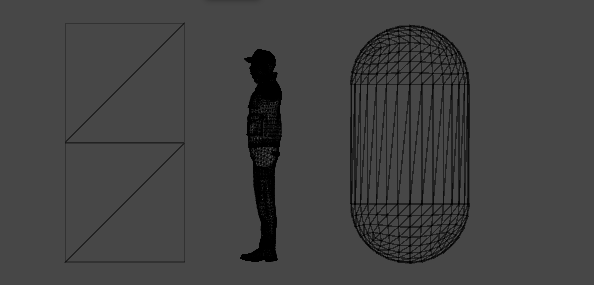
My problem is simple, unity cube basead on unity manual it’s 1m which is 100cm, my modeling are done with real scale but Unity scale ins’t right, 2 cubes should be 2 meters or as you said 2.60m almost but look at that, an character with 2m looks like a child and i can’t make them bigger since will destroy the perfomance rendering big shadows and unity can’t handle little shadows so as i sad most of the time i’ve to set my character scale to unreal things like 2.60meters just to look like two meters, if i import an blender chair with 1.25m(125cm) and set the model to Unity scale and then put the chair near to a Unity cube the chair will look like two times small than the defaul cube so Unity default scale don’t work with others 3D softwares even with the rights settings… if i properly set the Blender config to the Unity config why unity 3d models looks small in c-o-m-p-a-r-i-s-o-n with objects which have the “same scale” i almost feel Unity is lying since two cubes should have two meters and two of my chairs should have more than the double of the cubes height but they look like half of the size of them…
I aprecciate all the help but i guess there’s nothing that i can do to make the scaling and unscaling process automatic i guess i’ll always have to export try the size and if they don’t match with the scene just arbitrary change the size until get right… again, thanks for all the help.
There are multiple places in the pipeline from having a model in Blender to it being rendered in a scene in Unity where the scale can be modified. I would suggest that you’re missing one or more of those and that’s why things don’t seem consistent.
I would suggest starting a new project with default settings and seeing how that goes. Unity’s default settings assume that 1 unit = 1 meter, and that your scene size is in the ballpark of 10 - 1000m across (this is a gross simplification, but it’ll do to start).
 )
)