
Hi Everyone,
As we continue to bring more stability and performance improvements to our releases, in our latest update we’re introducing updates that will help us identify and resolve performance issues with greater speed and accuracy, as well as a new, built-in diagnostics experience for developers to improve game performance on a project-specific level. These updates are enabled by a new developer data framework that ensures that as we make data-driven improvements, developers have visibility and control over how their data is used across the Unity ecosystem.
Your feedback is essential in helping to shape the future of new features, and we will have a team of engineers and customer QA folks available here on Unity Discussions who look forward to your feedback on this release.
What’s New?
New Diagnostics, Featuring More Parameters Including ANRs
You can now find new, expanded diagnostics reports in your Project Overview in the Unity Dashboard. These reports are designed to help you track, investigate, and fix crashes and performance problems that impact your players.
These reports provide more detailed data for mobile and desktop projects. This includes ANR (Application Not Responding) monitoring for Android projects, including device and session specifics. We’ve also added new data visualizations to make it simpler to understand performance trends.
There’s no extra package set-up needed, and these enhanced diagnostics are free for all developers. Cloud Diagnostics will also remain available for existing users, but long-term the goal is for the new diagnostics experience to replace Cloud Diagnostics.
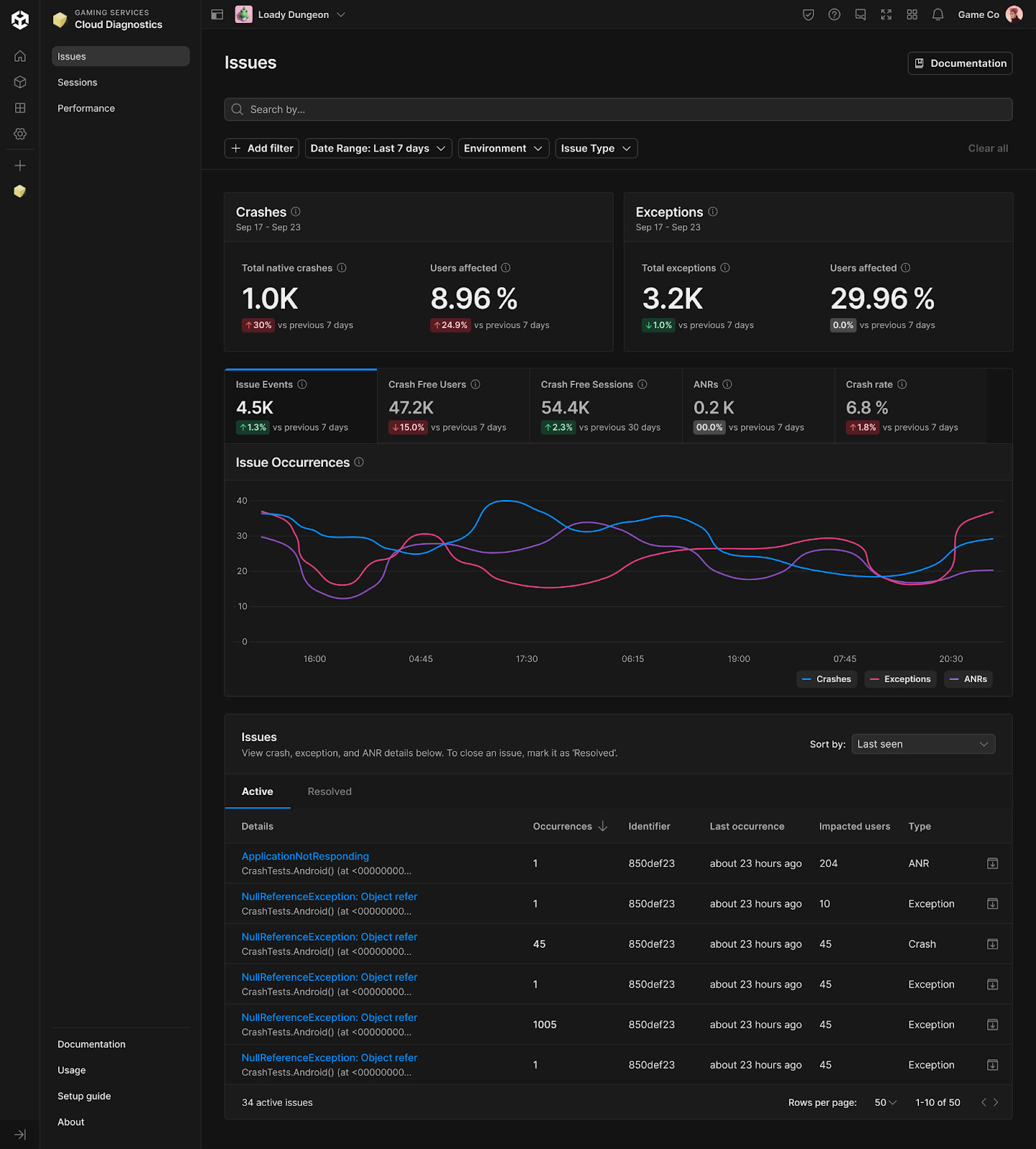
New diagnostics reports and details in the Unity Dashboard, showing statistics around crashes, exceptions, and ANRs, as well as details related to specific issues the number of users impacted.
Diagnostic Data for Addressing Runtime Issues at Scale
We will also use diagnostic data to enhance the Engine’s performance and stability across all the environments Unity operates in. Diagnostic data allows us to access timely, real-world information about how the Engine performs in production, on actual devices, and during live gameplay. These insights help us identify and prioritize the most critical fixes, so we can resolve them for you faster.
This data is essential for our continued investment in making the Engine—and your games—as stable and performant as possible. With the 6.2 beta, all new projects will collect diagnostic data by default. If you prefer not to share this data, you can opt out at any time via Project Settings in the Editor.

Diagnostics data settings in Project Settings, where you can leave the setting enabled, or toggle to disabled if you prefer not to participate in diagnostic data sharing.
Introducing the Developer Data Framework
With more data-driven improvements coming to our Engine, runtime, and developer tools, transparency and control over your data becomes even more important. That’s why we’re introducing a new framework to ensure developers have complete control over how their data is used within Unity.
The Developer Data framework is Unity’s new approach to handling data collection, management, and usage across our ecosystem. It provides tools for you to manage your data, including what’s collected, how it’s collected, and what it’s used for.
Whether the data comes from the Unity Engine, applicable Unity services, or your own imported sources, it’s always considered Developer Data – meaning you own and control it. Unity will only use it as you direct, and won’t repurpose it without your explicit permission. You define the rules, so you can be confident about what’s shared and how it’s used.
Starting with this 6.2 release, you’ll see Developer Data show up in your Unity Dashboard settings. This lets you easily manage your data preferences across all your projects and services. Until you customize your settings, Unity will only collect and process the data needed by the products and services you already use to function as intended. You can change these settings whenever you want - including enabling data sharing to power things like machine learning and benchmarking - and they’ll automatically apply to both your current projects and live games. Alternatively, if you decide you want to opt out of all data collection, you can do so in Project Settings in the Editor.
To read more about the Developer Data framework, you can see an in-depth overview here.

New Developer Data settings in the Unity Dashboard
Expanded data settings for Unity AI
We’ve made some significant updates since Unity AI’s initial release last month. We heard your feedback about Unity AI data sharing and we are utilizing the Developer Data framework to enable more granular customization and control. In addition to your project-level Developer Data settings, Unity 6.2 beta introduces controls specific to Unity AI to align with your team’s priorities, workflows, and policies:
- Developer Data settings: Developer Data sharing to “Improve Unity AI” models remains off by default for Unity AI. We recognize that this type of data use can be particularly sensitive. If you want to allow Unity to use your data in this way, you must opt in to this setting for Unity AI specifically. Even then, the use is limited to the Developer Data Unity collects on your behalf, and does not grant Unity the right to scrape or otherwise consume data from your project. For example, Unity may use your prompts, as well as serialized object data and metadata from objects and files that you attach to improve model responses for other users. However, it will not use binary or asset data such as images, 3D meshes, audio files, or similar media content. Developer Data collected from queries while this setting is on may be used for improving Unity AI models. However, when the setting is turned off, that is a go-forward change on future queries; it is not retroactive because model improvements from specific queries can’t be undone.
- Enable/Disable AI: To stay aligned with your company’s AI usage policies, you now also have the option to enable or disable both the Unity AI Assistant and Generators features. When disabled, no users in your org will be able to use AI features, even if the packages are installed.

New Unity AI settings in the Unity Dashboard showing the defaults
- Hide AI Menu: If you don’t want to see the new AI menu button in the Unity Editor, there is now a local Editor setting to hide it by going to Window > Unity > Settings > General > Select “Hide AI Menu”. This setting is available in Unity 6000.2.0b7+.
- AI Models and Partners: To improve transparency about which AI models and partners we use, as well as how your data is used by them, we have updated our AI Models and Partners page with more information.
Please let us know if these settings meet your needs to manage your studio’s AI policies.
New Sprite Generation Options
We’ve also significantly expanded and improved 2D sprite generation by adding higher quality pre-trained models (AKA: LoRas) to the sprite model picker which are based on newer foundation models such as FLUX and GPT-Image. We also added the ability to favorite models to make them easier to re-use. Custom sprite model training is also coming soon (in July), which will allow you to replicate the style of your game with a model that you can train with your own assets. With custom model training, you’ll have the choice of using three foundational models: SDXL, FLUX 1, and Bria 2.3. These capabilities provide greater precision and creative control of your outputs.

New models in the sprite generator model picker
Finally, in this release we also added a link to our Documentation in the AI menu button to make docs easier to access, added a terrain layer specific material generator, as well as fixed a large number of bugs and small UX issues. Thanks for all your feedback!
We will continue upgrading Unity AI frequently based on your feedback on our new public roadmap and discussions suggestions. As a reminder, Unity AI is free during the 6.2 beta, so go try it out, and check out the docs for a basic overview.
Try Unity 6.2 Beta 7
Unity 6.2 Beta 7 provides an opportunity to assess these new features and updates, and to provide valuable feedback on how they can better serve your needs in developing and running live games. Check out the release notes for a comprehensive list of features.
Download Unity 6.2 Beta 7
Our alpha and beta releases are open to anyone, so no signup is required. Get started by downloading them from the Unity Hub. Because there may be feature stability issues with early test versions, we do not recommend them for projects in production, and we highly recommend that you back up any project before opening it with an alpha or beta release.
As a reminder, Unity 6.1 remains the current Supported Update release during this beta period. When Unity 6.2 enters GA (general availability), it will become the only Supported Update release.
Through the 6-2-beta tag, you can hear about further announcements, and discuss the 6.2 Beta with us and the wider community on Unity Discussions. Our goal in sharing beta versions is to identify and resolve any remaining issues to improve overall quality before the official release.
We will announce all 6.2 beta releases in our dedicated release announcements topic here on Unity Discussions. You can choose to receive notifications for new 6.2 beta releases via the bell icon on the right.
If you have any questions or other feedback regarding the beta and its features, be it positive or negative, please let us know about it.
Thanks for participating in the beta!
