Hey everyone,
I’m posting on behalf the technical content team at Unity to let you know that we have a new e-book about UI Toolkit in Unity 6 that’s ready to download.
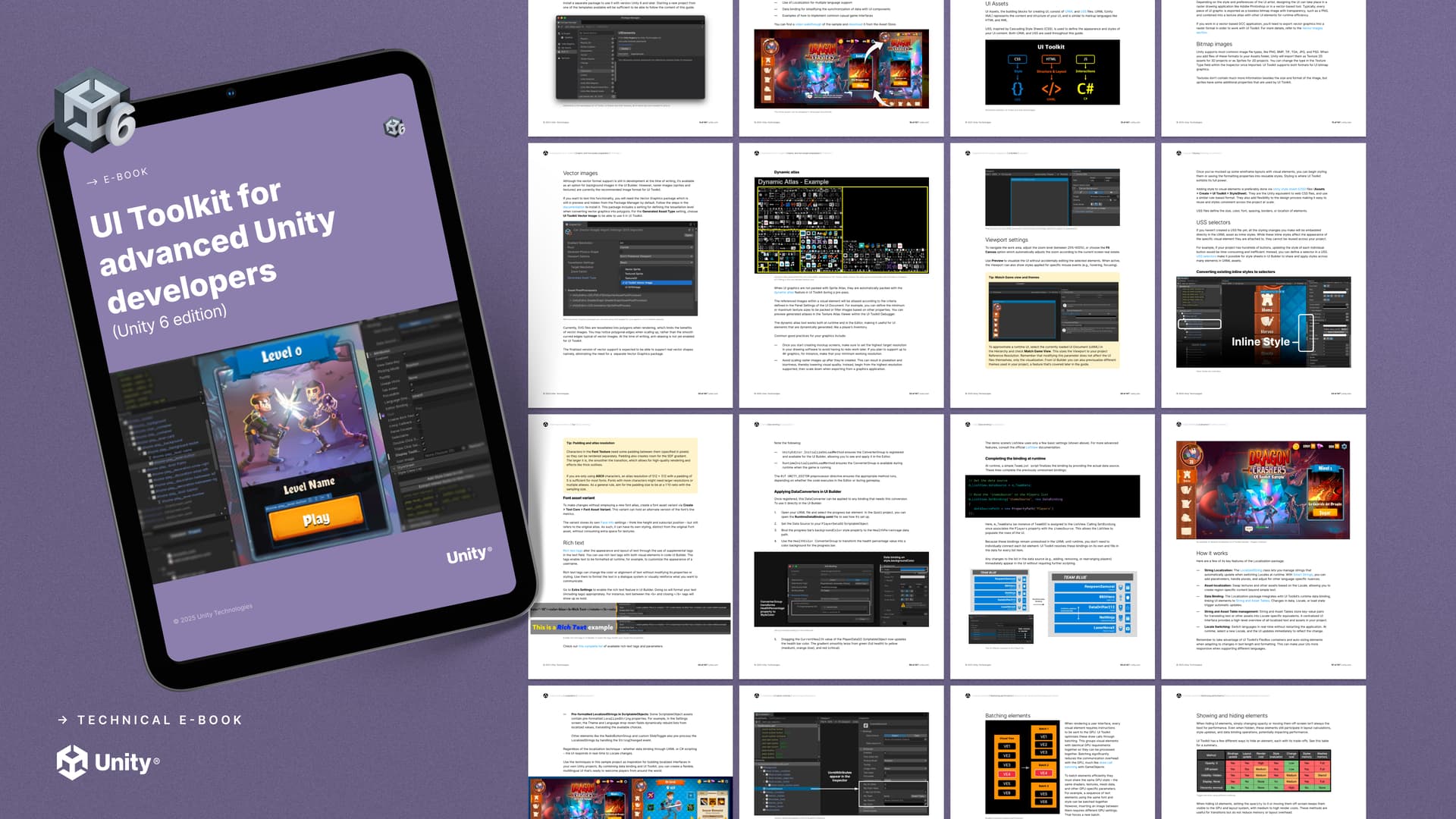
A look inside the new UI Toolkit e-book for Unity 6
UI Toolkit for advanced Unity developers (Unity 6 edition) is a thorough overhaul of its predecessor, the 2021 LTS UI design and implementation e-book. We rewrote the first edition of our UI e-book from the ground up to solely focus on UI Toolkit and include the significant new features it provides in Unity 6 – data binding, localization, custom controls, and more.
This latest edition is a 2-in-1 guide, serving both UI artists/designers and UI programmers. Each section has a sharp focus on specific toolsets, making it easy to choose those parts that are most relevant to your role and needs.
The e-book uses examples from two official Unity UI Toolkit samples, both aimed largely at experienced Unity developers, and also updated to Unity 6:
-
UI Toolkit Sample – Dragon Crashers: This sample uses the latest UI Toolkit workflow at runtime for a full-featured interface; the sample includes a front-end menu system, over a slice of the 2D project Dragon Crashers, a mini-RPG, and now also features data binding and localization.
-
QuizU: Quiz U showcases an interactive quiz game built with Unity’s UI Toolkit. This project highlights UI Toolkit workflows, event-driven architecture, and reusable design patterns for building modern game user interfaces.
We cover these samples in more detail later on in this post.
Download the new UI Toolkit e-book
Why you should choose UI Toolkit (in most cases): A quick refresher
UI Toolkit offers significant advantages over the traditional Unity UI (also known as uGUI) and legacy IMGUI (for Editor tools) systems. It provides a more modern, flexible, and performance-oriented alternative that scales better for most projects. It draws inspiration from web technologies, offering an advantage to developers familiar with web applications. And for those new to markup languages like HTML/XML and Cascading Style Sheets (CSS), it’s a great opportunity to explore a powerful set of industry-standard tools.

In essence, UI Toolkit interfaces consist of UXML and USS files to create layouts and styling by the UI Toolkit systems.
It can support your whole production pipeline, handling both Editor tooling and runtime games or applications. Some of its benefits compared to the legacy UI systems include:
-
Faster iteration: Work and iterate more quickly with global style management and live authoring capabilities.
-
Rendering performance: Gain greater control over the performance of your game using Render Hints and dynamic texture atlases.
-
Better collaboration: Separate logic (C# code), UI structure (UXML documents), and styling (USS) to reduce conflicts and improve teamwork.
-
Reusability: Share and reuse styles and widgets within or across projects, as well as between the Editor and runtime.
A 145+ page e-book for everyone on your team making UI

An image from the section on data binding, showing a ScriptableObject asset that contains a character’s data; this new version of the UI Toolkit e-book has several major chapters devoted to UI programmers
Our previous UI guide cast a wider net for its target audience, with sections on UI design and art fundamentals, and a big focus on Unity UI features vs UI Toolkit; these chapters are still available in the 2021 LTS version but are removed from this new edition.
The Unity 6 version explains the key capabilities of UI Toolkit so both artists and programmers can maximize the performance and reusability of the UIs they’ll build for their projects.
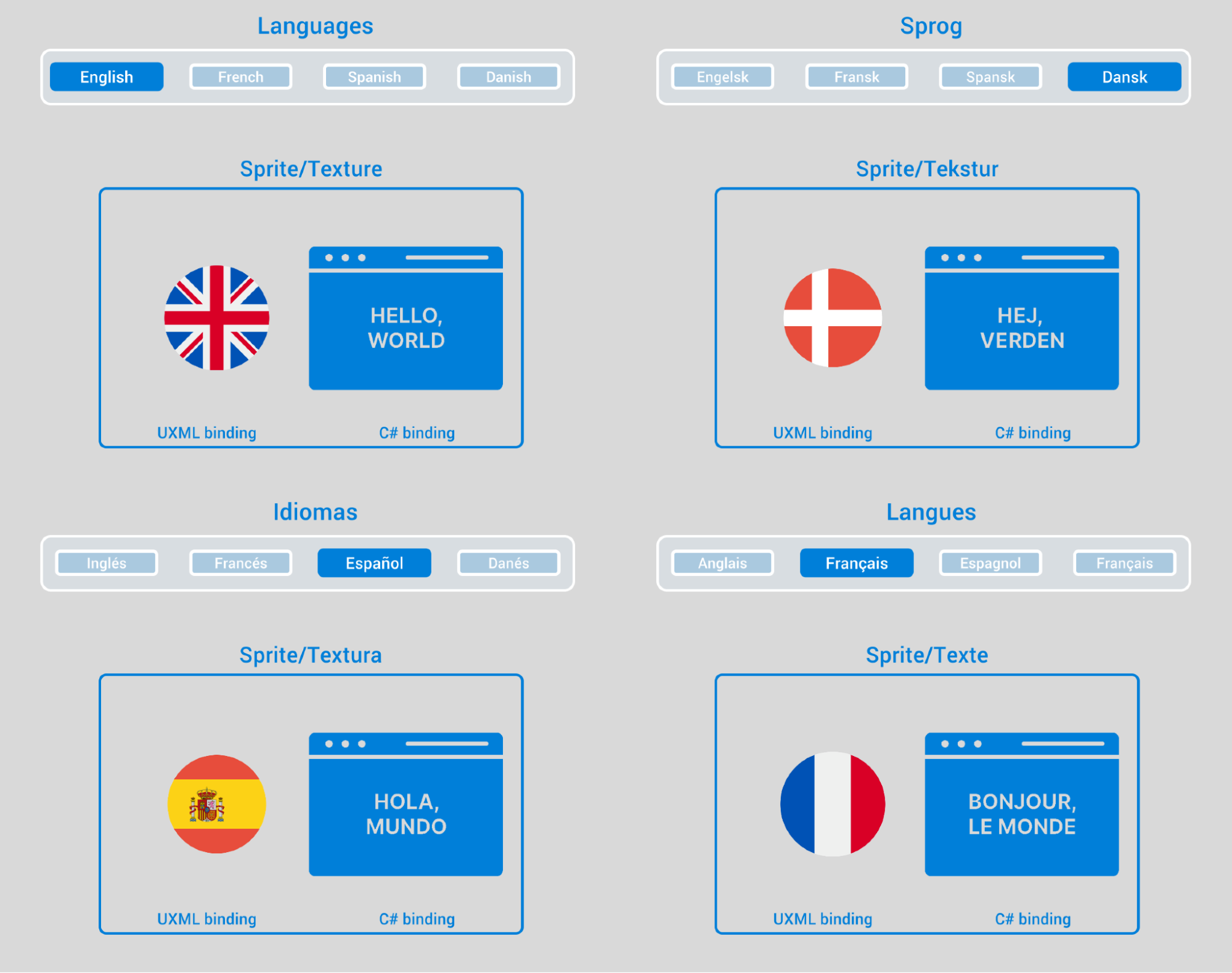
The LocalizedTextures update with each Locale. This image is from the QuizU sample and is shown in the chapter on localization.
The guide targets three main types of users:
-
The UI artist, who masters the fundamentals of design, color, shape, typography, and layout. Their eye for detail motivates them to create “pixel perfect” UI.
-
The UX designer, who researches user behavior and the broader needs of the end user. UX designers control how someone interacts with a digital product, building navigation flows with the intent of making an intuitive and compelling experience.
-
The UI programmer, who teams up closely with these previous roles. They work with a chosen tech stack, establish a process or pipeline to ingest all of the UI design into functional interfaces, wire gameplay code to UI, and feed data back into the game systems from UI.
Get the UI Toolkit in Unity 6 e-book
In the e-book: For artists/designers
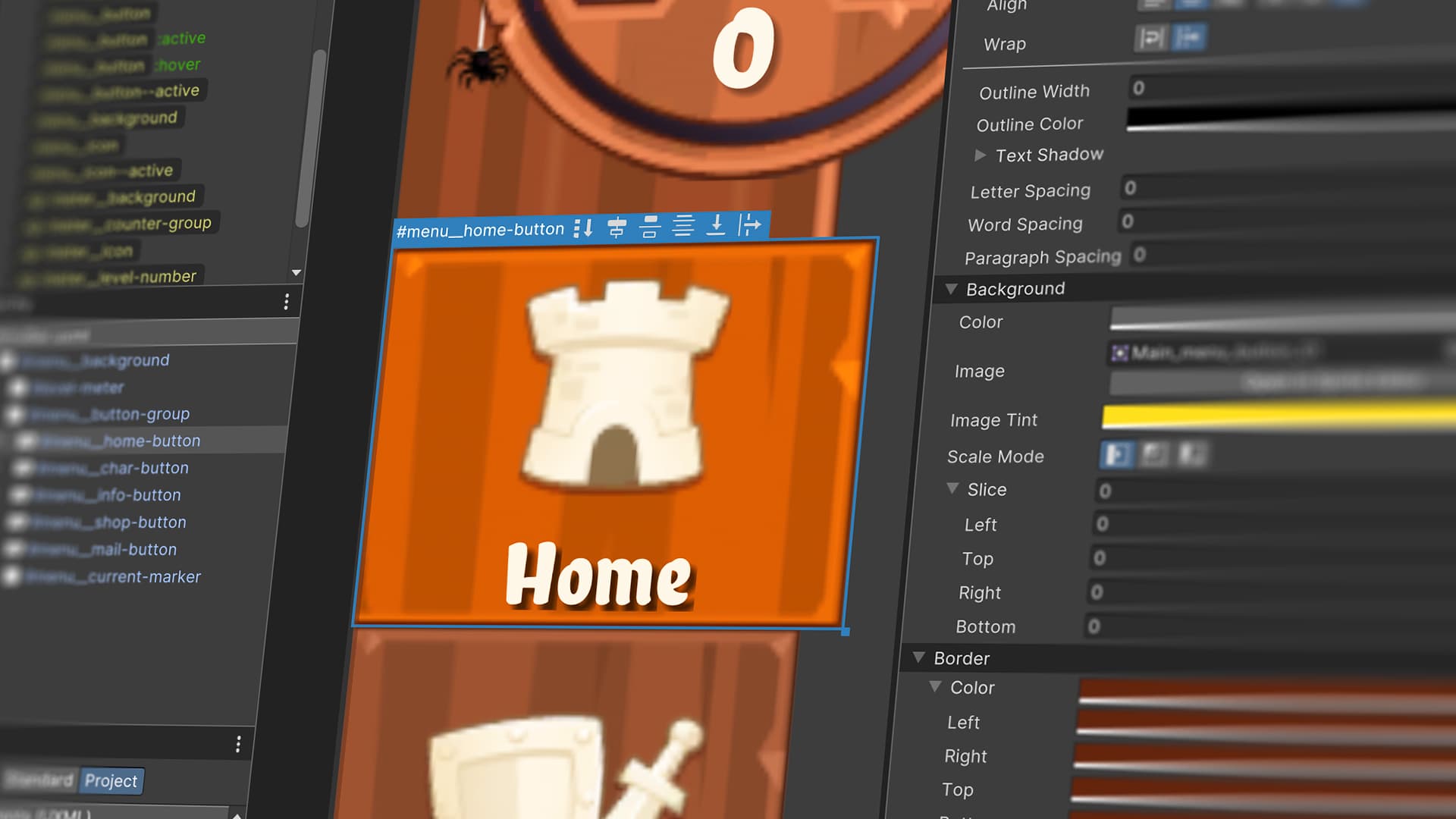
Changing style properties directly in UI Builder
The new and revised sections primarily for artists and designers include:
-
Graphic and font assets preparation, covering bitmap images, sprites, fonts, vector images, using texture packers, the 2D PSD Importer and more
-
UI Builder, the interface that allows artists and designers to edit and visualize the UI as it’s being built
-
Layouts in UI Builder, covering the core runtime components, a thorough walkthrough of the Flexbox, the method used in UI Builder for positioning UI elements by arranging them in rows or columns.
-
Visual elements, their positioning, key settings, margin and padding, background images, etc.
-
Styling, including working with USS selectors, USS transitions animations, swapping styles on demand, and adding themes to UI, like Halloween
-
Text, covering font asset settings, rich text, sprite asset and emojis, text style sheets, and more
And for programmers

Swapping data sources updates the data bindings. This image is from the QuizU sample project.
We cover the main topics of interest for UI programmers with the aim of making UI Toolkit more accessible to devs who have yet to use it but are keen to try it for upcoming projects. New sections in the guide for programmers are:
-
Naming conventions, covering how to use the industry-standard Block Element Modifier (BEM) naming convention for your visual elements and style sheets. With UI Toolkit you’ll need to query the visual elements and USS using a string identifier, so using a defined set of standards will lead, overall, to fewer errors and more readable code.
-
Data binding, covering the importance of the runtime data binding features in Unity 6, which links your application’s data directly to UI elements, ensuring that changes in one are automatically reflected in the other; this section covers topics (often using examples) like:
- Data binding concepts, preparing the data source
- Binding modes, data binding in UI Builder/UXML and in C#
- Type convertors, optimizing data bindings
-
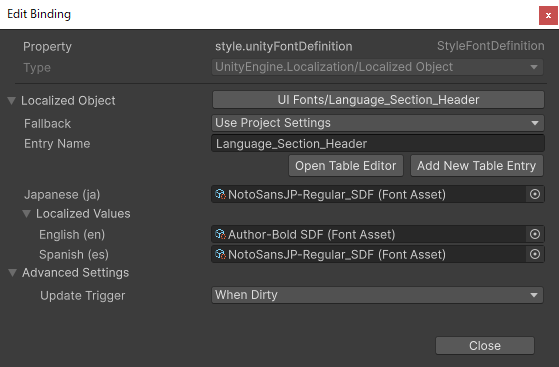
Localization covering setup, the localization API, working with String Tables, .csv files, and Google sheets, using Smart Strings in scripts, String pre-processing, localizing assets, and more
-
Custom controls, including explaining how to use the UxmlElement and UxmlAttribute attributes, and a step-through of a custom slide toggle control
-
Optimizing performance, including batching elements, the vertex buffer, the Uber shader and eight-texture limit, Dynamic texture atlases, Animations and transitions, property bags and source generation, showing and hiding elements, and memory management
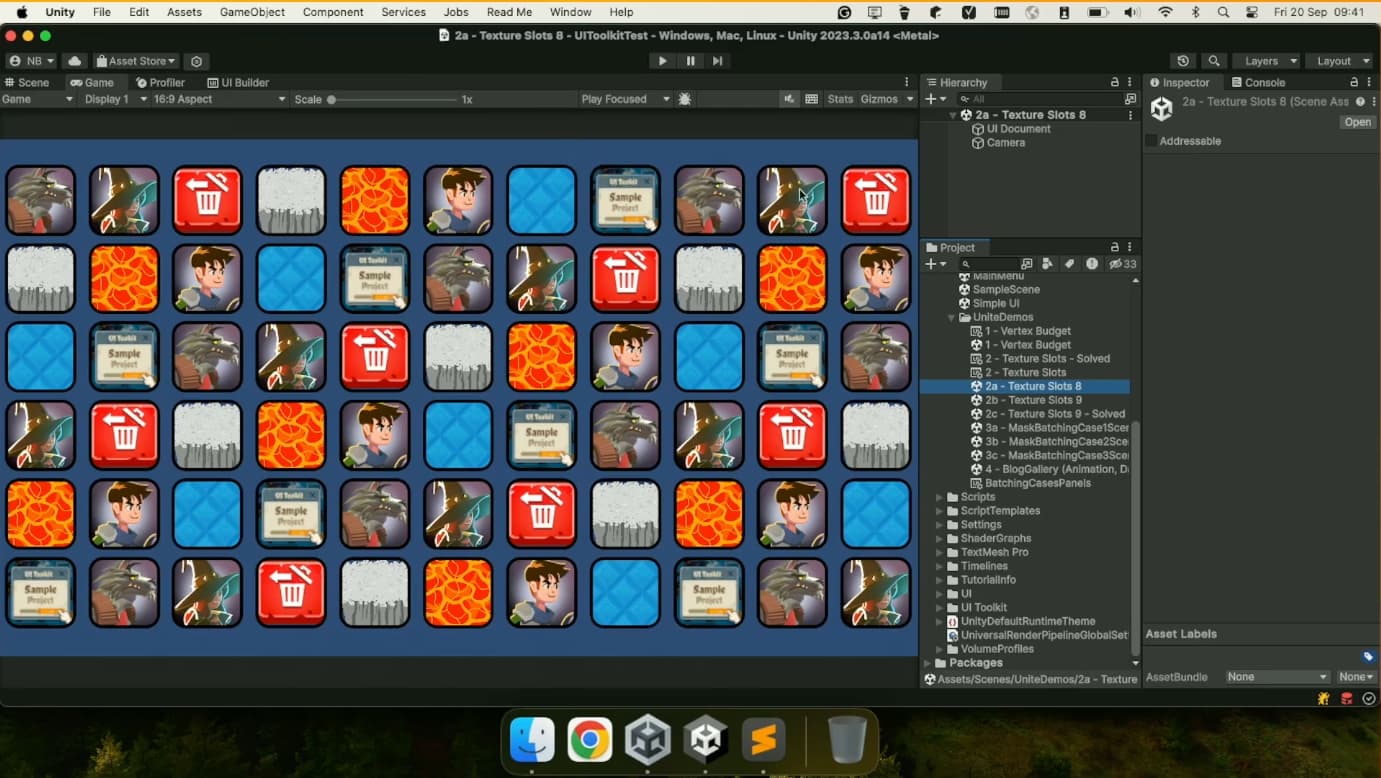
Pick up optimization techniques, for example for batching, in the e-book.
The UI Toolkit sample projects updated for Unity 6
The two samples target experienced Unity users who are capable of looking at the UI structure and navigating each demo to observe specific implementations. Of course, all users are welcome to download the projects, but picking them apart might be difficult for those of you new to Unity.
Here’s a brief list of what each one covers.
UI Toolkit sample – Dragon Crashers:
- Employ best practices for project structure and naming conventions.
- Use themes to create UI variations and add support for both portrait and landscape orientations.
- Use complex elements like tabbed menus, inventories, messages, or custom controls.
- Use the SafeAreaAPI to ensure content on mobile screens is displayed within the safe area.
- Use Localization for multiple language support.
- See how data binding simplifies the synchronization of data with UI components.
- See examples of how to implement common interfaces for casual game.
You can find a video walkthrough of the sample and download it from the Asset Store.

Explore UI Toolkit Sample – Dragon Crashers for more examples of localization.
QuizU:
- Structure UI elements efficiently using UXML files and nested visual trees.
- Apply styling rules using USS selectors and pseudo-classes to make your interactive elements react to user input.
- Use the FlexBox feature for flex-based layouts for responsive UI behavior.
- Query and modify UI elements dynamically using selectors.
- Encapsulate event handling in reusable classes, enabling custom interactions like dragging or multi-touch gestures.
- Use Event Dispatch to process events in phases and how to manage propagation.
- Use USS Transitions to add smooth animations and effects to UI elements with properties like duration and easing.
You can download the project from the Asset Store.
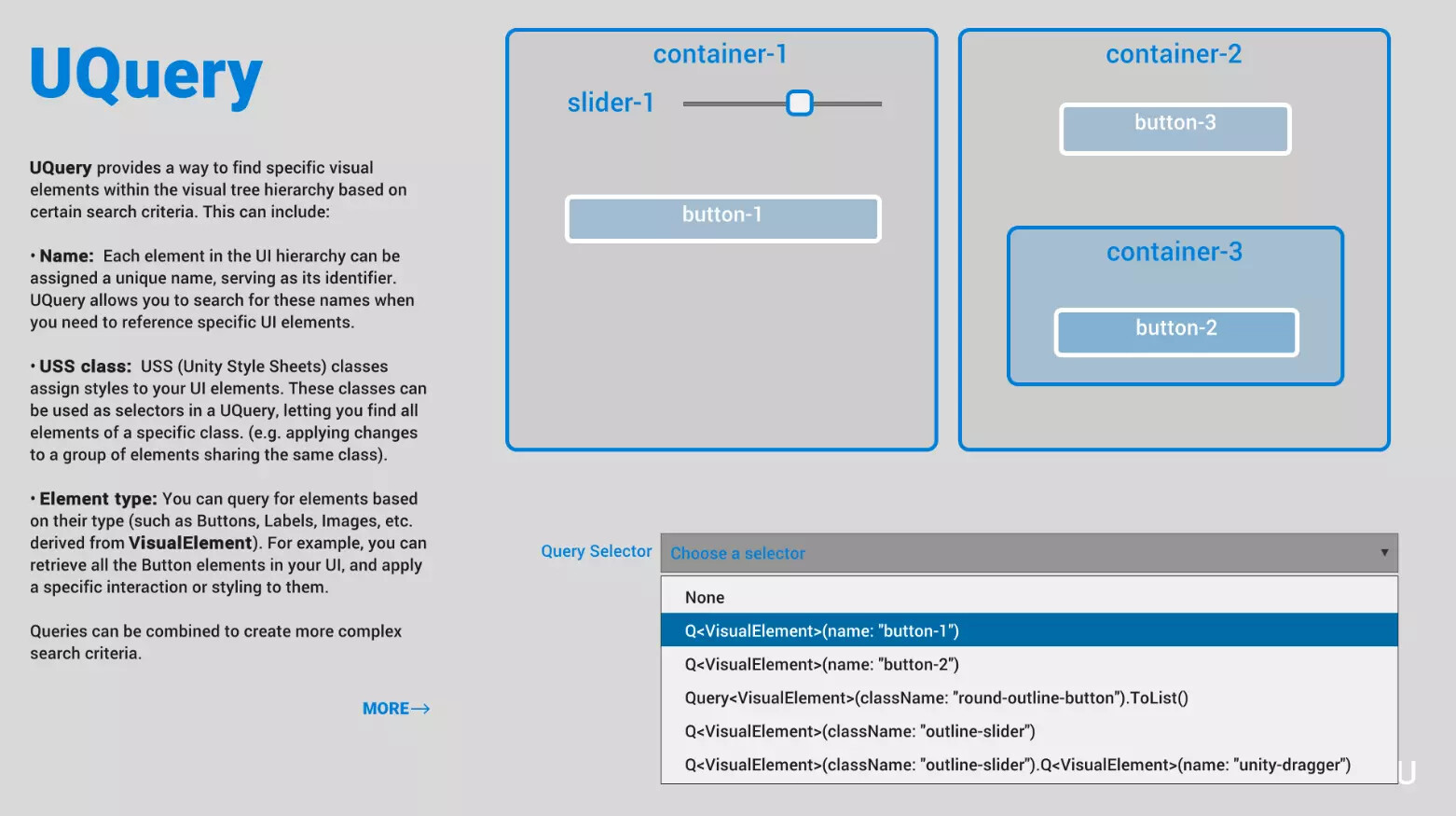
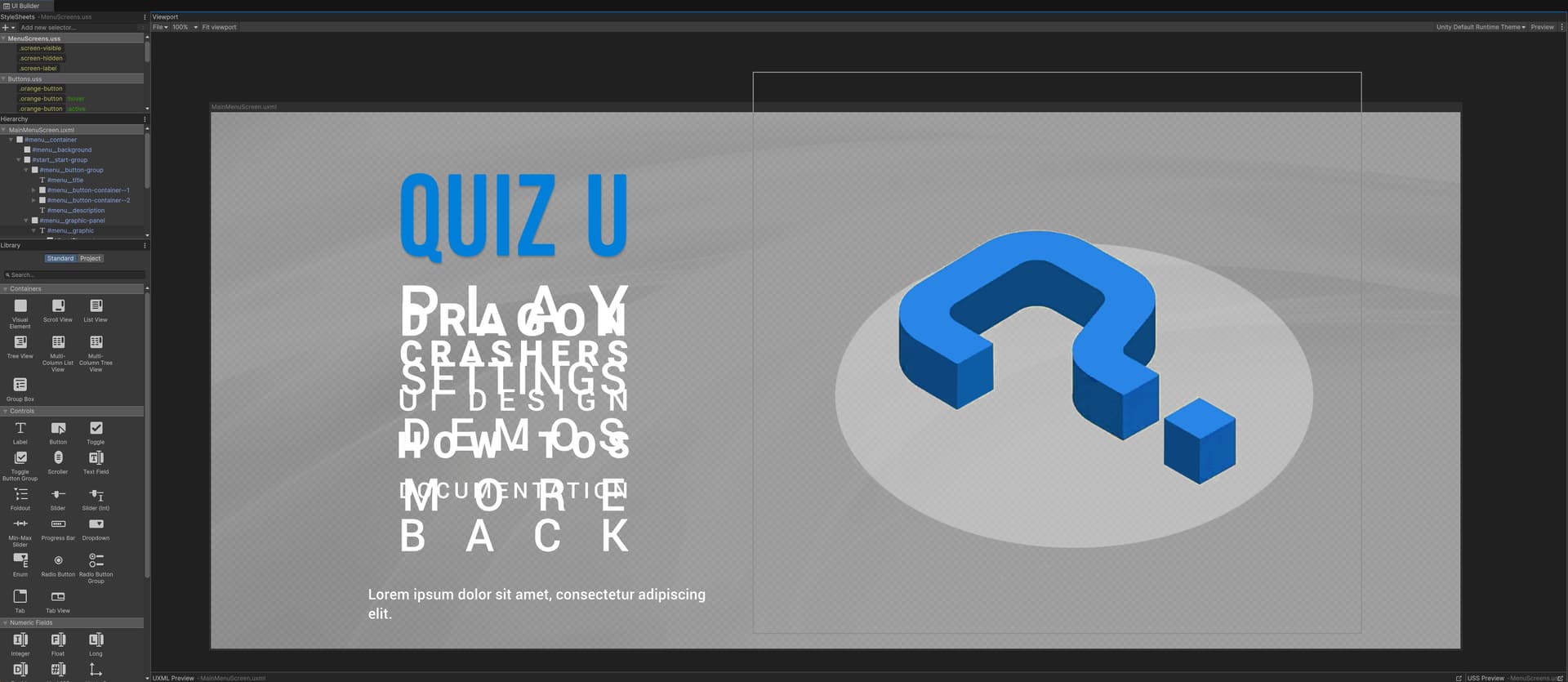
A screen shot from the QuizU UI Toolkit demo
More upskilling resources for UI Toolkit in Unity 6
We hope you find the new UI Toolkit e-book and sample projects helpful in developing your game UI in Unity 6.
If you are a new user to Unity and UI implementation, there are a number of new resources available about how to get started with UI Toolkit in Unity 6:
- Getting started with UI Toolkit: This tutorial covers steps like setting up a UI Document, creating and configuring, and adding a background image and logo.
- Make a Health Bar with UI Toolkit: In this tutorial, you’ll harness the power of Unity’s UI Toolkit to display a health bar in the provided support project.
- UI Toolkit Fundamentals: In this course, you’ll learn how to create UI elements, attach global styles to your elements, and write logic to interact with your UI.
For all the latest product news see the Unity 2025 Roadmap session from GDC 2025 – the section on UI Toolkit starts at around the 30:15 mark.
Finally, you can find all of the latest e-books for advanced developers, artists, and technical artists in the Unity best practices hub and the best practices resource section in Unity docs.