Hi,
i’m using the standard shader with smoothness and metallic all turned down; my mesh has smooth edges.
When viewed from a low angle it produces a bright line, as if it had specular enabled.
In the screenshot specular is turned on, but it makes zero difference if it’s disabled.
The legacy diffuse shader seems to produce the desired visual result though.
I also tried assigning an albedo texture with alpha set to none on import (and setting smoothness source to albedo alpha), which also didn’t change anything.
Is this normal?
If you disable both specular and reflections does it go away? Otherwise try using Standard (Specular) and set the specular color to black. Metallic 0.0 is not the same as Specular 0,0,0!
I already tried those options, none of which changed the outcome to what i expect to be correct. I feel as if it it has to do with the vertex smoothing and the way the light calculation handles the curvature (the contrast just seems too strong)
That cube has smoothed normals, which mean the back third of the cube’s top face is pointing “away” from the camera as far as the vertex normals are concerned. This is something that PBR shaders don’t handle well since in real life it’s impossible to see surfaces facing away from you, so the math for fresnel approximations tend to go a little crazy.
Basically in the real world, theoretically every object gets closer to becoming a perfect mirror the close to parallel it comes. Again, in real life, it’s not possible to see a surface that’s actually perfectly parallel to your view, but in computer graphics this happens all of the time since the interpolated vertex normal will face away from the camera at some point on pretty much every smoothed normal or normal mapped surface. Unity’s PBR, while “correct”, tends to look way to bright partially because of this, and is specifically the cause of the bright line you’re seeing.
The solution is … use the legacy diffuse shader instead if it’s causing you problems.
That’s a good explanation, thanks!
Edit: is there any way i can decrease the fresnel on the standard shader somehow?
Edit2: I think i can live with using a linear colorspace, that tones it down to an acceptable range
Yes! By making a custom version of the standard shader and rewriting parts of several files! … So, not really. It’s a feature that’s been asked for a few times, and some ongoing research for PBR shading (by the likes of Disney and academic institutions whom originally came up with much of the math Unity uses) has pushed some to offer that control to better match real world measurements. But thus far it’s not been something Unity has implement. Oddly doing so might not actually help you since this issue since the problem is probably actually coming from the PBR diffuse approximation that Unity uses, which is an diffuse approximation written by Disney that other studios have abandoned due to it not being energy conserving … essentially meaning the diffuse can be brighter than the light hitting it.
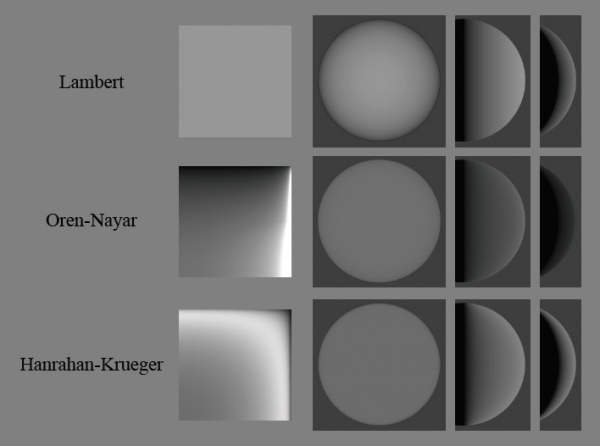
Disney’s diffuse model is an approximation of Hanrahan-Krueger.
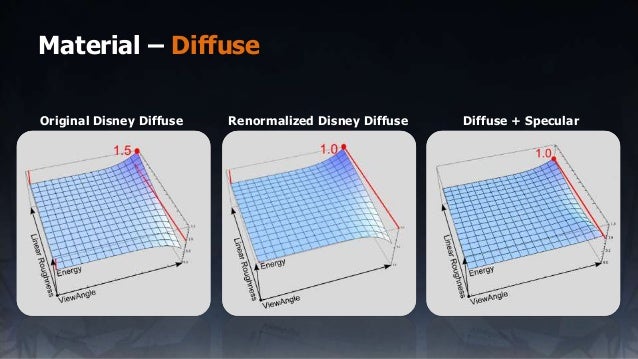
And this is a slide from a Frostbite (used for Battlefield, and basically every game from EA now) talk about using PBR showing that they had to modify the Disney diffuse to stop it from going too bright.
There is one last thing you can try. Disable both specular and reflections, then set the smoothness to 1.0. With a smoothness of 1.0, Disney diffuse is very close to Lambert diffuse, what the Legacy diffuse shader uses.
Interesting insights. Unfortunately the trick you mentioned did not help with the fresnel band, it only made it brighter. I think i’ll stick to the legacy shader for now.