Greetings from the Unity graphics team,
Unlike older APIs (DirectX11, OpenGL), modern graphics APIs (DirectX12, Vulkan, Metal) provide low level control over memory allocations and transfers. This introduced new challenges and opportunities for reducing the memory overhead.
We observed that high memory usage can be a common cause for lower GPU performance on modern APIs, and have been working on new optimizations which we would like to share. Along with general tips.
Before looking at these optimizations, it is useful to quickly review the memory architecture and characteristics of different platforms. Along with the impact of memory consumption and bandwidth usage on GPU performance.
GPU memory architecture at a high level
Discrete GPUs, like those found in your average gaming PC, include their own dedicated graphics memory. Which the GPU can access with very high bandwidth. This allows the GPU to read and write a huge amount of data all at once. Powerful gaming GPUs can have memory bandwidth of over 1000 GB/s.
Integrated GPUs, like those found in mobile devices and PCs without dedicated GPUs, utilize a shared / unified memory architecture. During rendering the GPU will read and write directly to system memory when needed. Mobile GPUs are often constrained by lower memory bandwidth which has to be shared between the CPU and GPU:

While the dedicated GPU enjoys very high memory bandwidth when accessing VRAM, transferring data to system memory will be limited by PCI express bandwidth. PCIe 4.0 with x16 slots has a limit of around 32 GB/s (unidirectional), much lower than the several hundreds of GB/s found in modern GPUs:

Exceeding the VRAM budget on dedicated GPUs will lead to memory bandwidth bottlenecks. The GPU will frequently run out of work to execute, and shader cores will sit idle while waiting for the needed data to be read from system memory. This leads to wasted GPU cycles, lower throughput and a large GPU performance hit.
Common reasons for high memory usage and general tips
Graphics memory usage will grow based on factors such as:
- Render texture resolution, affected by the render scale
- Number of render textures, affected by the render pipeline complexity
- Size and number of 2D textures
- Density and number of 3D models
- Number and size of allocated graphics buffers
You can minimize graphics memory usage by optimizing your texture and models. Enabling texture compression will reduce texture memory and bandwidth usage. When using a large number of textures, we recommend using Mip Map Streaming which allows you to configure the runtime memory budget for texture and mip-levels: Unity - Manual: Configure mipmap streaming
You can also reduce the Render Scale to scale down your render textures. Upscaling filters such as Unity’s STP and AMD’s FSR can then be used to preserve image quality:


One thing to consider is the behavior of Dynamic Resolution, which will currently allocate render textures using the maximum output resolution. To minimize render texture resolution, use “render scale” instead. We are actively working on a Dynamic Res optimization to limit the maximum RT resolution to fit the maximum fixed upscale resolution.
Buffer allocations are trickier and can come from numerous sources:
- Graphics buffers, created by rendering code and scripts
- Graphics buffers, created by systems such as Shuriken and VFX Graph
- Scratch buffer allocations, created by the engine when recording draws and when binding new shaders
In your own rendering scripts, it is generally advised to create a smaller number of larger Graphics and Compute Buffers. Also be mindful of the number of Shuriken and VFX Graph effects you create, as these can lead to a sharp increase in memory usage. When using VFX Graph, we recommend you utilize the new Instancing option to reduce memory usage: Instancing | Visual Effect Graph | 17.4.0
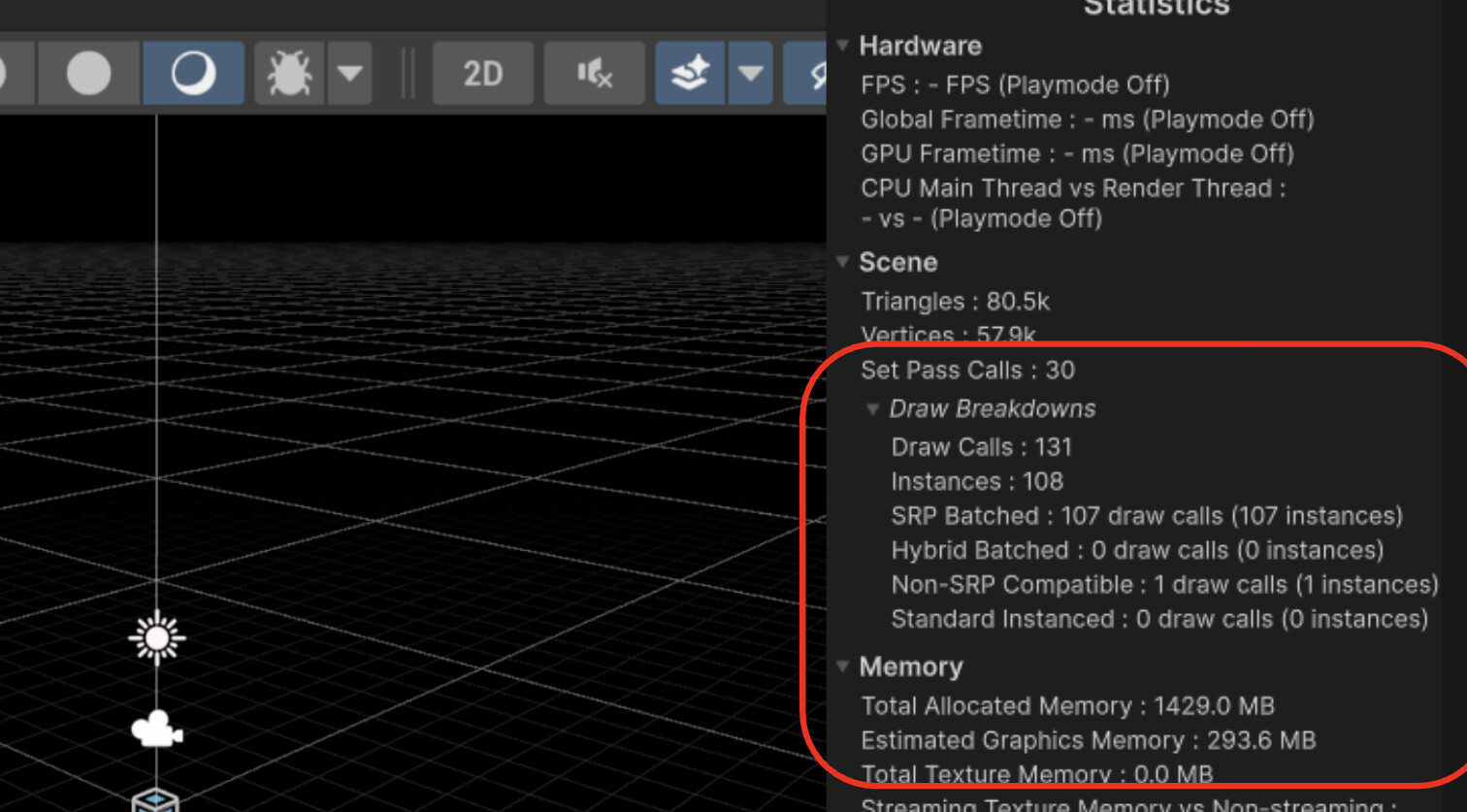
Scratch buffer allocations can grow significantly with poor draw call batching. We recommend you make sure the SRP batcher is being used effectively, to minimize the number of set pass and shader binding calls. Note that the older “Built in Render Pipeline” does not support the SRP batcher. You can use the Editor’s Statistics window to track the number of draw calls, batches and set pass calls. This view is now updated in Unity 6.4 to provide more accurate and useful metrics:
Tight alignment for DX12
The number of scratch buffer allocations can quickly grow based on draw calls and shader binding calls. We profiled numerous projects and saw up to 30,000 scratch buffer allocations in more complex PC games.
Historically, the DX12 graphics API enforced very strict minimum buffer alignment requirements. Unlike Vulkan, buffer alignments for DX12 were fixed constants, and not defined based on the GPU and its reported capabilities. DX12 forced a 64KiB alignment for buffers and textures. While D3D12_SMALL_RESOURCE_PLACEMENT_ALIGNMENT exists, it cannot be used for buffer allocations. Only for small textures that fit certain requirements.
This can lead to significant memory waste which grows with the number of resources. The limitation is now addressed in the latest Agility SDK version which introduces support for Tight Buffer Alignment for DX12: Agility SDK 1.716.0-preview: Tight Alignment of Resources - DirectX Developer Blog (out of preview in 1.618 Agility SDK)

To avoid potential bandwidth bottlenecks, resources may live in graphics memory even if not used by the current frame. Profiling a complex PC game with a lot of buffer allocations showed around 2GB reduction in allocated and unbound graphics memory:

Tight buffer alignment is supported in the upcoming Unity 6000.4.0a3 and backported to 6000.3.0b7. Major GPU vendors have been rolling out support for this flag. Before testing this optimization, we recommend making sure your graphics drivers are up to date. You can fetch the latest Nvidia drivers here: NVIDIA GeForce Game Ready Drivers . AMD GPU support is also available in the latest derivers (Adrenalin Edition 25.9.1 and newer).
if your project exhibits significantly higher graphics memory usage when moving to DX12, we recommend using the new DX12 Device Filtering setting to increase the minimum driver requirement to more recent versions. This will ensure you are running DX12 on devices with Tight Alignment support. (To read more about this, check the recent Graphics device filtering for Vulkan and DX12)
Improtant note: The RenderDoc debugger does not support Tight Alignment as of yet. Enabling a RenderDoc capture (through the Editor’s capture button, or by using RenderDoc directly) will disable the Tight Alignment flag. You will likely see higher memory usage as a result.
Optimized scratch buffer for DX12
We also optimized the DX12 scratch memory in Unity 6.2 by implementing smaller buffer allocations with less padding. Frame tracking is also introduced in order to delete unused buffers and free memory. This optimization is observed to reduce memory usage by around 7-25% in our tests

Unity 6.4 will introduce additional optimizations to reduce the CPU overhead associated with smaller and more numerous buffer allocations. In our tests, we observe a CPU time reduction of up to 80% for buffer allocations. This upcoming change will also introduce new command line arguments which could be used to fine-tune the DX12 scratch buffer:
- ‘-d3d12-min-scratch-memory’ controls the minimum amount of scratch memory the allocator will retain regardless of usage. Defaults to 32 MiB.
- ‘-d3d12-min-client-scratch-memory’ controls the minimum amount of scratch memory for dynamic vertex buffers allocated from the main thread. Defaults to 3 MiB.
- ‘-d3d12-scratch-release-delay’ controls how many frames a buffer has to remain unused before it will be freed. Defaults to 200 frames.
Ray tracing memory usage
Ray Tracing can lead to a big increase in graphics memory usage, as we need to build and upload the Ray Tracing Acceleration Structure (RTAS) to GPU memory. Previous Unity 6 releases introduce important optimizations to the RTAS which lead to significant reductions in memory usage:
- BLAS compaction reduces memory usage for static meshes
- A new small-BLAS allocator reduces memory usage for small meshes and detail
- The “Minimize Memory” flag can be set on a per-renderer basis to further reduce memory usage
We measured these optimizations with large scene of around 6.7 million triangles:

To benefit from these optimizations, make sure you set the Mesh Renderer Ray Tracing Mode to “static” and also enable the new Minimize Memory flag:

Native Render Pass for Vulkan, Metal and DX12
Memory traffic can have a big impact on GPU performance, especially on mobile devices with very limited memory bandwidth. Transferring data between the GPU and system memory is also a big contributor to battery consumption and thermals. With a lack of active cooling, most mobile devices will quickly throttle the GPU when things get toasty.
A common contributor for per-frame memory transfers are framebuffer load and store operations. This can be a critical bottleneck for mobile and XR devices which use a high display resolution. A full HD image with 3 load/store operations can result in ~48 MB of transfers per frame. This overhead will grow with pixel resolution, the number of render textures and render passes:

Modern graphics were designed to address this problem with the introduction of Native Render Passes (NRP). Originally supported on Vulkan and Metal for mobile, this is now extended to DirectX12 for Windows on ARM. The NRP C# API allows the Universal Render Pipeline to merge compatible render passes together, significantly reducing memory transfers. With our previous example, we can eliminate 2 load/store operations for a ~66% reduction in framebuffer transfers:
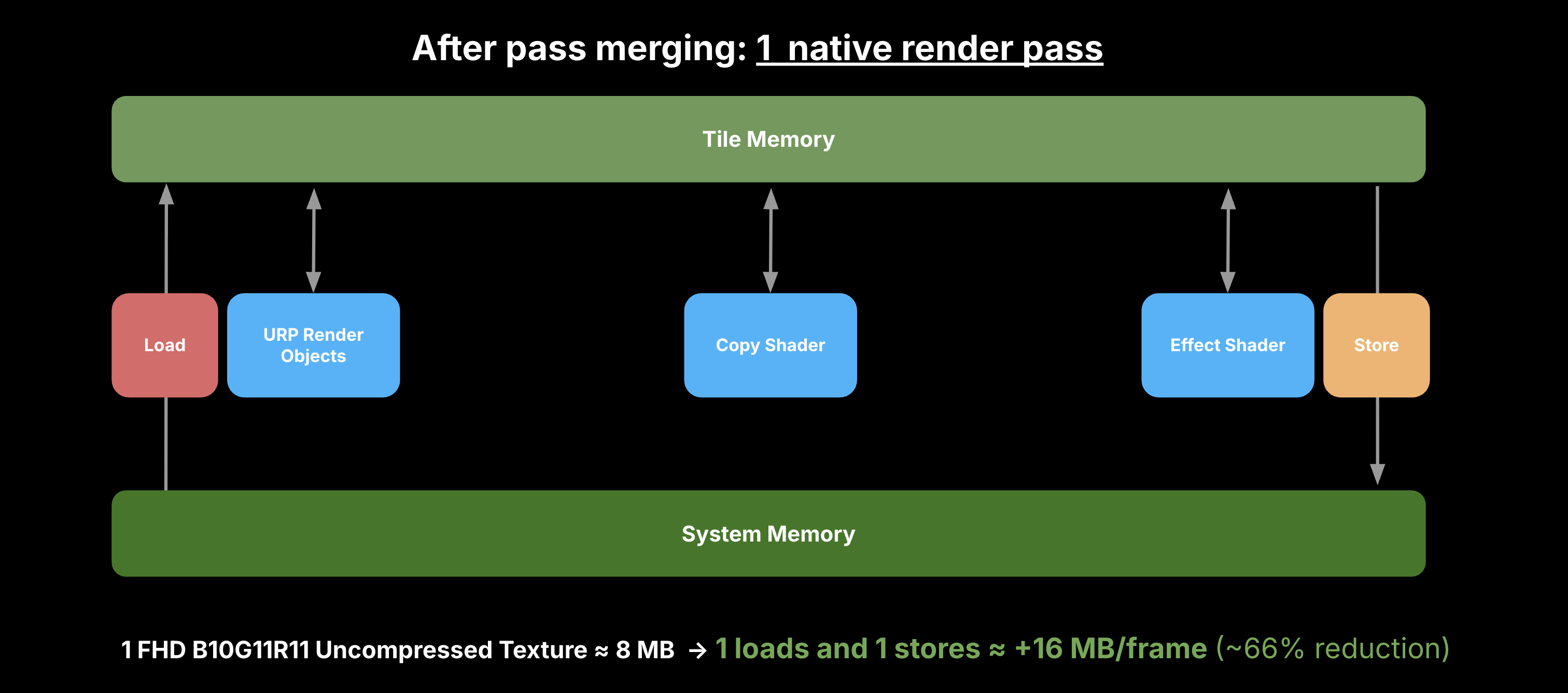
Native Render Passes are integrated with URP via the Render Graph system in Unity 6. URP is now able to minimize the use of framebuffer load/store operations to improve efficiency and performance. A good example is with Deferred rendering, where we can avoid a large number of load/store operations for the GBuffer textures. Resulting in over 60% reduction in GPU transfers to/from memory.
It is recommended to check your render pass configuration with the new Render Graph Viewer tool (Window → Analysis → Render Graph Viewer), to track the number of render passes and render textures. Certain renderer settings can have a big impact on bandwidth usage. For example, setting the Depth Texture Copy mode to “After Transparents” can greatly reduce bandwidth usage when using the Depth Texture. To learn more, check the URP manual:
We are extending the Render Graph system to support additional rendering features, like the new “On-Tile Post Processing” renderer feature for Quest (Vulkan) in Unity 6.3.
On tile post processing for URP on Quest 3 (MSAA, x1.5 Render Scale, HDR)

Tracking and and analyzing memory usage
If your project suffers from lower GPU performance when transitioning to modern APIs (DX12, Vulkan, Metal) we recommend you check your application’s graphics memory usage.
A good entry point is Unity’s own Memory Profiler (Window → Analysis → Memory Profiler), which provides a rough estimate of the total memory used, along with the portion used by the Graphics Device. This can be an effective way to validate the impact of changes in the Engine and your projects:

You may notice that a large sum of native graphics allocations can show as “Untracked”. We are currently unable to track these allocations in the Memory Profiler, but are looking into improving on this in future releases.
For more accurate and detailed data, we recommend using 3rd party profilers provided by GPU vendors. A good example is Nvidia’s NSight Systems, which allow you to track VRAM consumption and memory traffic over time. AMD’s Radeon Memory Visualizer allows you to easily track graphics memory allocations and their associated resource type:

For mobile, we recommend using tools like Apple’s XCode Metal Debugger (iOS/macOS) to track memory related metrics:

Please try the latest optimizations and share your feedback!


