
Most mobile GPUs, including those in untethered XR devices, use a tile based rendering architecture. Work remains performant and efficient as long as it stays inside the fast but limited on chip tile buffer. Extra cost appears when the pipeline stores data to system memory, because this increases bandwidth usage. And this bandwidth produces heat, because electricity flows through the chip. Besides the temperature increase, the rendering can also become bandwidth bound, especially on low end mobile devices or in untethered XR where the amount of pixel information is very high due to high-resolution stereo rendering in front of the eyes.

How Unity 6 and the Render Graph Viewer help you stay efficient
Unity 6 uses the Render Graph system to automatically build an optimal pipeline configuration for the current frame. It merges compatible passes, removes unnecessary resources, and stays on tile whenever possible.
To understand what your frame is doing, the Render Graph Viewer is essential.

The Render Graph viewer shows:
- Which passes can be merged into a single native render pass (blue line)
- Which textures stay memoryless and which need stores or loads (filled vs. empty square on the left). The empty square is only visible on supported hardware with DX12, Vulkan or Metal.
- Where load/store operations are happening, and bandwidth is increased (red triangle = store, green triangle = load)
Whenever you change settings in your render pipeline, you immediately see how the Render Graph adapts. You can now also connect the viewer directly to player builds running on devices. This lets you inspect Render Graph execution on real hardware, see how native render passes actually merge at runtime, and spot unnecessary load or store operations. Especially to validate if your project is using memoryless resources correctly is best inspected when connected to the real device (e.g. Meta Quest headset).
As a base for the following two examples, we use a very minimal base pipeline. The Render Graph viewer below shows this pipeline that directly renders to the backbuffer, through a single Native Render Pass.

Example 1: Depth Texture and pipeline changes
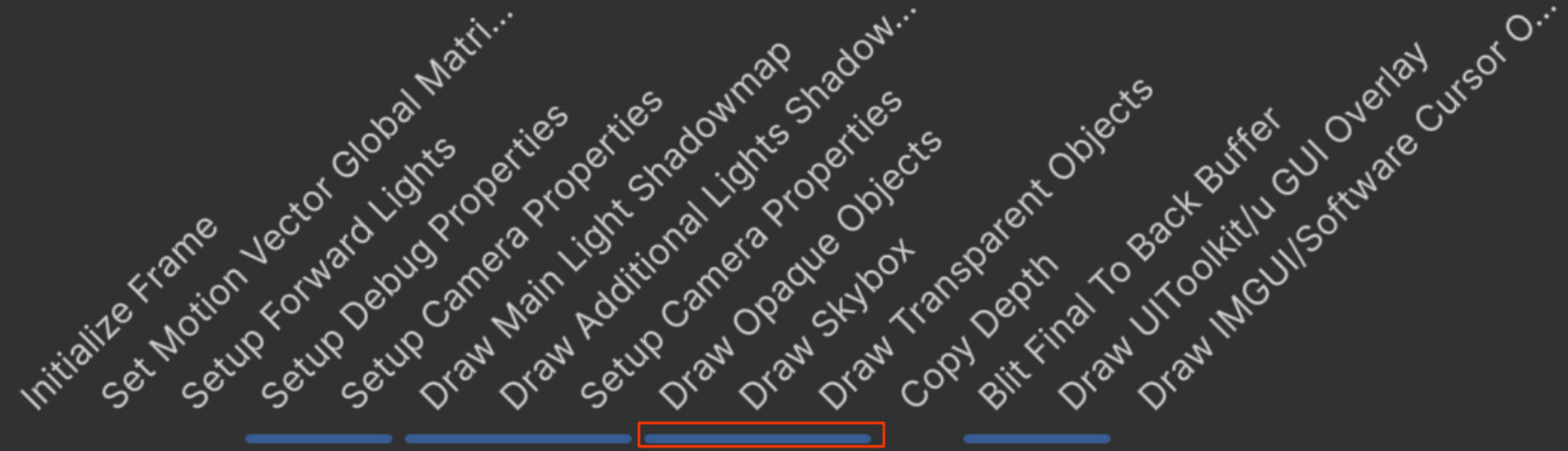
A simple checkbox can change how much memory bandwidth your rendering consumes. If you enable the Depth Texture option in the URP asset, the following happens:
- The merged native pass splits, because URP needs to Copy Depth after the opaque pass. On most platforms we cannot read from the backbuffer.
- URP now renders into intermediate textures (_CameraTargetAttachment, _CameraDepthAttachment) that live in main memory, which requires additional store and load operations.
- The Blit Final To Back Buffer pass appears. This step has a potentially high cost on untethered XR and low end mobile hardware. For this reason, this feature is typically not recommended on those devices.

If you do not need the Depth Texture inside your transparent shaders, you can switch the depth copy to After Transparents. This allows the opaque, sky and transparent passes to merge again.
Example 2: Post Processing
If we enable post processing in our minimal pipeline scenario, the Render Graph changes significantly. Rendering switches back to the intermediate textures described in example 1, and post processing adds several additional passes. The post processing itself runs through an Uber shader inside the Blit Post Processing pass. Depending on the active effects, additional preparation passes may be required. In this example, Blit Bloom Mipmaps appears to create the resources for the bloom pyramid.

If we disable bloom, the graph becomes smaller again. The _CameraDepthAttachment is marked with an empty square, which means it is a Memoryless Texture Resource. It can stay inside the tile and does not require any load or store operation, so it does not consume bandwidth. If we enable effects that need to read depth from neighboring pixels, such as Depth of Field (DoF), this texture would also need to be stored in system memory.

Note that a Post Processing Final Blit Pass can also appear if any of the following is true:
- FXAA is enabled. FXAA must run after all user authored passes, so it needs the final post pass.
- Upscaling is enabled with a filter that cannot run inside UberPost. Only linear filtering works in UberPost, so filters like FSR require the final post pass.
- TAA is enabled and uses standalone RCAS sharpening. When upscaling is not active, RCAS must run in the final post pass.
You can inspect these conditions inside URP’s source code here.

New in Unity 6.3: On-Tile Post Processing for Untethered XR
The principles above apply to all mobile devices. Untethered XR, however, has an additional challenge. Each eye often renders at a high resolution of around 2K by 2K, which makes these workloads very bandwidth bound. Any extra load or store has a significant cost, and since these devices target very high framerates, every additional load or store becomes even more expensive. This is why the goal is to keep the entire frame inside a single native render pass whenever possible.
Unity 6.3 introduces a new On-Tile Post Processing for Untethered XR renderer feature, developed in collaboration with Meta:
- Runs supported post effects directly on tile: color grading, vignette, HDR rendering with tonemapping, dithering and film grain
- Removes the final blit so the entire frame can run in a single native render pass
- Avoids storing intermediate textures
- Reduces thermal pressure by lowering memory bandwidth, which helps keep rendering stable during long XR sessions
Here you see comparison results between the previously not recommended post processing, and the new on-tile post processing on Meta Quest 3:

We can directly connect the Render Graph Viewer to the Meta Quest 3 device, which shows the following pipeline:
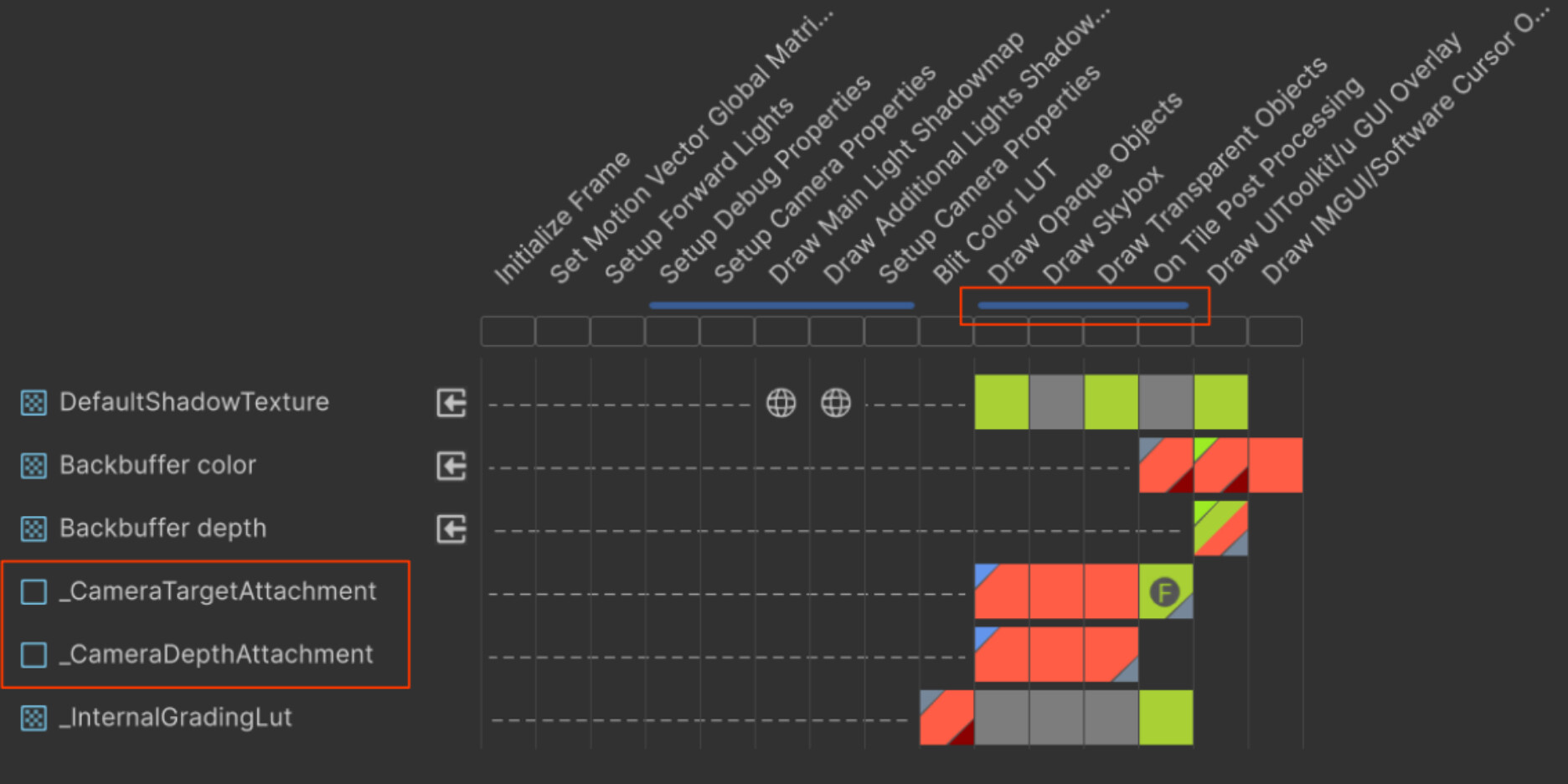
We see here an optimal configuration while still using the original post effects, which we previously recommended disabling on this platform. There is no final blit to the backbuffer, no intermediate color or depth stores, and everything runs inside a single native render pass.
Try it and share feedback
Please refer to the documentation to learn how to enable this feature in your untethered XR project. We would like to hear how this works in your projects, especially regarding performance and memory bandwidth. Feel free to also share images of your Render Graph Viewer connected to the device.
If you already integrated color grading or similar post adjustments directly into your shaders, we would like to understand your workflow and how this new feature might simplify your setup. Let us know how you solved this before, whether the on tile approach could fit your project and how you feel about HDR rendering in XR.
Graphics Talk from Unite Barcelona 2025
We recently presented a talk at Unite Barcelona titled “Glow up your graphics with Unity 6.3 LTS and beyond. Maximizing graphics performance and visual fidelity across platforms”. The video is now available and includes a section on energy-efficient rendering starting at 26:35 with live demos around this topic.
